1. What Sundial does
Sundial is a project management application for organizing work, managing a team, running sprints, and forecasting delivery. The shared workspace and delivery simulator use the same work and staffing data. It helps project managers, technical leads, and contributors answer:
- What work belongs to the project, who owns it, and what is blocked or complete?
- What work belongs in the next sprint, and how does its remaining effort compare with available capacity?
- When can each initiative, epic, story, or task finish under the declared assumptions?
- How have scope, status, and forecast dates changed since an earlier checkpoint?
- What happens to delivery if a team member leaves or an additional person joins?
In the browser, you can edit Project and Team through forms, track work in Kanban, and plan Sprints. You can define project workflows, write descriptions and acceptance criteria, set inherited priorities, record effort, and choose the order of work. For planning and review, you can use nine diagram views, capture reporting snapshots, import existing work, and export images. Project and Team are kept together in one native .sundial folder. Committed edits save automatically and can synchronize with other users opening that folder.
Sundial takes a privacy-first approach: it processes project data in your browser and keeps it in a project folder you choose, with browser storage for recovery. Your team can collaborate through a shared folder without uploading project information to an external collaboration service. Your organization’s filesystem permissions control who can access that folder. The section on working together through a shared project folder explains storage, access, and backups in more detail.
The simulator uses estimates, recorded effort, dependencies, start constraints, deadlines, assignees, skills, working hours, availability overrides, weekends, and holidays. Kanban and Sprints update this model and share its task list.
You can create and manage a project entirely in Sundial. No external tracker is required. Sprint planning includes capacity, scope, completion, carryover, and historical boards. Sprint burndown, velocity, and cumulative-flow reports are not currently provided.
What a forecast means
Each forecast uses one set of declared assumptions. With the same model and calendars, Sundial produces the same schedule. Sundial does not run Monte Carlo trials, provide probability confidence intervals, or search for an optimal plan. The simulator allocates work each day according to scheduling priorities and resource constraints. Its dates depend on credible inputs.
2. Quick start: explore the example
- Open Sundial: https://tommesani.com/sundial/
- Maximize the browser window. Detailed forms and diagrams need a large desktop workspace.
- Click Example. Resolve any pending draft or replacement confirmation first. This loads the supplied Apollo project and team, plus an active example sprint. In an empty active reporting snapshot store, it also creates the demonstration July and August checkpoints.
- Wait for Ready. Open Project to explore the hierarchy; click a work-item name to inspect its fields.
- Open Team and choose a developer to review hours, skills, access, and calendars. Cancel any experimental draft you do not want to apply.
- Open Kanban to see status columns, or Sprints to see the example sprint and developer capacity.
- Open Diagrams. Charts use the full workspace. Close any work-item editor before reviewing the whole drawing. Review Delivery outlook, then WBS, GANTT, Sunburst, and Work tracker.
- Choose a saved baseline in WBS over time or GANTT over time, leaving with at Now for a live comparison.
- Review Scope and Milestones, then try Team what-if. Use Reset to restore a staffing scenario after experimenting.
The example includes a work hierarchy, estimates, dependencies, team calendars, sprint membership, and comparison history. The active sprint is positioned around the date the example is loaded; capacity figures depend on that date. Forecasts use the example’s reporting start, so forecast dates can be earlier than today’s date.
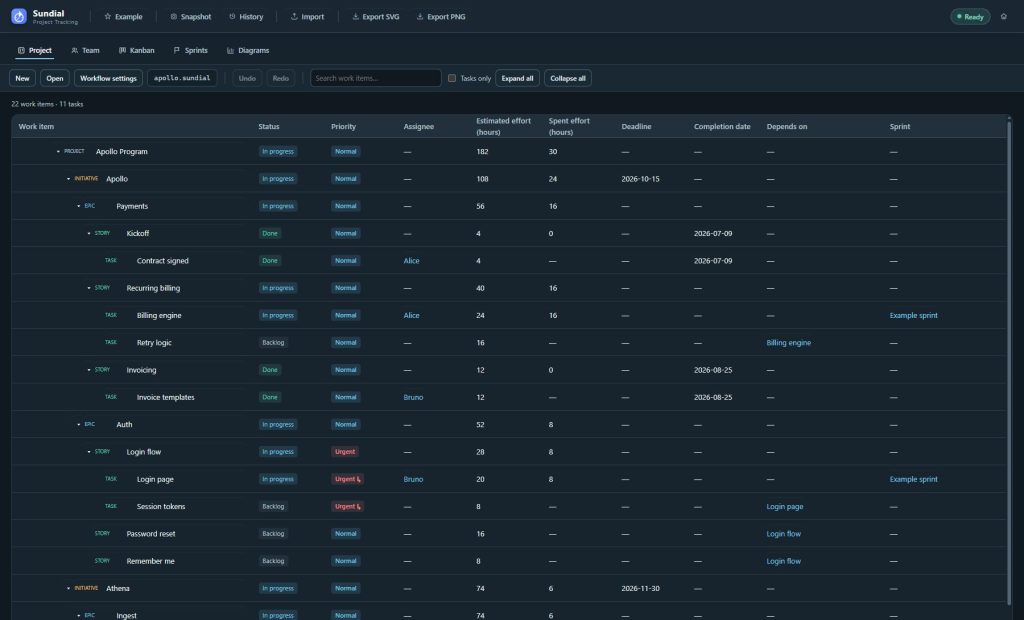
Figure 1. Project and Team are views of the same native project. The toolbar shows New, Open, Workflow settings, the project folder name, and Undo/Redo; the table includes inherited priority and navigation links.
3. Work together through a shared project folder
Several people can edit the same Sundial project through a shared folder. Work items, the team roster, calendars, and sprint plans stay in a native .sundial folder on your filesystem. Each person opens that folder in their own browser. Sundial saves committed edits automatically and exchanges them through the folder, so your team can work together without uploading critical project information to an external collaboration service.
Choose a mounted network share where everyone has read/write access. Your organization’s filesystem permissions control access to the project. Sundial needs no central collaboration server or account database, and users can edit without taking an exclusive lock.
Start a shared project
- Open Sundial in Chrome or Edge at the application’s secure address: https://tommesani.com/sundial/
- In Project, choose New and select the parent folder where the new project should live. Grant the browser access to that folder when prompted.
- Sundial creates a uniquely named .sundial subfolder. Record its actual name and location; this is the folder your colleagues must open.
- Build the work hierarchy in Project and maintain the roster in Team. Use Apply or Apply changes to commit form drafts. Committed edits save automatically.
- Make the folder available through your organization’s shared filesystem, with read/write access for each collaborator.
- Each colleague opens Sundial, chooses Project → Open or Team → Open, and selects that same .sundial folder. Opening it loads both Project and Team.
- Check the displayed folder name and review any save or collaboration notices before starting work.
Separate copies on different machines will not exchange edits on their own. Each instance needs access to the same shared container, or a filesystem mechanism that delivers the complete folder contents between machines.
What happens when two people edit
Applied changes to different tasks or different fields normally merge automatically. For example, one person can revise Billing engine’s estimate while another updates Bruno’s availability. Sundial records each edit in its native history and picks up changes from the shared folder, normally checking every two seconds. The network share may take longer to deliver them.
Unapplied form drafts remain local. If another committed change makes a draft stale, Reload draft brings in the current document before you edit again. Review your intended changes and re-enter them against that version.
If two people independently change the same field, Sundial keeps both values and reports a collaboration issue. Their browsers can agree on the shared document while the team still needs to decide which value to use. This behavior is based on Automerge’s handling of concurrent values.
Review a conflict
- Open Diagrams and expand Issues when diagnostics are present.
- Read the entity, field, and alternative values. A ConcurrentFieldWrite means multiple values were written concurrently; ModifiedAfterDelete or ConcurrentDeleteRestore requires a decision about the item’s deletion or restoration.
- Find the affected task in Project, or developer/calendar in Team. Review the current committed value with the people involved.
- After the remote changes have arrived, intentionally apply the agreed value. A subsequent write based on the observed alternatives resolves a field conflict; do not repeatedly alternate values without coordinating.
- Recheck Issues and the forecast. Also correct dependency cycles, missing references, or other validation problems exposed by the merged edits.
Deleted tasks remain recoverable. If the team decides to restore one, use Deleted tasks → Restore in Project. Restoration keeps the original identity, so later edits and history continue to refer to the same item.
Privacy, backups, and interruptions
Sundial processes project data in the browser and stores it in your chosen project folder and browser recovery storage. Collaboration does not send it to a Sundial project backend. Network requests can still occur: you need to load the application, and public-holiday lookups can contact a holiday service.
Back up the entire .sundial folder, including its manifest, changes, snapshots, and readiness markers. Keep the internal files intact and retain the change history; copying a single file is not enough. Native startup snapshots help Sundial reopen efficiently. The dated checkpoints created with Snapshot are for reporting.
If a save fails, keep the browser session open, restore access to the share, and use the save notice’s Retry action. Browser recovery can recover the working native document after a crash, but reopen the shared folder to reconnect it to the team. Review Issues after reconnecting. A project using a newer unsupported format requires a compatible application version; do not try to repair it by editing internal files.
4. Find your way around the workspace
Main workspaces
| Tab | Purpose |
|---|---|
| Project | Build the work hierarchy; edit descriptions, acceptance criteria, priorities, dependencies, effort, assignees, dates, sprint membership, and workflow settings. |
| Team | Maintain developers, capacity, skills, access, locations, and calendars. |
| Kanban | Review actionable work by status, developer, or epic; move cards and open their task forms. |
| Sprints | Plan scope, review developer capacity, start a sprint, and complete it with a checkpoint. |
| Diagrams | Review the nine current, comparison, history, and staffing views. |
The Project and Team toolbars have New, Open, the native project folder name, Undo, and Redo. Use the forms to edit and apply changes. Sundial saves them automatically; there are no Project/Team YAML mode switches or separate Save buttons.
Application header
| Control | Purpose |
|---|---|
| Example | Load demonstration work, team, and an active sprint; seed reporting history only when the active store is empty. |
| Snapshot | Capture the committed Project and Team as a dated reporting checkpoint after resolving pending drafts. |
| History | Browse reporting checkpoints, load one, select a comparison baseline, or manage snapshot storage. |
| Import | Bring existing work into the project from a supported offline export. |
| Export SVG / Export PNG | Save available diagrams together in a ZIP archive. |
| Ready / Simulating… / error state | Check whether the current model has been processed successfully. |
Diagrams, Delivery outlook, and Issues
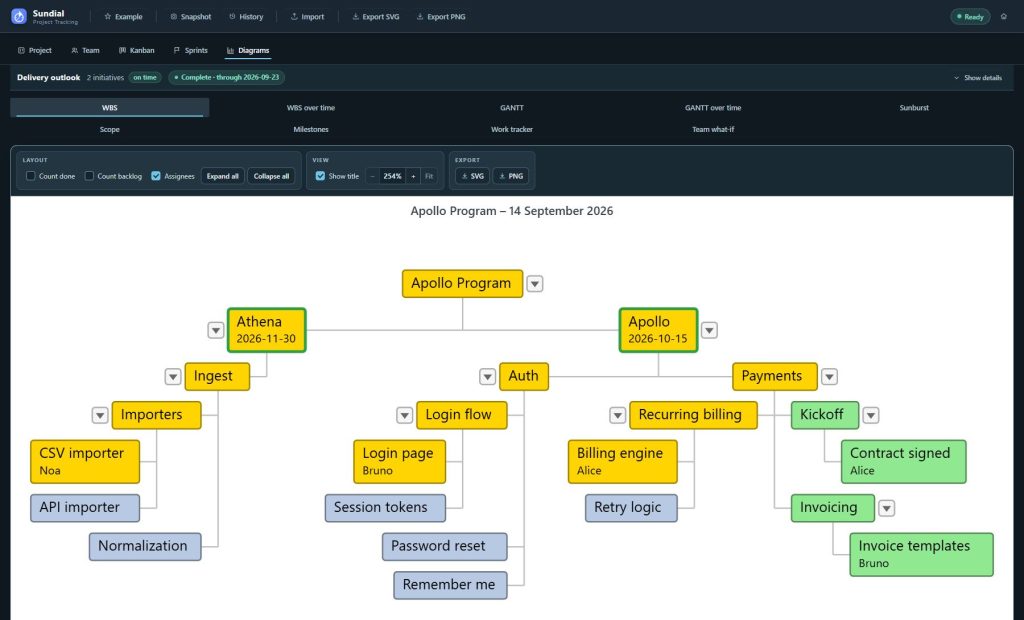
Figure 2. Diagram selection and Delivery outlook sit above the chart. The diagram fills the workspace until you open a work item for editing. Hide Delivery outlook details when you need more chart height.
Choose Diagrams, then the required diagram tab. Use a large window for viewing and captures. Hide details in Delivery outlook reduces the summary’s height when more chart space is needed.
Delivery outlook lists initiative-level predicted delivery, declared deadline, and slip in calendar days. On time means predicted finish is on or before the deadline. Complete · through … means the simulation finished scheduling the model through that date; it does not mark tasks Done.
Sundial refreshes the forecast when you apply a valid edit, so there is no Run button. While you enter a draft, the forecast still uses the committed model. Expand Issues when diagnostics appear and resolve them before using the result. After a failed update, some diagrams keep the last successful result and show an error or stale-state indicator.
5. Open, create, and preserve a native project
One container for Project and Team
A .sundial project folder holds the native collaboration document and history for work items, developers, calendars, sprints, and related model data. Project and Team have separate editing screens, but their data and collaboration history are stored together. There is no pair of editable YAML files to maintain.
Use Chrome or Edge with directory access on a secure application origin or localhost. Open asks for a directory: select the actual .sundial container, not its parent, an individual change file, or a reporting snapshot. Opening through either Project or Team loads both halves.
Sundial cannot open or migrate legacy Project/Team YAML files through native Open. Reporting snapshots and optional import mappings are separate files with their own uses; neither is a native project folder.
Create a project
- In Project, choose New and resolve any pending draft or replacement notice.
- Choose the parent directory and allow the browser to write there.
- Sundial creates a uniquely named .sundial folder with a new Project root and a reporting period beginning today. The currently available Team is used for the new project; review it before estimating capacity.
- Click the root’s name to rename it, then use the hierarchy controls to add work.
- Open Team, review developers and calendars, and apply needed changes.
- Verify save notices and a successful forecast. Retain the actual folder path for reopening or sharing.
Choosing New in Team replaces the current project’s roster and calendars. It does not create a separately saved Team file.
Automatic saving and recovery
Applying Project or Team forms, changing Kanban status, editing sprint plans, and Undo/Redo commit native changes and trigger saving. There is no separate disk-save step for each tab. Plain Ctrl+S does not apply a draft or create a reporting checkpoint; use Apply to commit and Snapshot for a reporting baseline.
If the model is not connected to a folder, Sundial may ask you to choose a parent directory when it first saves. Connect it before relying on shared editing. Check errors and Retry notices: the displayed filename alone does not confirm that the latest save succeeded.
Browser recovery belongs to the current browser profile and application origin. Clearing site data can remove it. Back up the complete native folder for a durable copy you can move between machines. Reporting snapshots are additional checkpoints and do not preserve the native collaboration history.
6. Edit Project work with structured forms
Browse the hierarchy
Open Project to see the work-item table. Use Search work items, Tasks only, Expand all, Collapse all, and individual disclosure arrows to find the relevant work. The table shows status, effective priority, assignee, estimated and spent hours, deadlines, completion dates, dependencies, and sprint links. An inherited priority has a small arrow beside it. Parent effort and status roll up from descendants.
The usual hierarchy is Project → Initiative → Epic → Story → Task. Some diagram specifications call initiatives Releases. A story without children can carry its own estimate. Once an item has children, it rolls up their work and has no separate estimate.
Edit a task
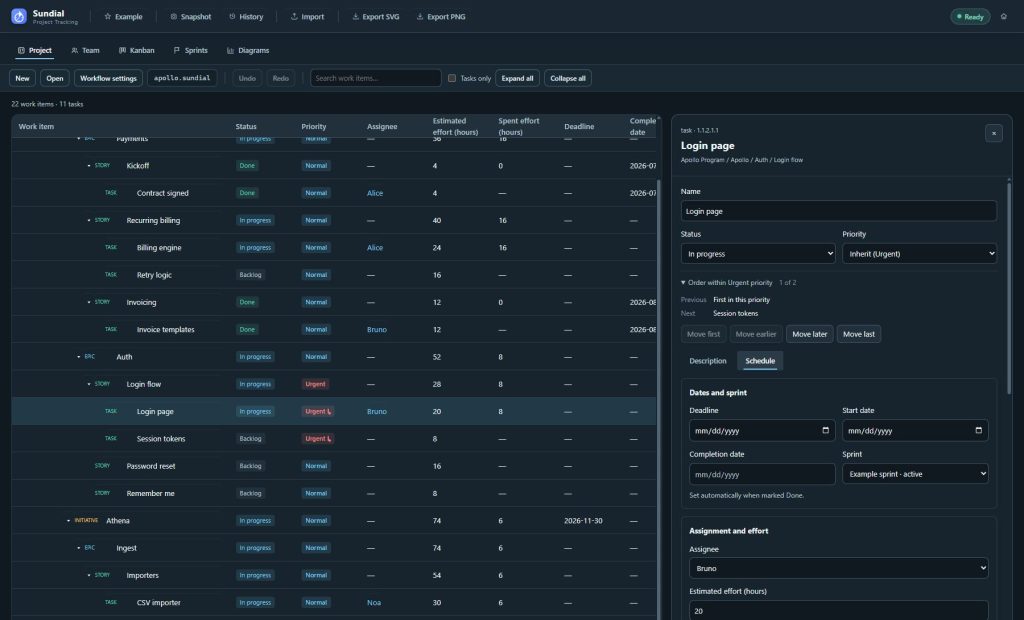
Figure 3. A task form edits the same model used by Kanban, Sprints, and the forecast. Apply commits the draft and saves it automatically.
- Click the task’s name in the table or open its card from Kanban.
- Edit Name, Status, and Priority above the tabs. Status choices come from the project workflow; priority can be explicit or inherited.
- Open the Description tab to write Description and Acceptance criteria. Use the description for context, requirements, and implementation notes. Use acceptance criteria to describe the observable conditions for calling the work complete. Both accept Markdown. Use Preview to check the formatted result and Edit to return to the text. Raw HTML shows as plain text and never runs.
- Open the Schedule tab for the planning fields: Deadline, start and completion dates, Sprint, Issue link, Assignee, Estimated effort (hours), recorded effort, dependencies, skills, and Parent work item. Set Estimated effort (hours) to the total estimate; Sundial calculates the remaining effort from the recorded work. For a 24-hour task with 16 hours spent, the remaining forecast effort is eight hours.
- Click Apply. If validation fails, correct the highlighted errors and apply again. A failed Apply opens the tab containing the first error. Wait for the forecast to refresh.
Cancel discards the current draft. Switching tabs never discards it. Undo reverses a committed edit; cancelling a form after an earlier Apply does not undo it. If Project or Team changed underneath the draft, use Reload draft and review the newer model before entering changes again.
Descriptions and acceptance criteria are available for every work item type, including initiatives, epics, and the project itself. These fields are stored with the work item in the native project and are shared with people who open that folder. Acceptance criteria provide written guidance. Marking Done does not run tests or ask you to confirm an acceptance checklist.
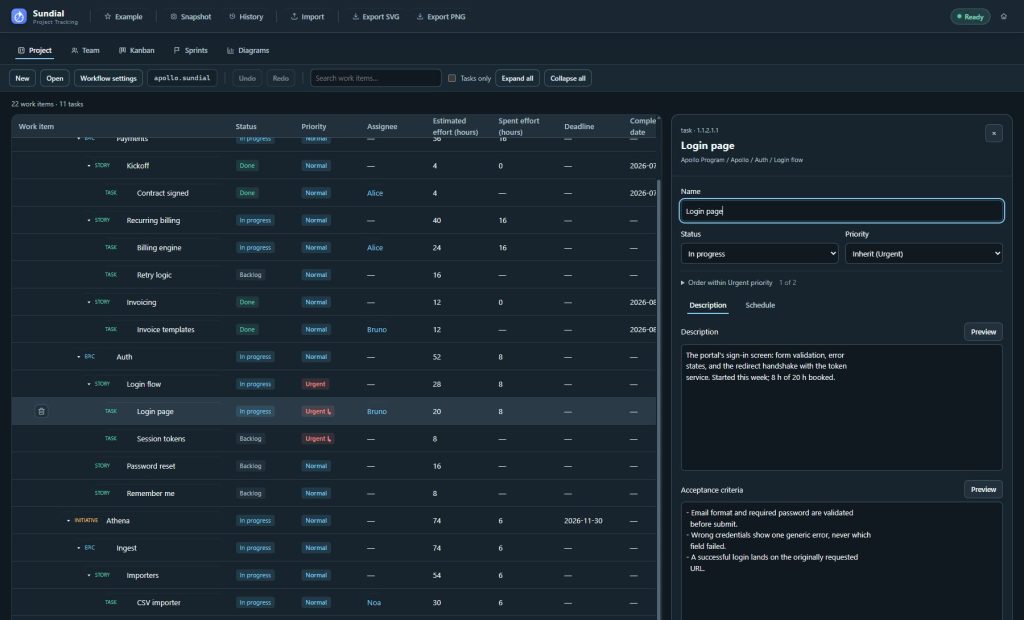
Figure 4. Description and Acceptance criteria have independent Preview/Edit controls. The shared header keeps status and priority visible while you change tabs.
Record effort and status
Spent effort (hours) is an aggregate display. Recorded effort can show an existing starting balance as well as dated entries. To record new work, choose Spent by, set Spent date, enter Add spent effort (hours), choose Add spent entry, then Apply the form. The date and developer identify the entry for later review. These entries are separate from Work tracker’s simulated allocations.
Moving an item into a state in the Done category sets its completion date automatically. Leaving the Backlog category can set a missing start date automatically. Handoffs between detailed states in the same category preserve lifecycle dates; reopening completed work clears successful completion while retaining recorded effort. Review the dates when updating historical work. If a completion requires moving the reporting start forward, review the proposed reporting-date adjustment before applying. Completion and reopening retain recorded effort history.
Parent status summarizes the descendants. An ordinary Blocked state leaves the work unfinished and prevents future allocation to that item. A canceled state has a separate terminal outcome; its consequences are described in the workflow guide. Check dependencies before relying on downstream delivery dates.
Dependencies, dates, and constraints
| Control or concept | Meaning |
|---|---|
| Depends on | Prerequisites that must finish before this work can start. Use + Add dependency and the picker; remove an incorrect prerequisite before applying. Ancestor prerequisites can constrain descendant work. |
| Start date | Earliest pickup date for unfinished work, or historical start for completed work. |
| Completion date | Historical completion, set automatically when marking Done. It is different from a forecast finish. |
| Deadline | Need-by date. Parent deadlines also constrain descendants; the earliest applicable deadline wins. |
| Required skills | Task requirements plus inherited parent requirements. Team skills determine scheduling eligibility. |
| Sprint | Membership independent of status. Choose a planned or active sprint for eligible work; canceled work cannot be newly assigned. |
An assignee pins work to a particular developer. Otherwise, scheduling uses eligible members, capacity, skills, project access, dependencies, and calendars. Missing estimates or references, dependency cycles, and incompatible dates can prevent a valid forecast. Check that enough capacity is available before relying on the forecast.
The model’s reporting start is the date from which remaining work is simulated. It differs from today’s date and a snapshot’s capture timestamp. Standalone milestones are dated commitments, not work that consumes effort. Reporting end bounds reporting; simulation may continue to completion or its configured limit.
Follow links between work, people, and sprints
In the Project table, click an assignee to open that developer in Team, a dependency name to inspect the prerequisite, or a sprint name to open its planning screen. Each link opens the relevant record. Resolve any pending draft before leaving an editor.
Container editors list their Child work items. Search that list and click a child to inspect it, or use the available Add control to create the next level. Use this list to work through a branch without searching the full table.
Add, move, or delete work
- Hover a parent row and use its + control to add a child. Review the child type and enter its details.
- If adding a child converts an actionable leaf into a container, review the proposed transfer of its work and sprint assignment before confirming.
- To move an item, open its form, choose a different Parent work item, and Apply. The subtree moves together. The picker prevents selecting the item itself or one of its descendants.
- To delete, use the row’s delete control or Delete item in the form and review the confirmation. Check the effect on descendants and dependencies.
- For a deleted task, expand Deleted tasks in Project and choose Restore beside its name. Review restored references and Issues before using the forecast.
Each native work item keeps its identity when you rename it or move it to another parent. Concurrent changes and history continue to refer to that identity. The displayed hierarchy path numbers help you navigate but are not permanent identifiers. Deleted tasks remain recoverable in native history; ordinary editing does not purge them.
7. Define the project workflow
Workflows give your project its own named states and Kanban columns. Each state has a name, color, position, and Simulation category. The category tells Sundial how the state affects scheduling; the name describes your team’s process. The initial workflow contains Backlog, In progress, Blocked, and Done.
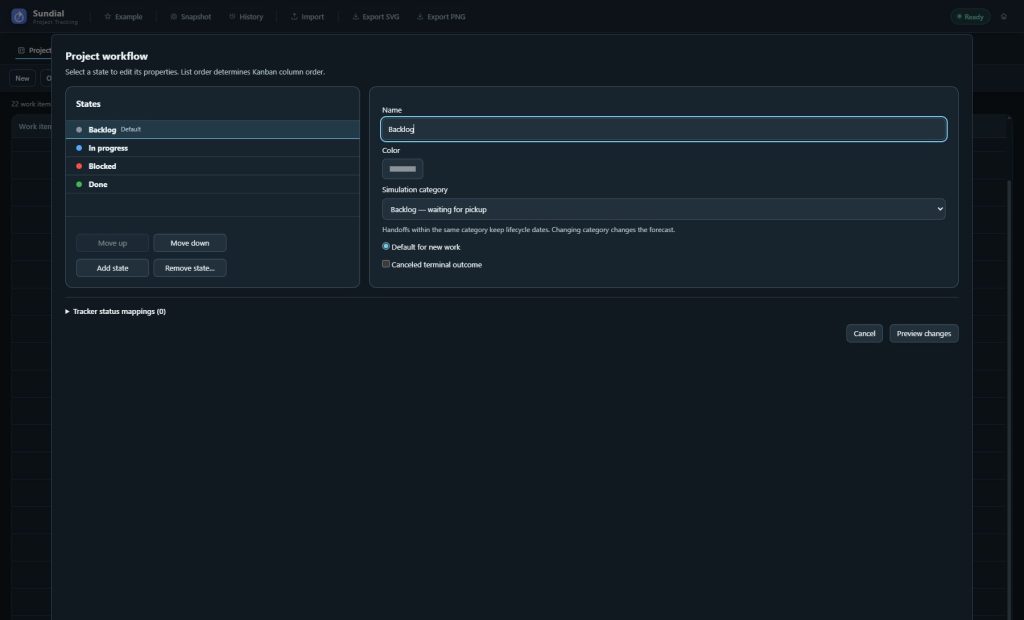
Figure 5. State order determines Kanban column order. Select a state on the left to edit its properties on the right.
Add or revise states
- Open Project → Workflow settings.
- Select a state to rename it or change its color. Use Move up or Move down to change column order.
- Choose Add state to create another step, then enter a meaningful name such as Ready, Testing, or In review.
- Choose its Simulation category using the table below. A review or testing step normally belongs to In progress if it should continue to count as active work.
- For a Backlog-category state, select Default for new work if newly created items should begin there.
- Choose Preview changes. Review the number of leaf tasks whose state or scheduling category changes and the listed impacts.
- Choose Apply workflow changes to commit the configuration and affected work together, or Cancel to return to the draft. Cancel the settings dialog to discard it.
- Open Kanban and check the columns. Review Delivery outlook and GANTT after category changes.
| Simulation category | Scheduling meaning |
|---|---|
| Backlog | Work waiting for pickup, subject to dependencies, dates, skills, and capacity. |
| In progress | Active work that can receive future allocation. Moving between detailed states in this category preserves lifecycle dates. |
| Blocked | Unfinished work that receives no future capacity while blocked. |
| Done | Successful delivery. Completion dates and dependency satisfaction follow the completed state. |
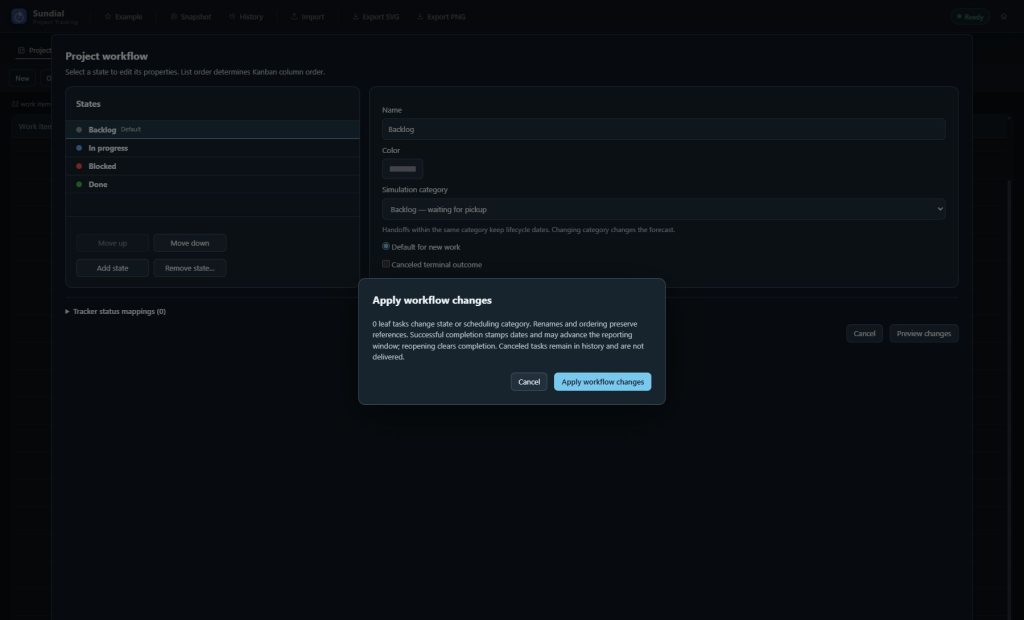
Figure 6. Preview shows which tasks a workflow edit will affect before you apply it. This unchanged example has zero affected tasks.
Keep at least one ordinary state in every simulation category. The default for new work must belong to Backlog. State identity is stable: a rename or reorder preserves references and does not itself change the forecast. Several detailed states may share a category. Board labels and colors follow the configured states; simulation summaries and status-based diagrams still use the four scheduling categories and their own legends.
To remove a state, select it and choose Remove state…. Choose the replacement state for work that references it, review the impact, and apply the change. Resolve references used by defaults or import mappings too. A replacement in a different category can complete, reopen, block, or cancel affected work, so read the preview carefully.
Workflow edits save automatically and support Undo/Redo. If the project changes while settings are open, close and reopen the dialog before applying. The current workflow applies to the whole project; there are no separate team workflows, transition scripts, or automatic transition rules.
Cancel work without deleting its history
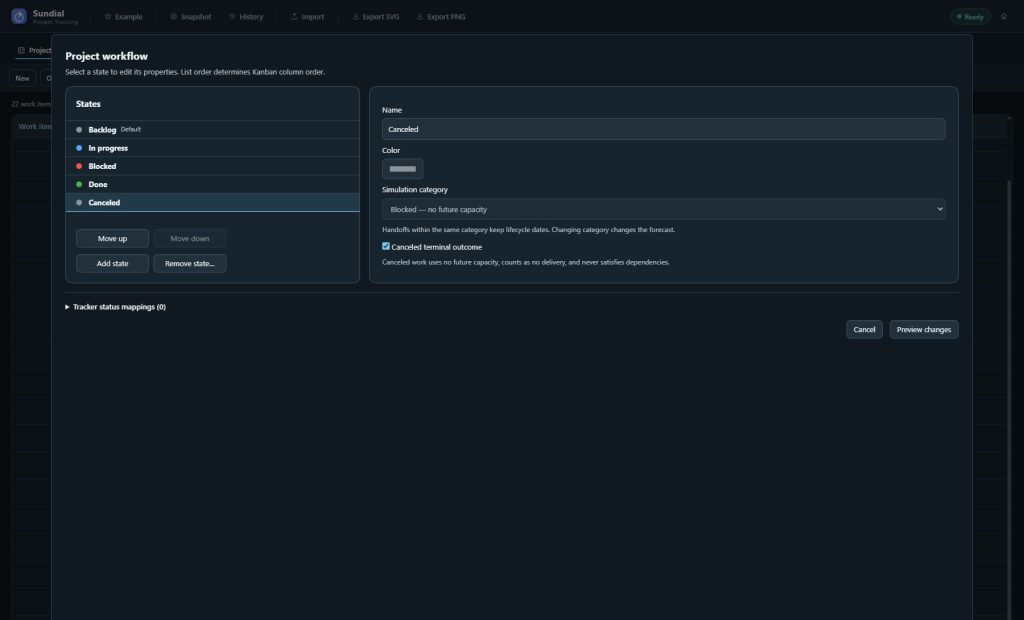
Figure 7. A canceled state is a terminal outcome using the Blocked scheduling category. This screenshot shows a draft configuration, which was discarded after capture.
- In Workflow settings, add a state and give it a clear name such as Canceled.
- Enable Canceled terminal outcome. Sundial sets its simulation category to Blocked and prevents changing that category while cancellation is enabled.
- Preview and apply the workflow configuration.
- Open the work item’s form and choose that canceled state, then Apply; alternatively, move its Kanban card into the canceled column.
- Review the forecast and any dependent work. If the work is needed again, move it into an ordinary workflow state and apply the change.
Canceled work keeps its identity, description, acceptance criteria, original estimate, dependencies, and recorded effort history. It consumes no future capacity and contributes no effort to simulation scope or completion totals. It is never successful delivery and never satisfies a prerequisite. Cancellation clears successful completion and forecast finish; it does not delete the item or remove dependency links.
If a canceled item is a prerequisite, downstream work can remain unscheduled. Review the dependency and decide whether to reopen the item or revise the relationship. A parent with a canceled descendant stays incomplete. Canceling a container removes its unfinished descendants from future scheduling while retaining completed child history. Reopening the container restores scheduling according to the descendants’ retained authored states.
Canceled work cannot be added to a new sprint. If it was already a member, completion records it as Canceled and does not carry it forward as unfinished work.
8. Set priorities and the order of work
Use Urgent, High, Normal, or Low to express preference across the project. An item’s Inherit option uses its nearest ancestor with an explicit priority, or Normal if none exists. A container’s explicit priority guides descendants that inherit. An explicit Normal overrides an inherited Urgent or High.
Set an inherited or explicit priority
- Open a work item from Project, Kanban, Sprints, or a supported diagram.
- Choose a value in Priority, or choose Inherit and review the effective value shown beside it.
- Choose Apply to commit the edit.
- Check the Project Priority column, Kanban cards, or sprint planning lists. A small arrow identifies inherited values.
In Example, Login flow is Urgent and Login page and Session tokens inherit it. Normalization is Low. You can inspect these examples to see how inheritance works.
Order unfinished tasks within a priority
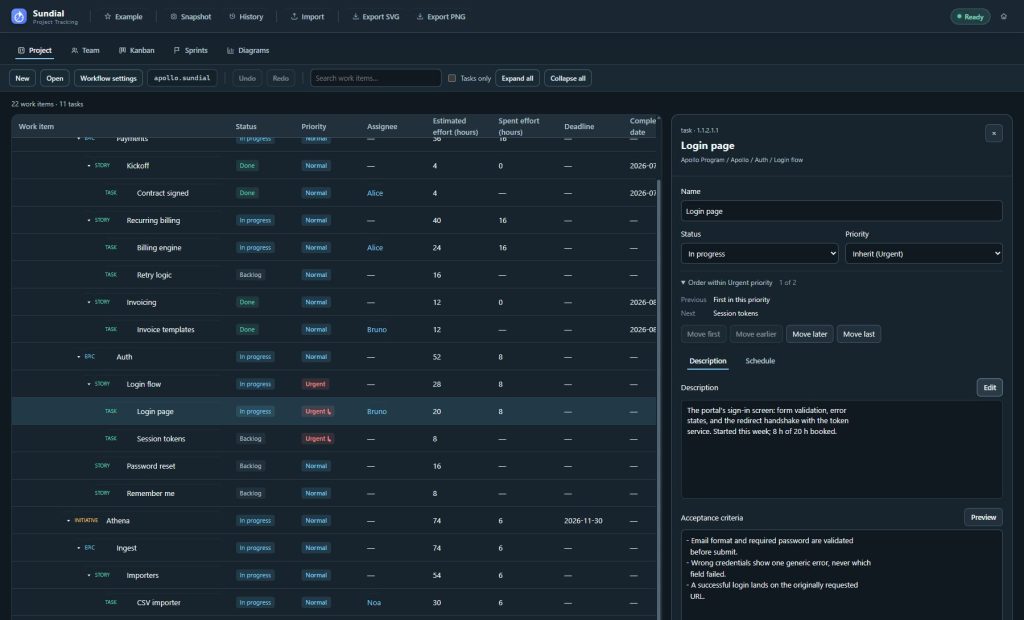
Figure 8. Ordering shows the selected task’s position and immediate neighbors within its effective priority.
- Open an unfinished actionable leaf and expand Order within … priority.
- Review its position and the preceding and following task names.
- Use Move first, Move earlier, Move later, or Move last to change its preference within that priority.
- Apply the form to commit order, priority, and other draft fields together. Cancel discards them.
- Review the updated forecast and dependencies.
The ordering pool spans eligible unfinished leaf work across the project, even when a board, sprint, or branch filter hides some tasks. Ordering does not rearrange the hierarchy or change sprint membership. Completed and canceled work do not participate in the active ordering pool. A container passes priority to inheriting descendants, but does not pass its manual position to them.
The scheduler considers deadline urgency before priority and manual order. A task must still meet its dependencies, start constraints, calendar, skill, access, and capacity requirements before pickup. Assignments already started continue. An Urgent priority expresses a preference within those constraints.
Applied preferences support Undo/Redo, shared editing, native recovery, and reporting snapshots. Resolve a stale draft before applying. To view preferences while planning a sprint, use its Priority filter and the labels beside work-item names.
9. Edit the team with structured forms
Use Team to add or edit developers, set their capacity and skills, restrict project access, and maintain working calendars. Apply the forms to save these settings within the current native project. No configuration code or separate Team file is needed.
Open the Team workspace
- Open your native project, or click Example to explore the supplied demonstration and its snapshots.
- Select Team in the main workspace tabs.
- Choose a developer from the roster on the left. Their details appear on the right.
Use a large desktop window for Team forms and charts. After editing, choose Diagrams to inspect the forecast.
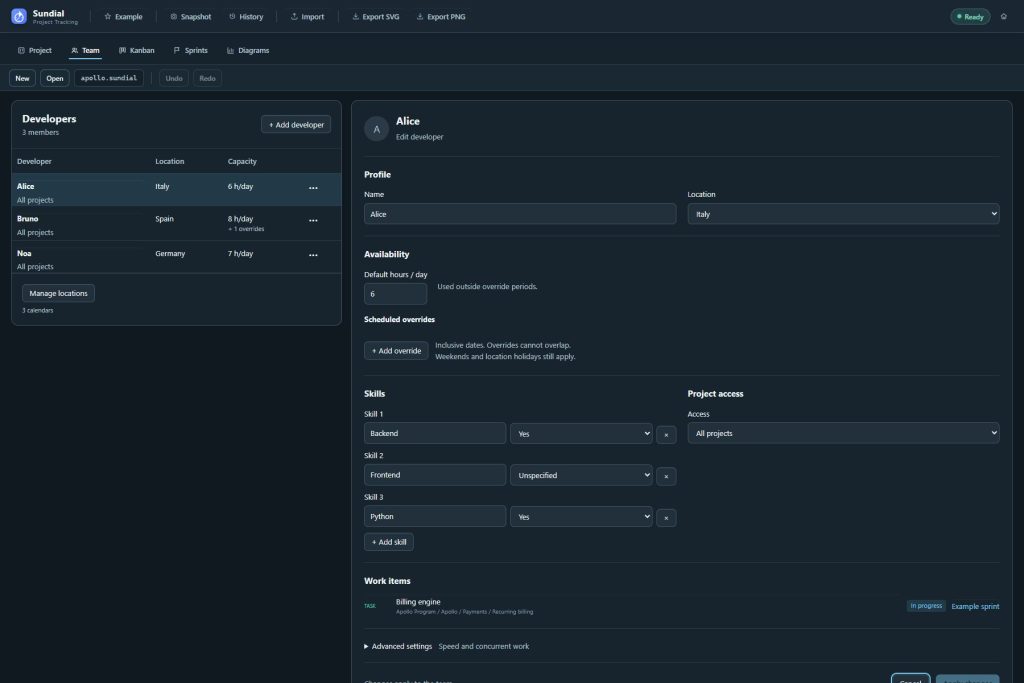
Figure 9. Apply changes commits a valid Team draft and triggers automatic saving of the native project.
The roster lists committed developers in source order, with their locations, default daily capacity, and scheduled override count. For example, “8 h/day + 1 overrides” means an eight-hour default and one override period. It does not show today’s capacity or add the override hours to the default. A new developer appears in the roster count after you apply the draft.
Edit an existing developer
- Select the developer in the roster.
- Under Profile, edit Name or choose a Location. Choose No location to remove a specific location assignment.
- Under Availability, set Default hours / day and any Scheduled overrides needed for leave or temporary capacity changes.
- Review Skills and Project access using the instructions below.
- Expand Advanced settings if you need to change speed or concurrent work.
- Click Apply changes. Correct any highlighted errors and apply again if necessary.
- Wait for the forecast to refresh, choose Diagrams, and review GANTT and Work tracker.
- Check save notices; Project assignment changes caused by a rename save with Team in the same container.
Form edits remain a Draft until you choose Apply changes, which validates the inputs, commits them to Team, and refreshes the forecast. Until then, the document and roster keep their committed values. Cancel reloads those values and discards the unapplied draft. To reverse an earlier Apply, use Undo.
Open a developer’s assigned work
The Work items section in developer details lists their current open assignments, with type, hierarchy context, status, and sprint link where available. Completed and canceled work are excluded from this workload list.
- Select a developer in Team and scroll to Work items if necessary.
- Click a work-item name to open its Project editor.
- Click its sprint name to open that sprint’s planning screen.
- Resolve any unapplied Team draft before following either link.
The list uses the developer’s committed name while a rename is still a draft. An empty list means the developer has no open assignments. Their capacity and completed history are separate from this list. Follow a link to edit the task in Project.
Add a developer or create a team
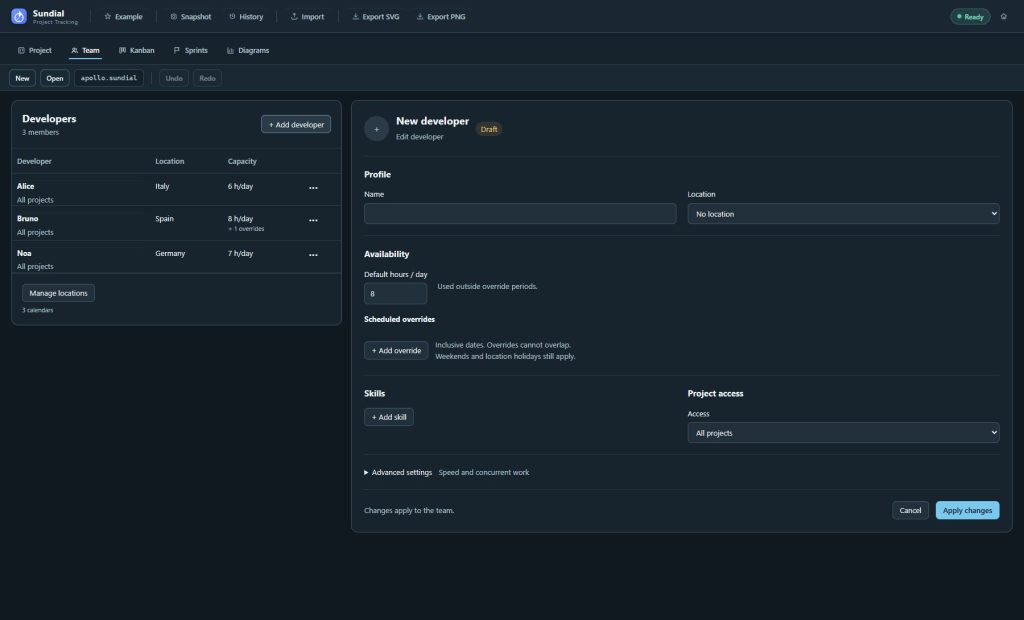
Figure 10. A new developer remains a draft until Apply changes succeeds.
- Click + Add developer above the roster. With an empty Team document, use Create team to begin with the first developer.
- Enter a unique Name and choose a location, if appropriate.
- Set realistic default daily hours. A new developer starts at eight hours per day, speed one, and one concurrent work item; review these defaults for your plan.
- Add skills and choose project access. For someone joining later, use the zero-default approach described below.
- Click Apply changes. The developer is appended to the roster after validation succeeds.
- Review the resulting forecast and check that automatic saving succeeded.
Use Cancel if you decide against adding the developer. Names must be nonempty and unique; when Project is loaded, a developer name must also avoid conflicting with work-item or milestone names.
Set skills and project access
In Skills, click + Add skill, enter the skill name, and choose Yes, No, or Unspecified. Existing names from the project and team are suggested, and you may enter a new name. Use the row’s × button to remove a declared skill.
| Skill state | Scheduling meaning |
|---|---|
| Yes | The developer is capable of work requiring this skill. Fully matched developers are preferred. |
| No | Excludes the developer from work requiring this skill. |
| Unspecified | Leaves the skill undecided; it does not exclude the developer. |
Required skills can be inherited from parent work items. Use consistent skill names, avoid duplicate rows, and apply the draft after editing. Removing a row removes the declared skill entry; it is distinct from retaining a row as Unspecified.
For Project access, leave Access at All projects for scheduling eligibility across the model. This setting controls work assignment eligibility, not permission to open the shared folder; filesystem permissions control that access. To restrict eligibility:
- Choose Selected projects.
- Enter a project or initiative name using the suggestions where possible.
- Click + Add project to create a chip for that name.
- Repeat for other allowed names, then click Apply changes.
Keep at least one chip when using Selected projects. To remove all restrictions, choose All projects. If the roster includes a project name absent from the loaded project, the form preserves it and marks it Not in this project. Access does not define separate daily hour budgets for each initiative.
Default capacity, leave, and temporary hours
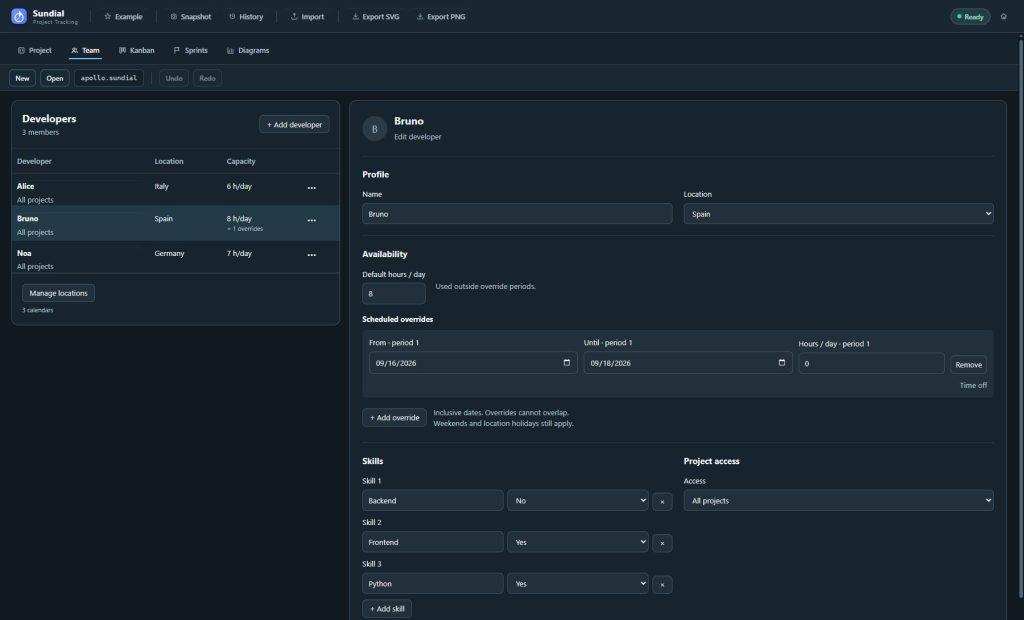
Figure 11. Bruno has an eight-hour default and a zero-hour override for 16 to 18 September. Both boundary dates are included; normal capacity resumes afterward on working days.
Default hours / day is the developer’s capacity on working days outside override periods. A scheduled override replaces that value during its interval. Eight default hours and a four-hour override produce four hours on covered working days. Overrides do not add hours to the default. Weekends and location holidays remain non-working days even when an override has positive hours.
To record leave or a temporary allocation:
- Select the developer and review Default hours / day.
- Under Scheduled overrides, click + Add override.
- Set From, Until, and Hours / day for the new period. A new row copies the current default hours and leaves its dates blank, so fill the intended bounds deliberately.
- Use zero hours for time off, or a positive value for temporary part-time or increased capacity.
- Add further periods if needed, keeping their dates separate.
- Click Apply changes, review the forecast, and check automatic saving.
Hours must be from zero through 24, with at most two decimal places. Both dates are inclusive. A one-day override is valid when From and Until are the same date. From must not be later than Until. Overrides cannot overlap: one ending on the next one’s start date overlaps on that day.
A blank From means no lower date bound; a blank Until means no upper bound. Leaving both blank covers every date and conflicts with any other override. Do not leave bounds blank unintentionally. Remove deletes a period from the draft; after Apply, the default resumes over that period.
For a developer who should contribute nothing before joining, set the default to zero and add an override starting on their joining date with the intended daily hours. Leave Until blank for an ongoing allocation. For capacity available only during specific periods, keep the default at zero and give each period its own bounds. Review the default explicitly: an override list alone does not imply zero capacity outside its dates.
Adjust advanced settings
Expand Advanced settings to edit:
| Control | Meaning |
|---|---|
| Speed multiplier | Productivity relative to the standard rate; defaults to one. Must be positive, with at most two decimal places. It does not change available hours. |
| Maximum concurrent work | Maximum simultaneous items; defaults to one. Must be a whole number of at least one. More concurrency does not create more daily hours. |
Set daily hours to the time available for this plan. Change speed only when you have a credible reason to adjust the productivity assumption. Apply and inspect the resulting schedule before accepting new assumptions.
Manage locations and working calendars
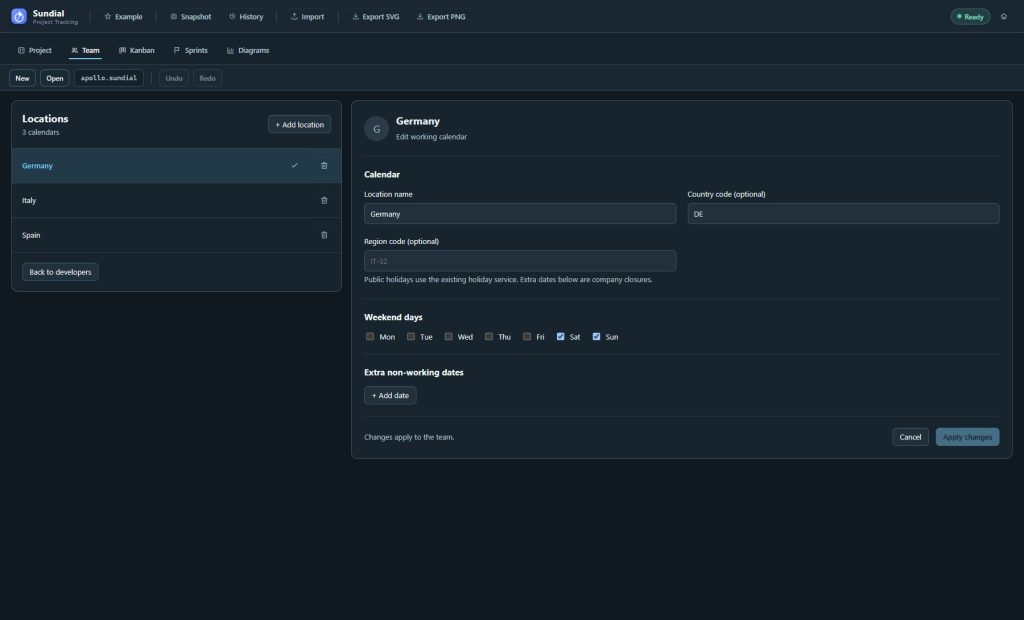
Figure 12. Location forms define working calendars shared by developers who reference them.
- In Team, click Manage locations below the roster.
- Select an existing location, or click + Add location.
- Enter a unique Location name.
- Enter an optional Country code to use public holidays. Add an optional Region code when regional holidays are relevant; the region must belong to the chosen country.
- Select the non-working Weekend days. New calendars start with Saturday and Sunday selected.
- Under Extra non-working dates, click + Add date for each company closure or additional holiday. Use Remove to remove a draft date; duplicate extra dates are rejected.
- Click Apply changes.
- Click Back to developers, select the appropriate members, and assign their Location. Apply each changed developer draft.
- Check automatic saving and review the forecast.
Public holidays come from the holiday service; the extra-date list contains the closures you enter. Fetched holidays are not copied into that list. If a fetch fails and no cached data is available, read the warning. A forecast using only weekends and extra dates may finish too early.
Renaming a location updates matching developer location references in the Team document as one change. To delete an unused location, use its Delete button and confirm. If developers still reference it, first choose another location or No location for each affected developer and apply those edits; deletion is blocked until the references are removed.
Rename or delete a developer safely
To rename a developer, select them, edit Name, and click Apply changes. Sundial renames the Team member and updates matching task assignees in the loaded Project as one committed change. The form shows how many assignments it will update. All changes save in the same native project.
If Project references cannot be updated safely, the rename is blocked. Correct the reported Project issues and retry. The rename affects the current native project; it does not rewrite other project folders.
To delete a developer, open the row’s ••• menu, choose Delete developer, and confirm. Sundial blocks deletion of the last developer and of a developer still named in task assignments. Update or remove those assignments in Project first. For a temporary staffing experiment, uncheck the person in Team what-if instead of deleting them from the reference team.
Drafts, automatic saving, snapshots, and undo
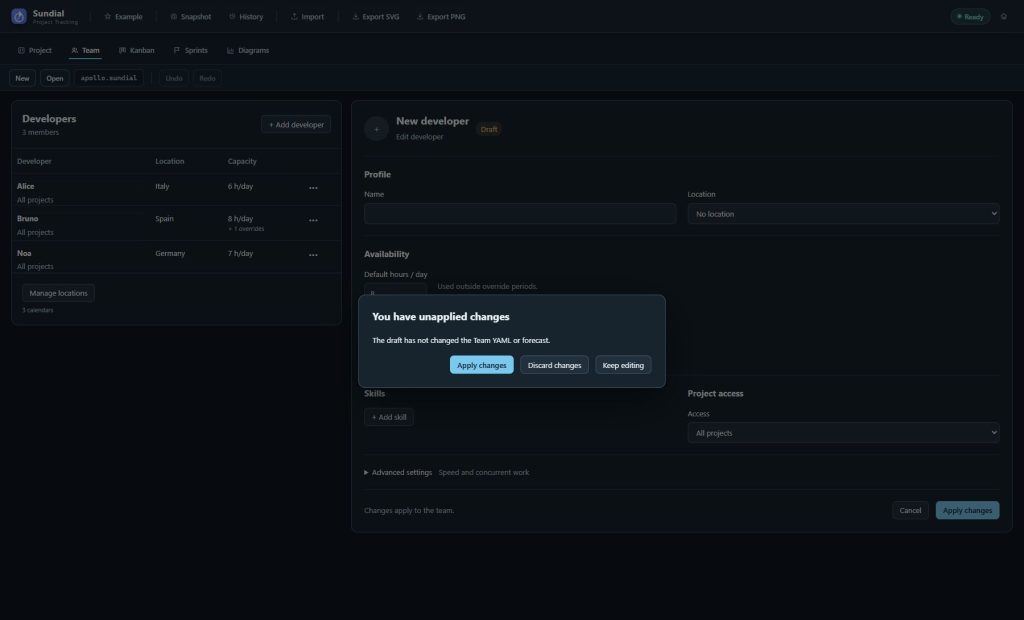
Figure 13. Resolve a pending form draft before navigating away. The forecast still uses the committed Team until the draft is applied.
| Action | Result |
|---|---|
| Edit a form control | Creates an unapplied Draft; the committed document and forecast stay at their previous values. |
| Apply changes | Validates and commits the draft, refreshes the forecast, and triggers native project saving. |
| Cancel | Abandons the unapplied draft and reloads the committed values. |
| Snapshot / Ctrl+Shift+S | Captures committed Project and Team together after resolving any pending form draft. |
| Undo / Redo | Reverses or reapplies committed model edits, including assignment updates from a rename, and saves the resulting native changes. |
When changing developer, leaving Team, opening another project, or capturing a snapshot with a pending draft, resolve the dialog: Apply changes commits valid edits, Discard changes continues with the previous committed document, and Keep editing returns to the draft.
If automatic saving fails, restore folder access and use Retry. Browser recovery does not prove the shared folder is current. Closing a notification leaves the draft unchanged; it does not save or discard it.
Resolve form errors and return to the diagrams
If validation fails, the form keeps your entries and shows Changes were not applied, with errors beside the affected fields where available. Correct duplicate names or skills, missing access chips, invalid numbers, conflicting periods, or calendar codes, then apply again. The first invalid control receives focus when Apply fails.
If the underlying Project or Team changes while you have a draft, use Reload draft to work from the newer document; stale edits cannot overwrite it. Review collaboration and validation issues before applying again.
After accepting a valid edit, choose Diagrams, wait for Ready, and inspect GANTT, Work tracker, and Delivery outlook. Applying the reference team also refreshes staffing comparisons; scenario-only additions and exclusions stay separate. Blocked work, dependency chains, skills, project access, pinned assignees, future availability, weekends, and holidays still constrain the forecast.
10. Track work in Kanban
Kanban displays actionable leaves in columns for the project’s configured workflow states. The initial workflow has Backlog, In progress, Blocked, and Done. Containers provide hierarchy context; only actionable leaves appear as cards.
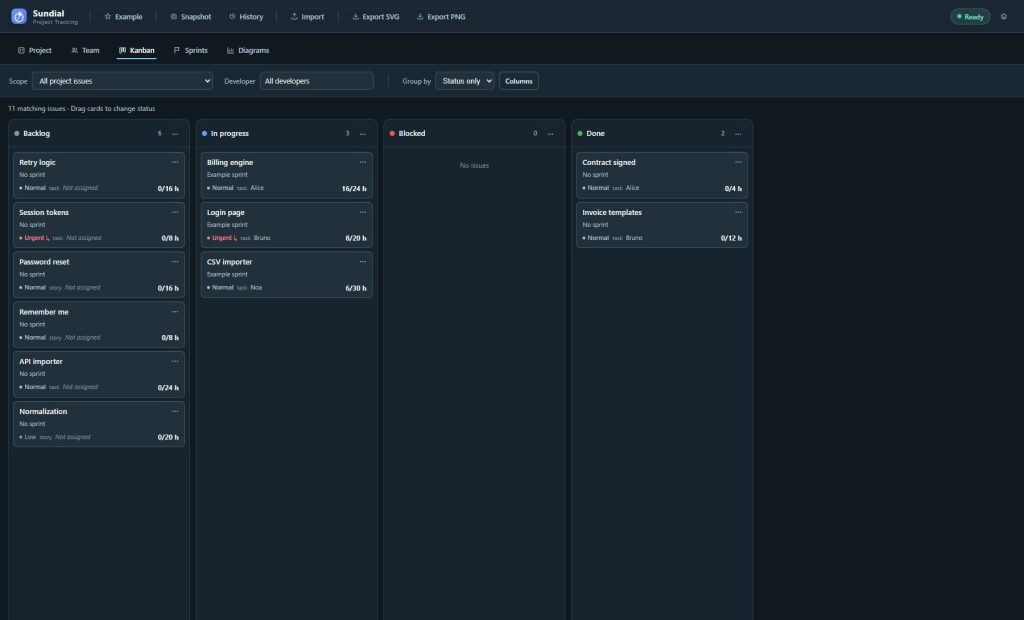
Figure 14. Cards show actionable project work. The scope, developer, grouping, and column controls change what is visible without trimming the model used for forecasts.
Cards show the work name, sprint, effective priority, type, assignee, and spent/estimated effort. Inherited priority carries an arrow. Use Workflow settings in Project to add or rename process steps and choose their scheduling categories.
Review and update work
- Open Kanban.
- Choose Scope → All project issues, No sprint, or a named sprint.
- Choose Developer to show all developers, a member, or unassigned work.
- Choose Group by → Status only, Developer, or Epic. Developer and Epic create swimlanes across status columns.
- Use Columns to hide or show status columns. Hiding a column does not change task status.
- Open a card to inspect and edit its work-item form. Review assignment, estimate, recorded effort, dependencies, and sprint membership, then Apply. The card’s Description and Acceptance criteria stay off the board for compactness; opening the card shows the full formatted text with the same Preview toggle as the Project form.
- Drag a card into a different workflow-state column, or use the card’s menu and Change status. The change commits and saves automatically and refreshes the model. Same-category handoffs preserve lifecycle dates; category changes use the scheduling and completion rules described in the workflow guide.
To change an assignee, open the issue inspector, even when the board is grouped by developer. Dragging changes status only. Dropping a card into its current status or outside a valid target leaves it unchanged. Resolve any unapplied inspector draft before navigating away or continuing an action that prompts you to review it.
Each column shows up to 30 cards per page. Check the totals and pagination to see whether more work is available. The page size does not impose a work-in-progress or capacity limit. A missing assignee reference can appear separately from unassigned work; correct the reference in Project/Team.
Kanban filters affect the board only. Forecasts still use the full dependency graph and Team. Sprint scope is remembered for the project. A completed sprint’s historical board is read-only; use Open live issue to edit the corresponding current task.
11. Plan, run, and complete sprints
Sprints group actionable work into a named period with inclusive start and end dates. Membership is independent of task status and does not replace dependencies or forecast constraints. The Sprints workspace lists Planned, Active, and Completed sprints.
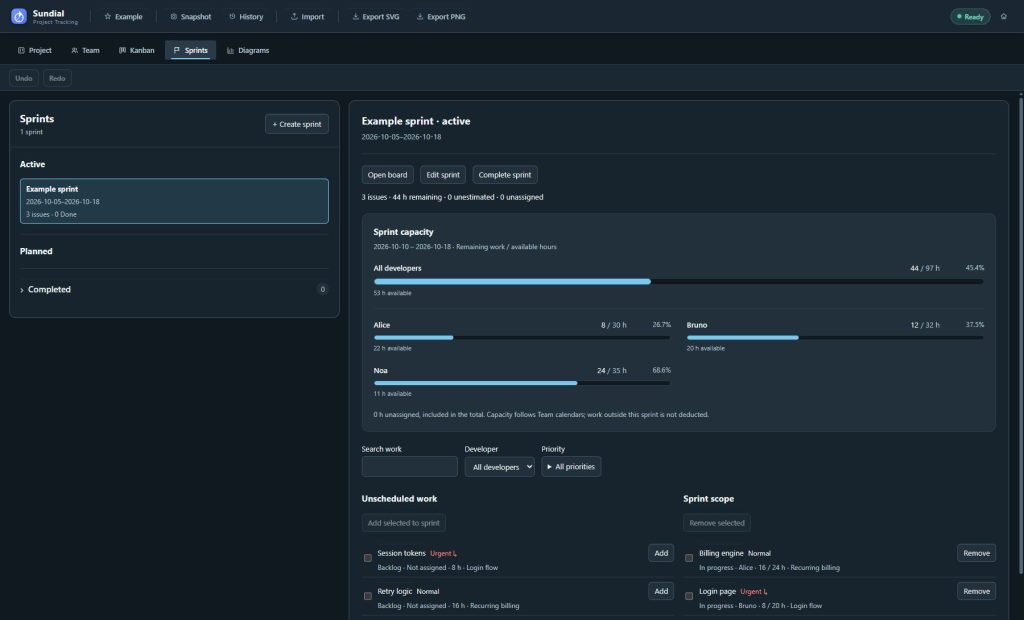
Figure 15. The example’s capacity is evaluated from the capture date through the sprint end. Your values change with scope, dates, calendars, and recorded work.
Create and populate a sprint
- Open Sprints and choose + Create sprint.
- Enter a useful name and inclusive start/end dates, then choose Create. New sprints use the browser’s local timezone; the form does not offer a timezone picker. Use Edit sprint → Save for subsequent changes.
- Select the planned sprint in the list.
- Search work, filter by developer, or expand Priority and select the priorities to include. In Unscheduled work, use Add for one item or select several and choose Add selected to sprint.
- Expand Assign other work or a parent subtree when you need to bring in other work or all eligible leaf descendants of a parent. Review affected issues and any assignments that will be replaced.
- Under Sprint scope, use Remove or select several and choose Remove selected to leave them unscheduled.
- Review remaining effort, unestimated work, unassigned work, and developer capacity. Adjust assignments, scope, or dates before starting.
You can also choose a sprint in the Project task form. Assigning a subtree adds its eligible actionable leaves; the parent contributes no extra estimated work. Committed sprint planning actions save automatically.
Review priorities and inspect planning items
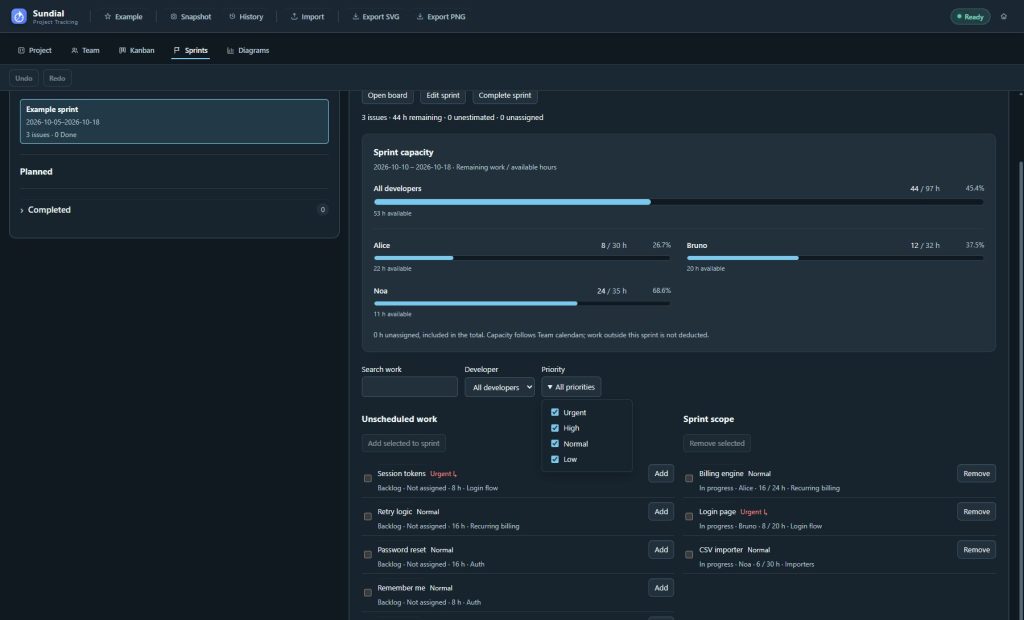
Figure 16. Priority filtering helps select work without changing sprint membership or the capacity calculation.
Unscheduled work is presented by effective priority, then by scheduling status, with active and blocked work ahead of waiting work. Manual order expresses a forecast pickup preference; it does not determine this list’s status grouping. The current Sprint scope remains a membership list; moving a task’s priority does not remove it from the sprint.
Click a work-item name in either planning list to open its editor and review Description, Acceptance criteria, and Schedule. Apply changes to the same project record, then return to planning. You can also drag eligible work between the two planning lists to add or remove membership; the explicit Add/Remove buttons provide the same actions.
Filters hide rows for review; they do not exclude those members from total scope or capacity. Canceled work is not offered for new assignment and contributes no remaining capacity demand.
Interpret Sprint capacity
The capacity panel compares remaining work / available hours for all developers and for each member. It uses Team defaults, scheduled overrides, weekends, location holidays, and extra non-working dates. Planned sprints use their planning period; active sprints count from today through the end. Date edits refresh the preview.
The total includes and identifies unassigned work. A percentage above 100%, with excess hours, means the assigned work exceeds available capacity under these assumptions. Missing estimates leave the workload incomplete. Check other commitments too: the panel does not deduct work outside the sprint. Use the panel to compare planned work with available hours. Delivery still depends on the forecast constraints, and the panel does not enforce a Kanban WIP limit.
Start and review the sprint
- Select a Planned sprint and choose Start sprint.
- Review the issue counts and warnings. Starting requires unfinished work; only one sprint can be Active in a project.
- Confirm the start. It creates no reporting snapshot or commitment baseline automatically.
- Choose Open board to review the sprint in Kanban. Update statuses and recorded work there or in Project.
- Return to Sprints to review scope and remaining capacity. Dates do not automatically start or complete a sprint.
Complete and carry unfinished work forward
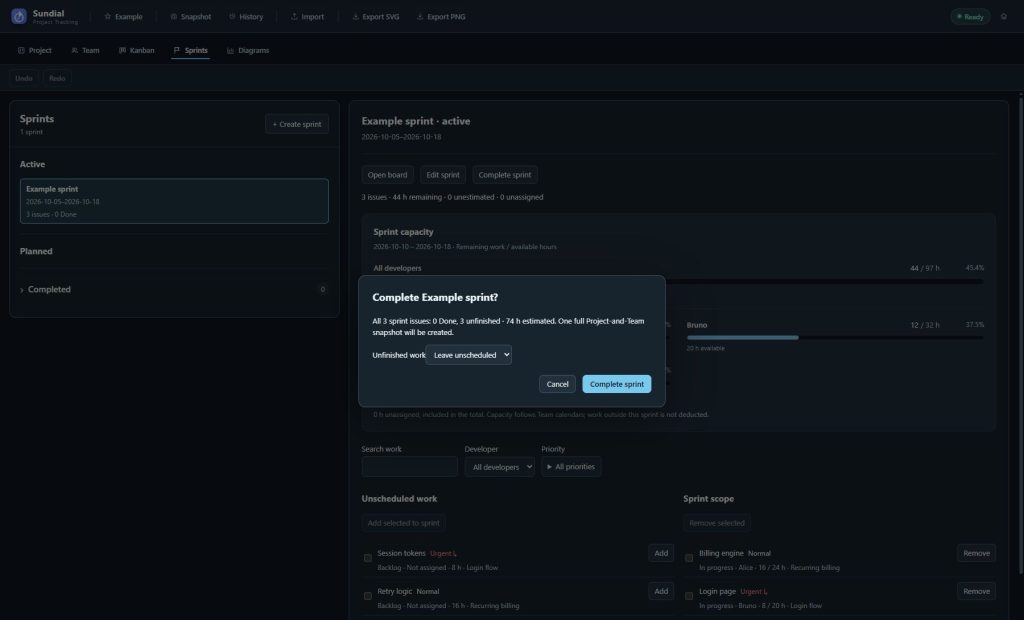
Figure 17. Completion reviews the whole sprint, including issues hidden by board filters, and creates a full Project-and-Team reporting checkpoint.
- Select the Active sprint and choose Complete sprint.
- Review all member issues, including filtered or hidden work, the Done count, unfinished items, and canceled members. Canceled work has its own final disposition and is not carried forward.
- Choose whether unfinished work should Leave unscheduled, move to a Planned sprint, or go into a newly created next sprint. Review the destination before confirming.
- Confirm completion. Task statuses remain unchanged; the destination sprint remains Planned.
- Verify the completed sprint in the list and its completion checkpoint in History.
- Open its historical board to see the captured end state before carryover. Use Open live issue when you want the current item rather than the historical record.
Completing a sprint saves its final board and a full Project-and-Team reporting snapshot. Completed boards are read-only and can be archived. They retain the workflow state names, colors, order, scheduling categories, cancellation outcomes, and configuration captured at completion, so later workflow edits do not rewrite the historical board. If snapshot storage fails, completion remains applied and Retry snapshot retains the original completion payload. Restore or reconnect the snapshot store before retrying. A native project-save failure has a separate retry action.
Undo reverses completion and carryover but retains the already saved checkpoint. Redo reuses that completion checkpoint.
12. Import Jira data
Use this optional import path when you want to bring existing Jira work into Sundial. Imports use saved files; Sundial does not continuously synchronize with Jira or write local edits back to it. After import, manage the project through Sundial’s own work, team, workflow, and sprint screens.
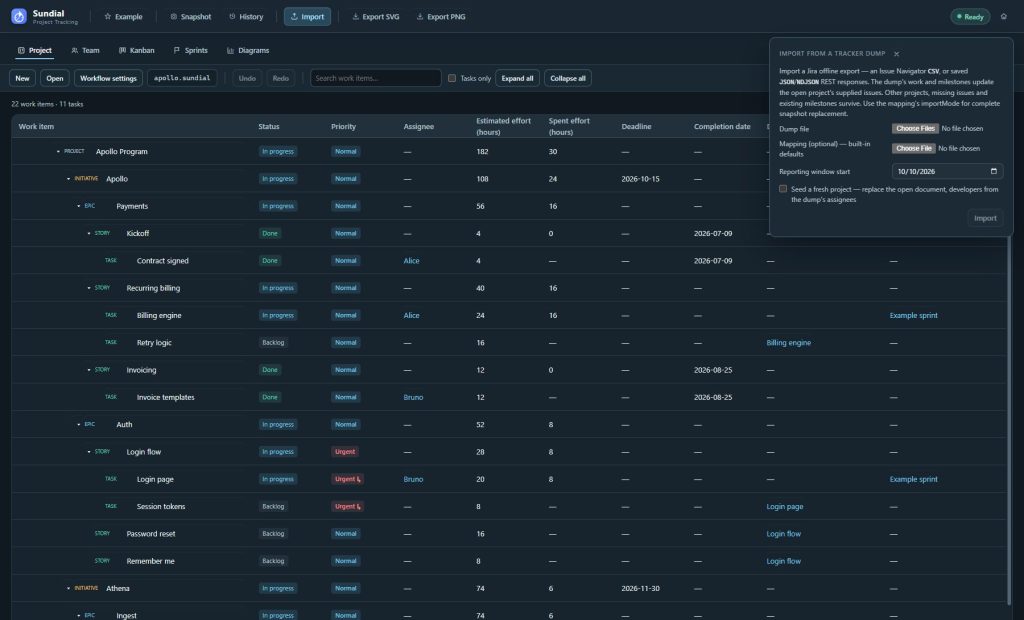
Figure 18. Import an offline tracker dump. Decide whether you are starting a fresh project or refreshing the existing model.
Prepare a CSV export
- In Jira’s issue navigator, filter for the complete work set you want Sundial to model. Include parent levels and completed work relevant to the project.
- Export CSV with the required fields. Choose fields that include keys, summaries, hierarchy, status, estimates, assignees, and dates. All fields can supply them but produces a larger, slower export; a configured current-fields export can be smaller.
- Include Issue key and Summary. Include parent/epic references, estimates, due dates, assignees, Created, and Resolved wherever relevant.
- Confirm that the exported issue set matches the result set you intended. Permissions and export limits can omit work without making Sundial’s import fail.
- Keep the export as UTF-8 CSV and retain a source copy.
Atlassian currently documents asynchronous Jira Cloud CSV exports of up to 10,000 work items. Other Jira deployments and export paths can have different limits. For larger result sets, follow your deployment’s export process and verify completeness. See Atlassian’s CSV export guidance.
Sundial accepts one CSV file per import. It rejects multiple CSV files and selections that mix CSV with JSON. Prefer one complete, consistent export. Native refresh reconciles known issues; fresh import replaces the model. Check the complete work set rather than assuming successive filtered exports cover the project. Consolidate compatible CSV exports correctly, or select a complete set of JSON dump files.
Import into Sundial
- Back up the whole native project folder. Capture a reporting snapshot if you want a before-import baseline.
- Click Import in the header.
- Under Dump file, select one CSV, or one or more supported JSON dump files.
- Select a Mapping YAML file if your workflow, estimate field, date format, or column names need overrides.
- Set Reporting window start to the date represented by your planning model. Its default is the current UTC date.
- Choose whether to Seed a fresh project. Enable it to replace the open document and seed developers from dump assignees. Disable it when refreshing an existing project whose team and settings should remain.
- Click the dialog’s Import button.
- Read the imported item/project counts and all warnings. On failure, the current document remains untouched.
- Close the dialog, review the result in Project and Team, and wait for a successful simulation.
- Correct seeded staffing assumptions, verify automatic saving, and capture a reporting snapshot explicitly. A first import can create a native project and request a folder location.
A fresh seed requires at least one assignee in the dump. Review each generated developer’s skills, daily allocation, concurrency, location, and availability before relying on forecast dates.
Refresh versus fresh import
A native refresh reconciles tracker work with existing items. Matching prioritizes the immutable Jira issue ID, then the Jira instance and issue key, then an existing explicit mapping. Matched items keep their Sundial identity and creation time. Sundial also keeps issues missing from a filtered export, because the export does not establish that they were deleted.
Tracker-owned field updates can replace your local edits to those fields. Review the source data, import warnings, and resulting changes. Preserve existing team/calendar and planning assumptions when using refresh rather than a fresh seed.
Refresh is blocked when the project has local sprint metadata because those assignments cannot yet be reliably preserved by this workflow. Seed a fresh project deliberately replaces the Project model, including its sprint plans and completion history. Back up the complete native history before choosing it. Keep a reporting checkpoint too if you need a comparison baseline.
Import does not automatically create a reporting checkpoint. Automatic native persistence and Snapshot are separate operations.
CSV fidelity: understand what is missing
| CSV input limitation | Consequence |
|---|---|
| No issue-link dependency data in the ordinary adapter | The resulting schedule cannot include those blocking links. Review any manually supplied dependency information after a tracker refresh. |
| No status changelog | A done item’s start is approximated from Created; finish uses Resolved. |
| Done item lacks required historical dates | Import fails rather than inventing completion history. |
| Status names without categories | Built-in or explicit mapping determines the category for a default workflow. With a configured project workflow, every imported status name needs an exact mapping to a project state; an unmapped name stops refresh. |
| Fix version names without release dates | They do not become dated milestones. |
| Assignee display names | Team member identity needs checking against the committed Team. |
| Ordinary CSV lacks a source issue URL | Supported charts omit source links for those items. |
When reviewing dependency cascades or historical schedules, check these limitations alongside the import result. An import can succeed even when the export is incomplete.
JSON and NDJSON dumps
The browser accepts saved Jira search response objects, arrays of issue objects, and NDJSON containing one issue object per line. Multiple JSON dump files can be selected in one run. Duplicate issue keys favor the newest updated value; ties or missing timestamps retain the first occurrence.
A JSON dump can include issue links for dependencies and changelog data for more accurate historical transitions. Check that those details are present in your files. Sundial does not retrieve missing pages or enrich the dump from Jira. Make sure your saved files cover all pages and contain the fields you need.
Configure a mapping file
Use the optional mapping file to select your Jira profile, date order, estimate field, points-to-hours conversion, status mapping, duration units, and policy for missing estimates. Use a points-to-hours conversion justified by your team; the Fibonacci option selects Sundial’s fixed mapping instead. The mapping’s duration scale describes Jira’s duration notation, not a developer’s calendar capacity.
The default unestimated policy is error. Alternatives are skip or an explicit fallback such as hours:8; both change the model and should be disclosed in reports. Column overrides can map canonical fields to localized headers, such as a localized Summary column. Supported profiles are cloud, server, and apache. Unknown mapping keys are errors.
Map imported statuses to the project workflow
Before refreshing a project with a configured workflow, open Project → Workflow settings and expand Tracker status mappings. Enter each exact Jira status name and choose its Sundial state. Include spelling and case as exported, then preview and apply the configuration. Several source statuses can map to one state.
An unmapped source status stops a configured-workflow refresh rather than silently putting that issue into Backlog. Review the import error, add the missing mapping, and retry. Choosing a mapped canceled state applies Sundial’s cancellation rules; choosing a Done-category state uses successful completion rules and valid imported completion dates.
Matched refreshes preserve Sundial-authored descriptions, acceptance criteria, priorities, manual ordering, and detailed-state audit history. Jira priority does not set Sundial priority. Tracker-owned fields can still change during refresh, so inspect the result and warnings. Fresh import is a replacement operation and is covered separately above.
13. Choose the right diagram
| Tab | Use it to answer | Data basis |
|---|---|---|
| WBS | What is in the project, and how is it organized? | Current work hierarchy and effective status. |
| GANTT | When can the work start and finish? | Current simulated schedule and historical done dates. |
| Sunburst | Where is the effort, and what is its status? | Current hierarchy, total estimated effort, and status. |
| Work tracker | Who is forecast to work on what and when? | Simulated developer allocations. |
| WBS over time | Which work or status changed between checkpoints? | Baseline versus current model or a later snapshot. |
| GANTT over time | How did delivery dates change? | Two simulated endpoint schedules. |
| Scope | How has estimated project scope changed? | Saved checkpoints plus a live Current column. |
| Milestones | How have delivery forecasts moved over time? | Saved checkpoint forecasts plus a live Current row. |
| Team what-if | What delivery difference does this roster change make? | Same project simulated with reference and alternative teams. |
Common diagram controls
- Choose Diagrams in a large desktop window. Close any work-item editor to give the chart the full workspace.
- Use Hide details in Delivery outlook if you need more chart height.
- Start with the fitted overview. Use Zoom in, Zoom out, and Fit to move between detail and the whole diagram.
- Use Ctrl+wheel to zoom around the cursor. Scroll to explore content larger than the pane; horizontal scrolling or Shift+wheel helps wide schedules.
- Hover marks for details. Chart labels can be shortened to fit; tooltips supply fuller context.
- Use Show title when capturing or exporting a self-contained report image.
- Use the diagram toolbar’s SVG or PNG control to export that diagram.
Edit work directly from a diagram
In the current WBS, GANTT, and Sunburst views, click a work item to open its editor beside the chart. Use the same Name, Status, Priority, Description, Acceptance criteria, and Schedule controls described in the Project guide. Apply commits to the shared project and refreshes its forecast; Cancel discards the draft. Close the editor to return to the full diagram. Disclosure markers expand branches rather than opening the editor.
You can review a branch and update its planning data beside the chart, then check the resulting dates without returning to the main table. Comparisons and historical views remain reporting views; use the current workspaces to edit live work.
The canvas grows to fit its content. Use Fit for an overview, then zoom and scroll to inspect details at their natural size. Exports use the whole chart canvas, regardless of the current viewport zoom.
14. WBS: inspect scope and status
A work breakdown structure is a hierarchy of deliverables and their component work. It helps establish scope before reviewing dates. PMI discusses the value of deliverable-oriented decomposition in Scheduling 101.
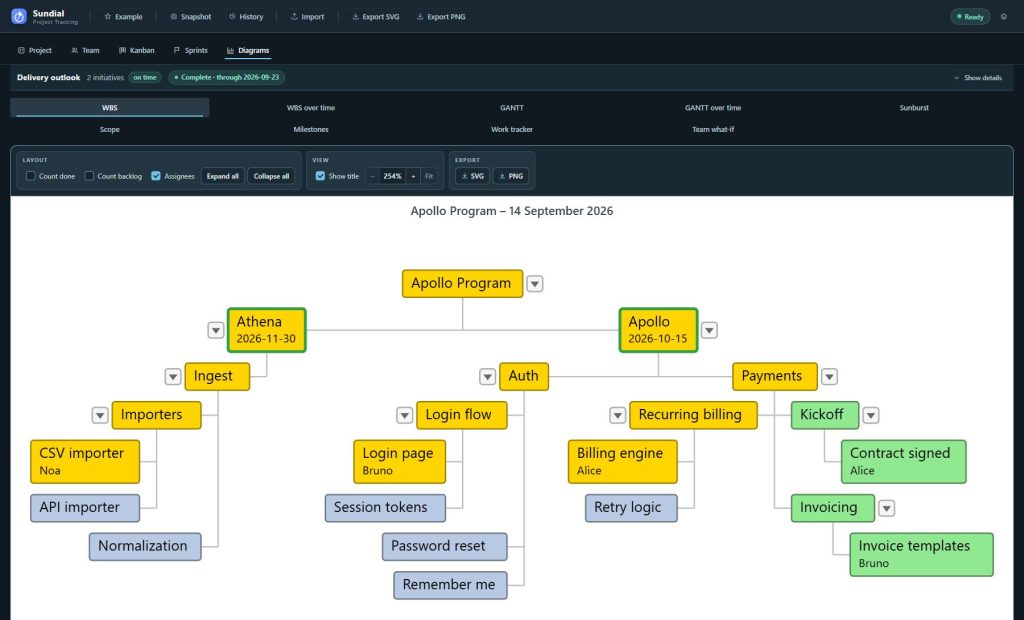
Figure 19. The current work breakdown. Parent boxes show where each item belongs in the project.
Step by step
- Click WBS.
- Follow the hierarchy from the project root through initiatives and epics to leaf work.
- Use a node’s disclosure control to expand or collapse a branch. Expand all reveals branches; Collapse all produces an overview.
- Enable Count done or Count backlog to group those sibling items into counters. Disable the options when individual names are needed.
- Toggle Assignees to show or hide ownership in captions.
- Hover an item for details. Click its box to open the work-item editor when you need to revise description, status, priority, or planning fields.
- Export the configured view for a scope or status review.
Read the colors
Use the WBS legend: done is green, in progress is yellow, backlog is pale blue-gray, and blocked/problem states are red. An incomplete item with a deadline retains its status fill and gains a thick goal border: green when its deadline has not expired at the view date, red when expired. Blocked work keeps a red border. The deadline appears in the caption. Use each chart’s own legend; Sunburst uses amber for in-progress work.
A container’s effective status summarizes its subtree. Counters are presentation aids and do not create or remove source work. A hidden branch still contributes to the model and to rolled-up dates and effort.
15. GANTT: review the delivery schedule
A Gantt chart places work on a calendar so durations, sequencing, and overlaps are visible. Asana’s Gantt overview provides background on this chart family. Sundial calculates unfinished work’s schedule from the model; manually entered dates alone do not determine it.
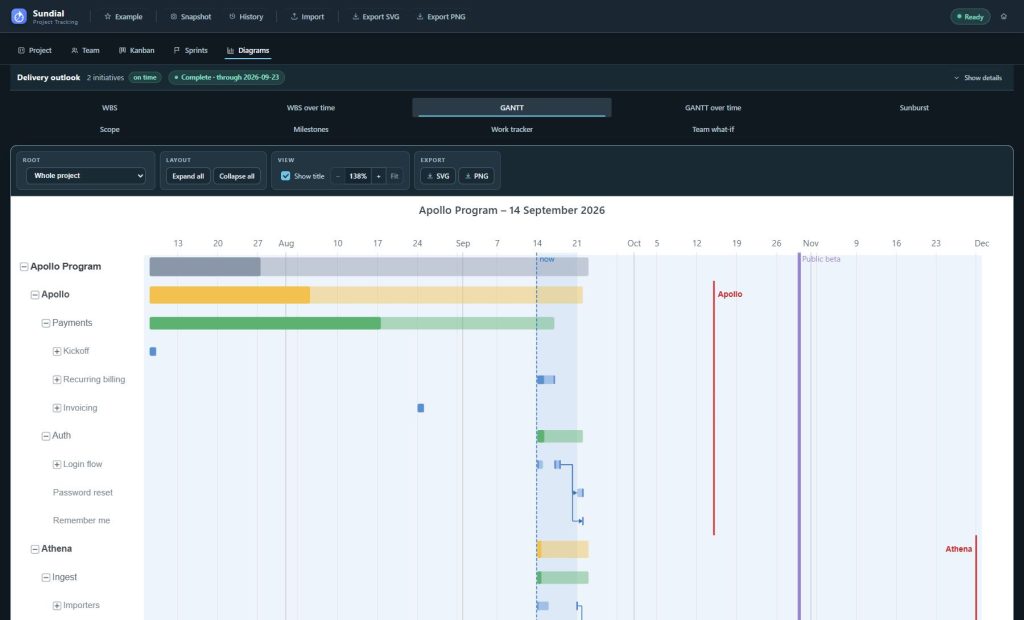
Figure 20. The current forecast. Historical done work, future allocations, dependencies, and commitments share one time axis.
Step by step
- Click GANTT.
- Use Root to choose the whole project or a particular container, then locate the initiative or epic of interest in the row labels.
- Expand its disclosure marker to reveal the next level. Use Expand all for more detail or Collapse all to return to the configured depth.
- Read the start and finish against the time axis. Hover the bar or caption for precise dates and details. Click a work item to open its editor; close it for the full schedule.
- Follow visible dependency connectors to understand sequencing constraints.
- Compare the forecast finish with the deadline marker. Standalone milestones such as Public beta appear as separate vertical reference lines.
- Zoom into the relevant interval and scroll as needed. Enable Show title before exporting.
The now line marks the reporting start, which may differ from today. Container bars roll up the earliest child start and latest child finish; a continuous parent span does not mean somebody works on that parent every day. Gaps and short allocations reflect resource calendars and sequencing. Use the Work tracker to inspect actual simulated person-hours.
16. Sunburst: see effort and health at a glance
A sunburst displays a hierarchy as concentric rings. Descendants sit outside their parents; segment widths encode relative values. See Plotly’s sunburst explanation for the general structure and Tommesani’s article on project health with sunburst diagrams for its project-reporting use.
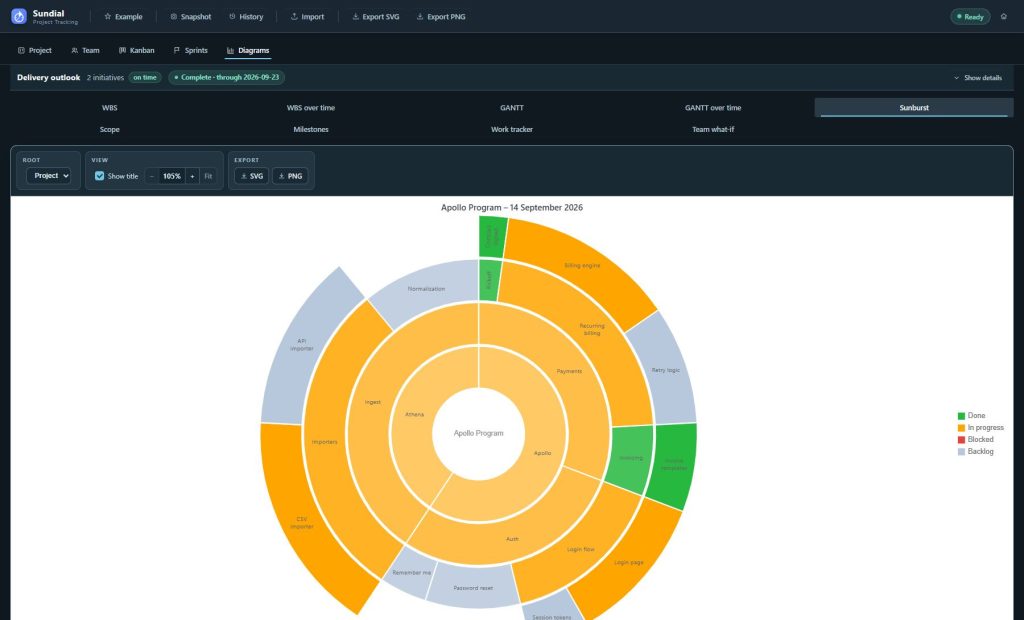
Figure 21. Segment angle shows total estimated effort; color shows effective status.
Step by step
- Click Sunburst.
- Leave Root set to Project for a whole-project picture.
- Read outward from the center to follow initiative, epic, story, and task relationships.
- Compare widths within a ring to find effort-heavy areas. Parent totals derive from children, avoiding double counting.
- Read the legend: green is done, amber is in progress, red is blocked, and pale blue-gray is backlog.
- Hover a segment for its name, status, effort, and share.
- Select an initiative in Root to focus the chart on that branch, then return to Project for the overall picture.
- Click a segment to open the live work item when you need to inspect or edit it. Close the editor, then export the view for a project-health overview.
Arc width shows total estimated effort. It does not measure remaining hours, duration, or percentage complete. Narrow labels may be hidden; hover to inspect them. Container status summarizes the subtree and does not imply every descendant shares that status. Sunburst shows the current state. It has no history-playback control.
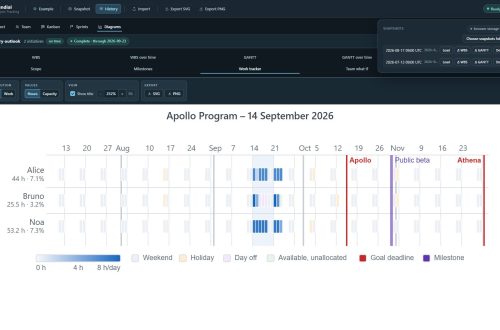
17. Work tracker: inspect resource allocation
The Work tracker is a heatmap: rows represent developers, columns represent time, and cell intensity represents allocated work. Heatmaps encode numeric magnitude by color; Plotly’s heatmap documentation illustrates the chart family.
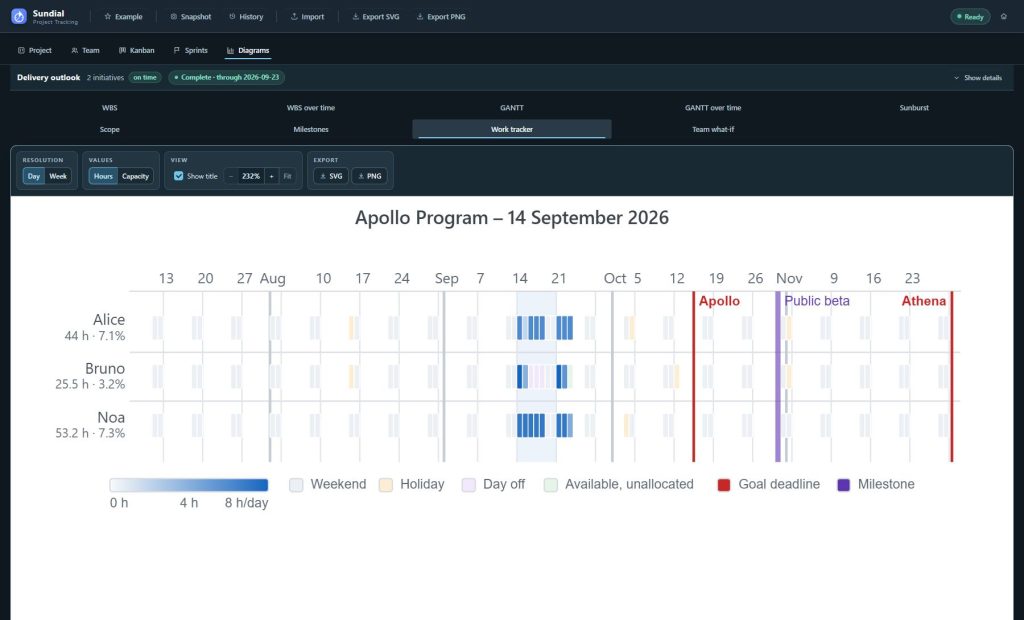
Figure 22. Simulated allocation over time. Day and Week controls change the display resolution.
Step by step
- Click Work tracker.
- Use Day to inspect daily allocation for each developer.
- Hover a cell to read the allocated hours and contributing tasks.
- Inspect non-working-day details when available. A weekend, holiday, zero-capacity override, or zero default can explain an empty cell; on a working day, there may simply be no allocated work.
- Select Week for a long interval. Each weekly cell shows average hours per visible calendar day; the tooltip supplies the week’s total and task contributions.
- Switch Values → Capacity when you need to compare utilization with available capacity rather than raw hours.
- Look for persistent empty working periods or long stretches of high allocation, then check dependencies, skills, and capacity assumptions.
- Export the chosen daily or weekly presentation.
For an empty cell, check whether the person is unavailable, waiting on dependencies, ineligible for the remaining work, or has finished the work in the model. The heatmap shows Sundial’s simulated allocations and does not import real-world timesheets. Weekly averages include visible non-working days, so they need not equal a person’s nominal working-day hours.
18. Capture and manage snapshots
A snapshot stores the combined Project and Team model with a UTC capture timestamp. It is the checkpoint used by Delta comparisons and history charts. Automatic native saving does not add a reporting checkpoint. Native startup snapshots belong to the collaboration container and serve a different purpose.
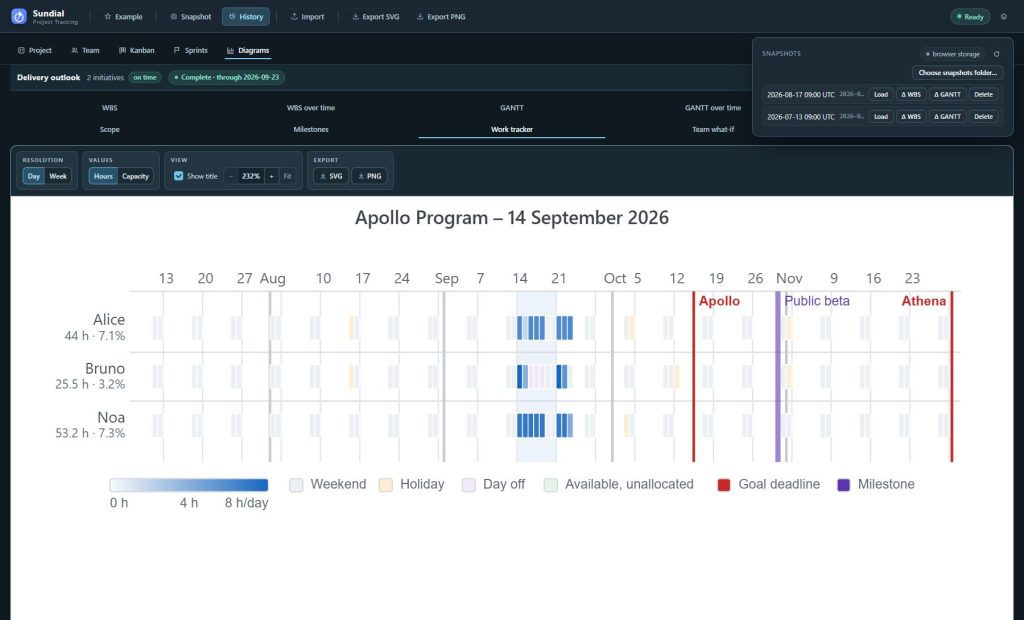
Figure 23. History exposes the active snapshot store and its available checkpoints.
Capture a checkpoint
- Finish the update and resolve model errors.
- Wait for a successful current run.
- Click Snapshot, or press Ctrl+Shift+S.
- If the browser requests a folder on first capture, choose a dedicated snapshot location. Cancelling that initial picker can use browser storage instead.
- Open History and verify the new checkpoint is listed. Check the storage indicator and any capture notice.
Dated files use a name such as 2026-09-30-093005Z.yaml. The timestamp is UTC, so a capture near midnight can have a different calendar day from your local date.
Browser storage and folder storage
Browser storage belongs to one browser profile and application origin. Clearing site data can remove the stored buffers and history. Use a separate backup when you need a copy you can move between machines.
Where supported, Choose snapshots folder… selects the active file-based store. Sundial writes dated snapshot files directly into the folder you choose. Select a dedicated snapshots folder for the project, then confirm its contents and the History indicator. Maintain a separate series for each project, and inspect History after changing stores. Browser and folder histories should not be assumed to merge automatically.
If permissions lapse after a browser restart, choose Reconnect snapshots folder… and grant access again. If you see a permission error, restore access before checking whether snapshots are missing. Use browser storage changes the active target for future browser captures; it does not delete the old folder files.
Use History actions
- Load replaces the current model with the saved checkpoint after a replacement confirmation. Back up the native project first and review the warning; use a comparison baseline when you only want to compare dates. Loading changes the model; it does not simply open a chart or reconnect a native folder.
- Δ WBS or Δ GANTT selects the snapshot as a baseline and opens the corresponding comparison against the current model.
- Refresh the series rereads available checkpoints, useful when files have changed outside the browser.
- Delete removes a checkpoint. Back up file-based history before deleting; do not rely on an application undo or trash facility.
Example adds demonstration checkpoints only when the active store is empty. If you already have history, check the list to see which project and checkpoints you are comparing.
19. WBS over time: explain what changed
Delta WBS shows changed work in its hierarchy. It retains ancestors for context and omits unrelated siblings. This kind of filtered status report is described in this site’s article Changes, or what did we do last month?.
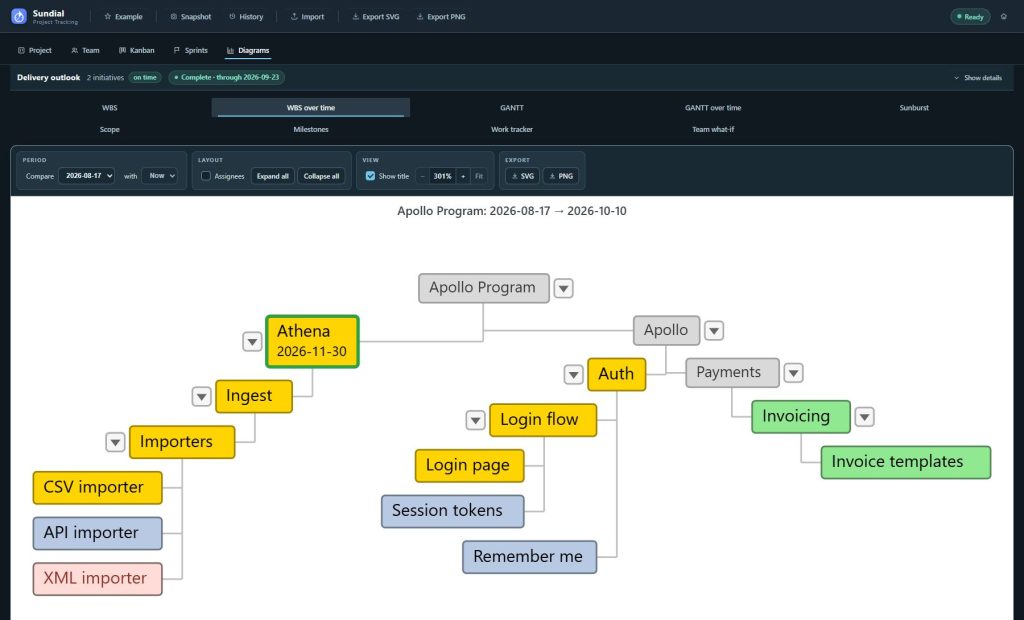
Figure 24. The August baseline compared with the current model. Gray nodes provide context; the removed XML importer remains visible as removed work.
Compare a checkpoint with the current model
- Click WBS over time.
- Under Compare, select the baseline snapshot.
- Leave with set to Now.
- Read the diagram title to confirm the endpoints, and check for any stale-current warning.
- Follow changed branches. Enable Assignees if ownership is relevant.
- Hover changed nodes to inspect before-and-after status, assignee, and other reported field changes.
- Export the view for a change review.
Colored nodes represent qualifying changes, including additions, status changes, completion, ownership or hierarchy changes, and removals. Gray ancestors locate those changes. Removed nodes use a distinct light-red/struck treatment and have no current-state reading. A gray ancestor can still have a meaningful unchanged status in its tooltip.
Compare two saved checkpoints
- Select an older snapshot under Compare.
- Under with, select a later saved snapshot.
- Confirm the period shown in the title.
- Switch to GANTT over time to inspect schedule movement for exactly the same pair.
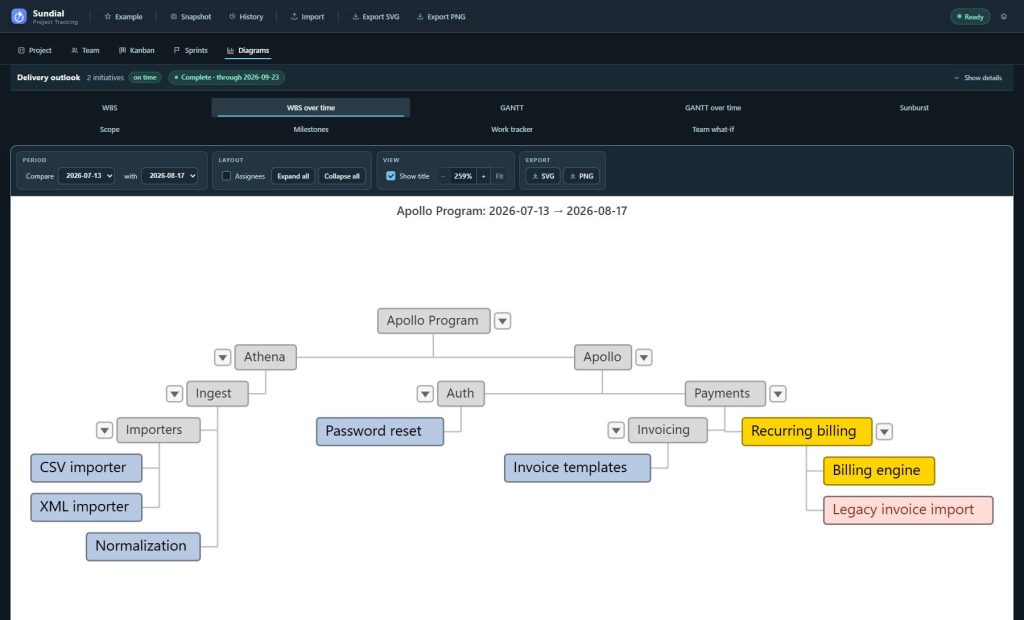
Figure 25. A historical review can end at a saved checkpoint instead of Now.
Only snapshots strictly newer than the baseline are offered as saved endpoints. If no later capture exists, the end control may offer only Now and be disabled. Changing the baseline can reset an invalid end choice to Now. The comparison pair is shared by both Delta tabs.
An empty result may show No qualifying changes even when the source work is present. WBS over time compares the hierarchy and status fields used for reporting; it does not audit every edit.
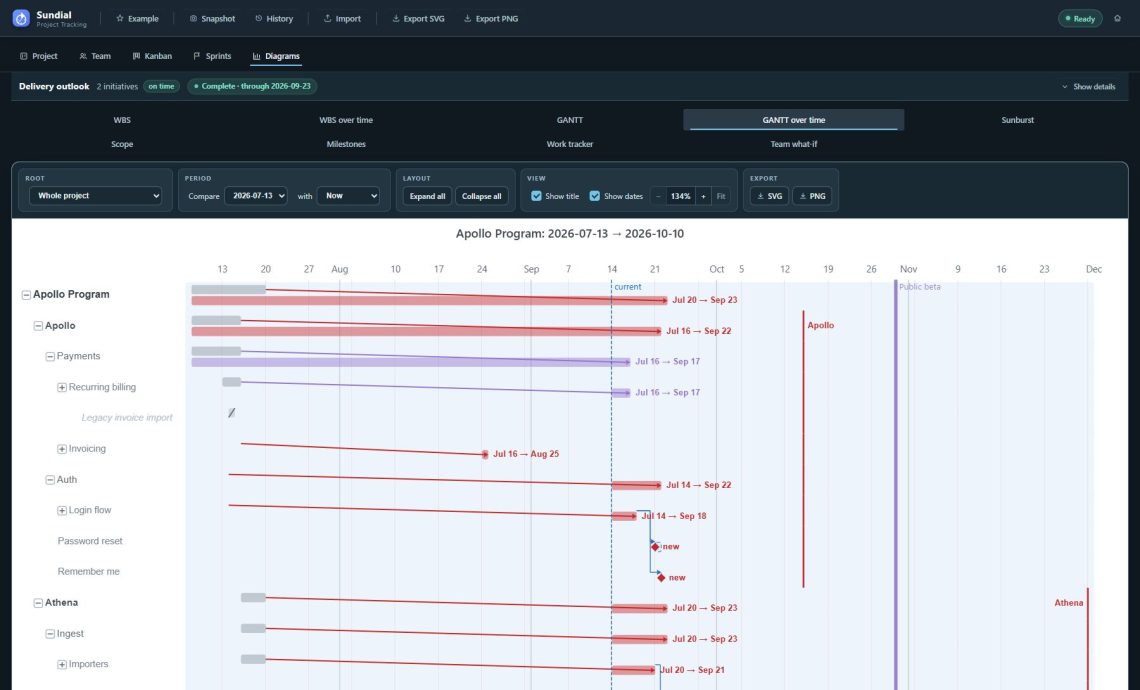
20. GANTT over time: explain delivery movement
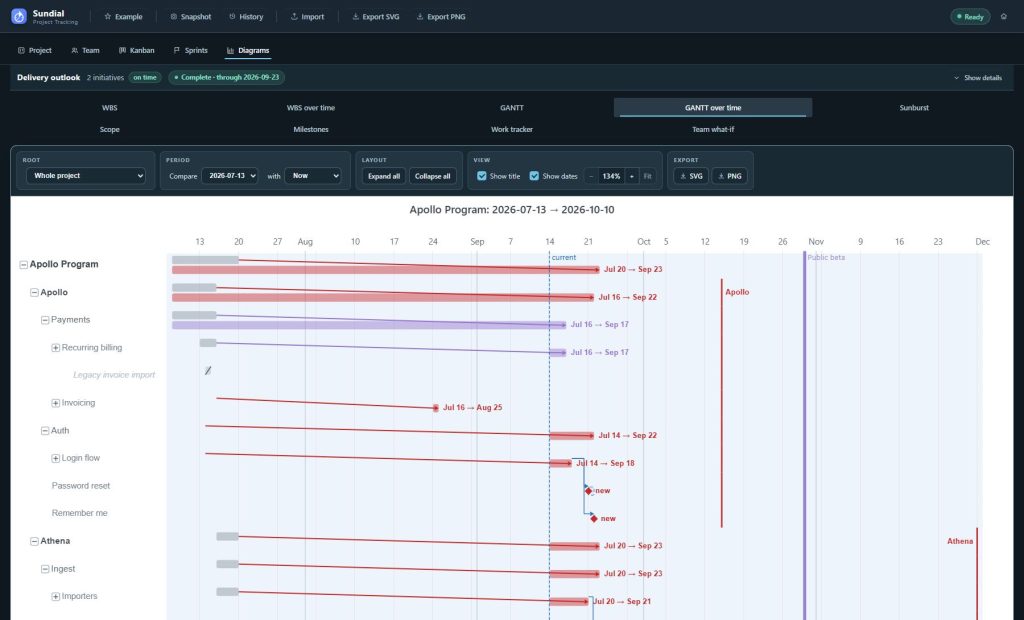
Figure 26. A schedule comparison. Read the baseline, direction, and both dates together.
Step by step
- Click GANTT over time.
- Select the baseline and comparison end. The pair is shared with WBS over time.
- Keep Show dates enabled when exact movement needs to be visible in the report.
- Read each moving row’s baseline and comparison delivery dates.
- Use the legend to distinguish earlier finishes, later finishes, changed rows, delivery movement from re-anchoring, new work, and removals.
- Expand a container to reveal changed descendants. Unchanged siblings do not become a full schedule just because you expand.
- Follow hierarchy and highlighted dependency relationships to investigate a possible cascade.
- Compare moved finishes with deadline and milestone references, then export the configured report.
Use Root to focus on a container without changing the comparison endpoints. The view focuses on meaningful schedule differences. An effort change appears in this view when it moves dates. A revised estimate alone is not reported as a duration change. Changes that finish entirely before the comparison window’s historical cap can be omitted. The window starts seven days before the older endpoint’s date so old completed history does not dominate the report.
Changing reportingPeriod.from can carry delivery dates forward even when work’s position relative to the planning start stays similar. Sundial distinguishes this re-anchoring from a conventional delivery slip. Read the calendar dates and legend before attributing a rightward movement to a delay in the team’s work.
Dependency connectors show the relationships in the model. Links missing from a CSV export remain missing from the chart, so check the source data before attributing a date change to a dependency.
21. Scope: track estimate growth and reduction
Scope is a stacked-column history chart. Canceled effort is excluded from its simulation-based totals even though the original estimate remains stored on the work item. Each column shows the known total estimate at an observation; its colored segments show the selected root’s constituent groups.
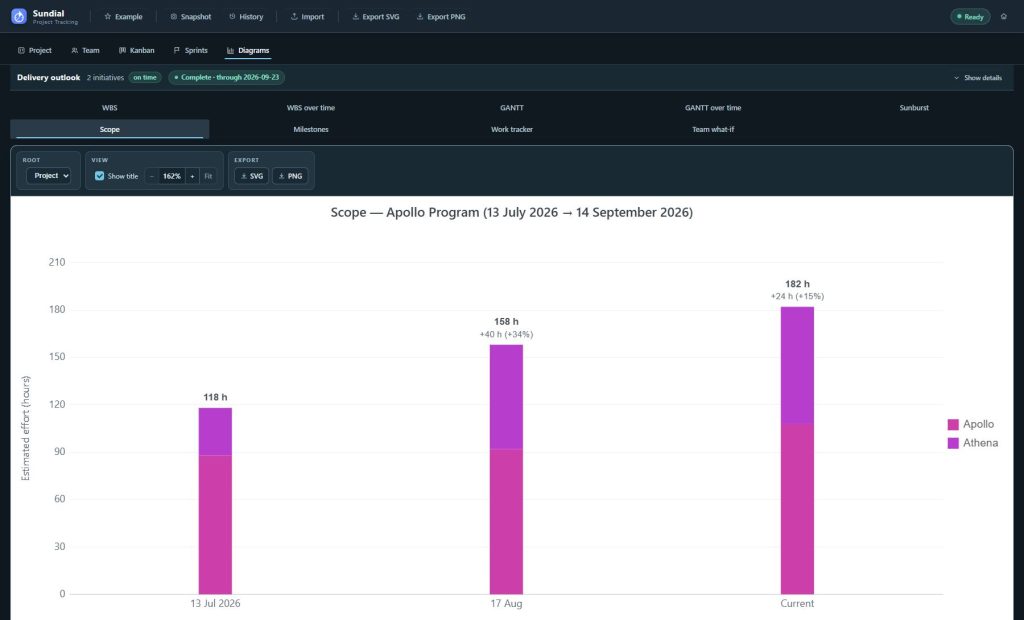
Figure 27. The example grows from 118 hours in July to 158 hours in August and 182 hours in Current. Colors identify initiatives, not statuses.
Step by step
- Make sure the active history contains a saved snapshot.
- Click Scope.
- Leave Root set to Project to compare initiative/Release totals.
- Read the observation labels horizontally and Estimated effort (hours) vertically.
- Compare column totals, then identify the segments responsible for growth or reduction.
- Hover a segment for the group, checkpoint, effort, and completeness details.
- Choose an initiative/Release under Root to compare its direct epics instead.
- Switch to Milestones to inspect delivery drift for the same selected root.
Scope counts the full declared estimate, including completed work still present. Spent work is not subtracted. A rising column can reflect added work or revised estimates; a falling column can reflect descoping, removal, or reduced estimates. Completion alone does not shrink the scope total.
Saved observations are grouped by UTC calendar day, using the latest capture on that day. Current is a separate live column from the latest successful current model, placed last. It is not another saved checkpoint. No columns are invented for days without snapshots. Missing estimates make the known subtotal partial; do not interpret omitted estimates as zero work.
Series colors identify groups and remain consistent within the history views. Native work has persistent identities across rename and reparent operations. Older reporting snapshots without stable identities can still fall back to a path, shown as (path id); review continuity when comparing older exports.
22. Milestones: track delivery forecast drift
The Milestones tab is a history of delivery estimates. It differs from a list of standalone milestones: colored series show forecast or actual completion dates for initiatives/ Releases, or for epics beneath a selected initiative. Commitment dates appear as reference lines.
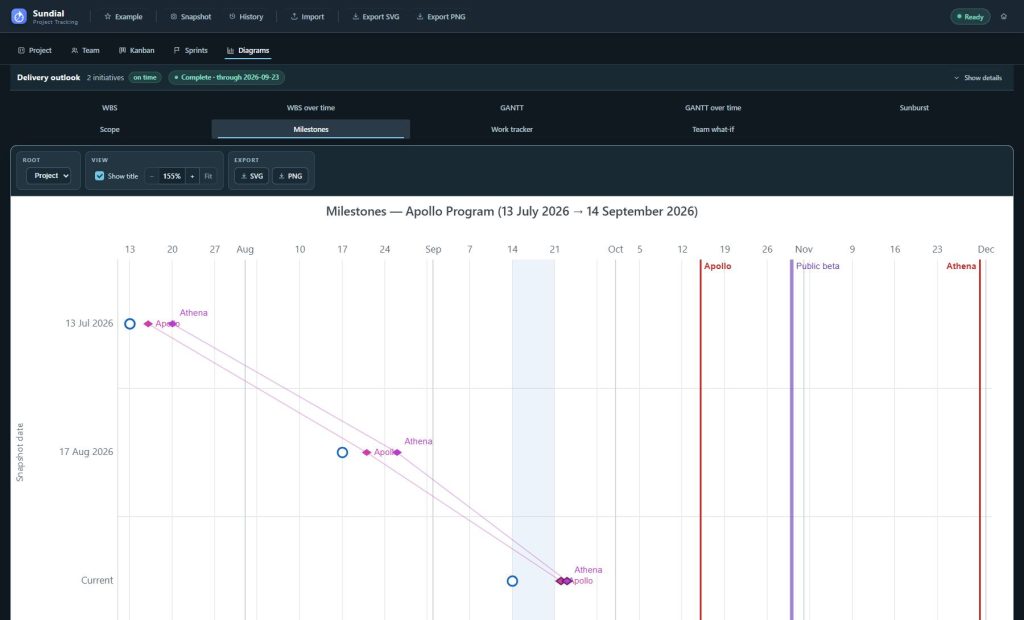
Figure 28. Forecast dates move horizontally as observations progress downward. Blue observation rings and colored delivery marks represent different dates.
Step by step
- Click Milestones with a saved history series available.
- Leave Root at Project for initiative/Release forecasts, or choose one initiative for its direct epics.
- Read rows as saved observations, followed by Current.
- On each row, locate the observation marker and the colored delivery marks for the series in the legend.
- Read the delivery date from the horizontal calendar axis.
- Follow a series’ trend line across consecutive observations to see how its forecast moves.
- Compare marks with the vertical goal/deadline references.
- Hover marks for observation date, estimate date, delivery date, and actual-versus-forecast details. Export for a delivery-trend review.
A mark moving right across checkpoints indicates a later delivery estimate. As delivery approaches, check whether the forecast is stabilizing and how far it remains from the observation date. If the date keeps moving, review Scope and the Delta views to investigate the changes.
Colored marks show delivery dates. Lines connect the recorded forecasts; neither the marks nor the lines represent work duration. There are no readings for days without saved checkpoints. Missing work or missing forecasts can create gaps. A completed item’s actual date differs in meaning from an unfinished item’s forecast date.
Saved history uses the latest capture per UTC day, while Current remains separate. The Current observation uses the model’s reporting start. If a new edit fails, the view can retain the last successful Current point with a stale-state indication; correct the edit before reporting it as fresh. Root selection is shared with Scope.
23. Team what-if: compare staffing choices
Team what-if runs the same project inputs with Current team and an alternative roster. Compare the results to see how the staffing choice affects forecast delivery.
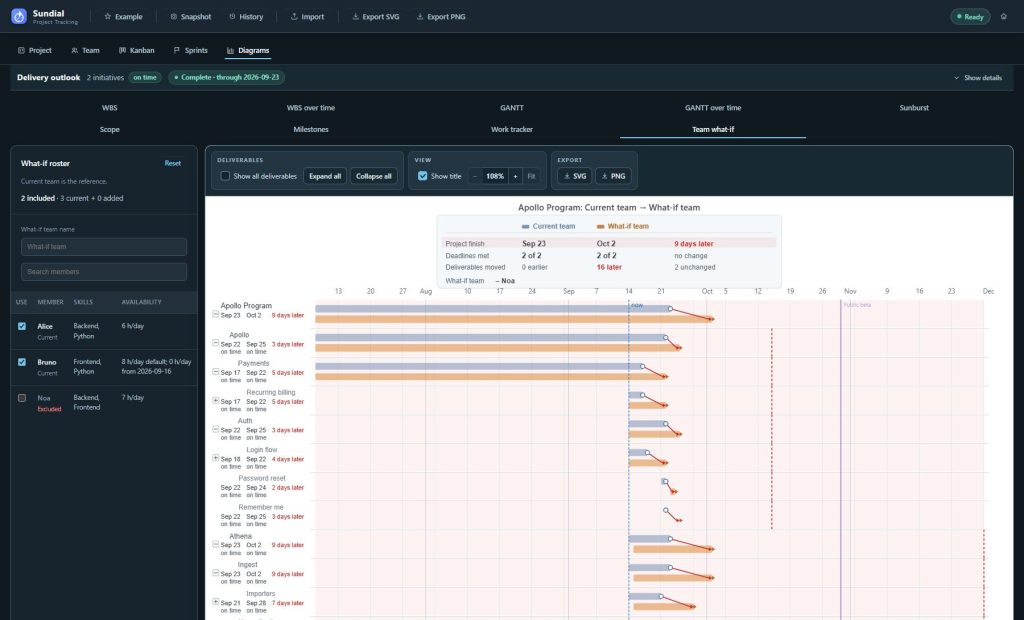
Figure 29. Removing Noa changes the example’s project finish from 23 September to 2 October, nine calendar days later. Both initiative deadlines remain met.
Remove a member temporarily
- Click Team what-if.
- Enter a useful What-if team name, such as “Without Noa”.
- Uncheck the member under Use. All current members begin checked.
- Wait for the alternative forecast to update.
- Read the project-finish comparison, deadlines met, and earlier/later/unchanged deliverable counts.
- Inspect individual rows: reference and alternative finish dates, direction of change, and deadline status.
- Enable Show all deliverables if unchanged results are also needed; the default focuses on shifts and deadline-bearing work.
- Use Reset to restore current members and clear additions. Check the scenario name separately and change it back if necessary.
Unchecking a member changes only the alternative roster. The committed Team remains the reference. Work pinned to an excluded person is released for reassignment in the alternative; review whether another eligible member can actually take it. If work cannot be scheduled, its result is missing. Do not read that as a zero-day shift.
Add a hypothetical member
- Click Edit added members.
- Replace the placeholder name with a unique name for the hypothetical member.
- Replace the placeholder joining date with an explicit intended start date. Set skills, default daily allocation and any dated overrides, concurrency, speed, and an appropriate location.
- Wait for validation and the alternative run to update.
- Use + Add another member for further additions, giving each a unique name.
- Close the additions editor to give the comparison more space.
- Review the delivery impact and export the result with Show title enabled.
Every scenario-only added member needs an explicit joining date, including an immediate joiner. Replace both the placeholder name and the placeholder date in the supplied additions template. The what-if simulation gives that person no capacity before the declared start. From that date, it uses their default hours and applicable overrides. This joining-date gate is specific to scenario additions; in the reference Team form, use a zero default and a positive override from the joining date for the same effect.
Existing locations can be referenced. A new scenario-only location can be declared in the additions fragment; it cannot override an existing location’s calendar. The untouched placeholder template does not add a person. The structured Team form edits the reference team; the separate what-if additions editor remains a text editor. Correct invalid additions before using the alternative forecast. If you exclude every member and add no capacity, Sundial reports a no-capacity state.
Roster search filters visible names without changing the included team. Hover member details to review skills and capacity. Sundial keeps scenario inputs for the session and has no saved named-scenario file format. To keep a record of the comparison, write down the roster assumptions and export an image.
24. Export diagrams and build a report
Export one diagram
- Open the required tab and wait for its data to be ready.
- Set root, comparison endpoints, depth/disclosure, counters, assignee display, resolution, or scenario controls as appropriate.
- Enable Show title. For Delta GANTT, keep Show dates when exact movement is important.
- Click SVG or PNG in the diagram toolbar.
- Save the file, or locate the browser download.
- Open the saved image and check its title, legend, filters, and readability.
SVG preserves vector quality and supported source links. PNG is convenient for a blog, slide, or document. Static exports do not include hover popups or interactive disclosure controls. Exports include the chart content with its filters applied, regardless of scroll position or viewport zoom. Very large PNG canvases may be uniformly downscaled; SVG retains natural dimensions.
Export a bundle
- Build a successful current forecast.
- Select the intended Delta period and history root; prepare the staffing scenario if needed.
- Use the header’s Export SVG or Export PNG.
- Save the ZIP and confirm the exported diagram count.
- Extract and review its files before sharing.
The archive includes available current, Delta, history, and scenario charts. Charts lacking their required inputs may not be present; do not assume every archive contains a fixed count. A Team what-if result is included when its chart has been built. Individual files are named by chart kind, such as wbsTree, gantt, sunburst, workTracker, deltaWbs, deltaGantt, scopeOverTime, milestoneOverTime, and teamScenarioGantt.
A useful review sequence
- Update the work items, recorded effort, workflow states, priorities, and sprint plan.
- Review the reference team’s calendars and availability.
- Check Delivery outlook and GANTT for commitments at risk.
- Compare with the prior checkpoint using both Delta tabs.
- Inspect Scope alongside Milestones to relate estimate changes to delivery movement.
- Use Work tracker to investigate capacity or sequencing.
- Test staffing options if the dates call for a decision.
- Verify automatic saving, capture the accepted reporting checkpoint, and export the review images.
In the written report, give the reporting start and comparison endpoints. Explain the assumptions and any missing or approximate source data that affect the results. A screenshot of the interface is useful for teaching controls; Sundial’s own PNG export is usually better for a chart-only publication.
25. Troubleshooting
| Symptom or diagnostic | What to check and do |
|---|---|
| Nothing to render yet | Open a valid native project or load Example, inspect Issues, and wait for a successful run. |
| Unknown field | The schema is strict. Remove the unsupported key or use its documented spelling. |
| Duplicate name / unknown reference | Give identities unique names and make dependencies, assignees, and locations reference existing entries exactly. |
| Effort on a container | Move estimates to leaves; let parents roll up totals. |
| Invalid spent effort | Review the estimate, recorded balance, and dated entries. Add positive hours with at most two decimal places and a valid developer/date. Mark completed work Done; do not erase its recorded effort history. |
| Missing or invalid done dates | Supply start and finish on or before reporting start; correct the source/export date evidence. |
| Dependency cycle | Follow the listed cycle and remove or correct the circular prerequisites. |
| ImpossibleTask / Unreachable | Check explicit skill exclusions and the dependency chain. Correct team or work assumptions before claiming deliverability. |
| Canceled prerequisite leaves dependents unscheduled | Reopen the prerequisite or deliberately revise the dependency. Cancellation is not successful delivery. |
| Workflow changes cannot be applied | Keep an ordinary state in each category, a Backlog default, and valid references. Close/reopen stale settings and preview again. |
| Urgent task still starts later | Deadline urgency, dependencies, dates, eligibility, capacity, and already started work can precede the preference. |
| Completed sprint shows old column names | Its historical board preserves the workflow captured at completion. Open the live project for current states. |
| SimulationExceeded or unfinished work | Check blocked tasks, availability gaps, future starts, project access, pinned assignments, and the simulation limit. Extending the limit alone does not resolve a constraint. |
| Forecast seems too early | Check missing dependencies, underestimation, omitted work, overstated allocation/speed, and missing holiday data. |
| No saved history | Capture a checkpoint, verify the active store, and refresh History. A lone unsaved Current model does not provide saved history. |
| Empty Delta report | Verify the endpoints and filters. Identical or non-qualifying changes legitimately give an empty comparison. |
| Desired comparison end missing | Saved end must be strictly later than baseline. Select an older baseline; verify the checkpoint is in the active store. |
| Path identity warning or split series | Review renamed/moved items and source identity continuity; do not read a split as automatic scope creation. |
| Stale Current result | Correct the failing current edit and wait for a successful run. Saved checkpoints are separate from that failed edit. |
| MissingColumn | Include Issue key and Summary or configure valid column aliases. |
| TooManyFiles | Select one CSV alone, or a set of JSON dump files. |
| Unmapped imported status | In Workflow settings, add an exact Tracker status mapping and retry import. Default-workflow fallback warnings may instead require an import mapping. |
| OrphanParent / ExternalDependency | Check export completeness, parent levels, permissions, and missing linked work. |
| AmbiguousDateOrder | Specify dateOrder: dmy or mdy to match numeric slash dates. |
| UnestimatedItem | Provide an estimate or choose and disclose a deliberate unestimated policy. |
| CsvStartApproximated / UndatedVersion | Review CSV’s historical-date and milestone limitations; use richer data where necessary. |
| EncodingUnsupported or garbled text | Re-export as UTF-8 CSV. Some BOM-marked UTF-16 dumps can be decoded, but unsupported forms need conversion. |
| SeedNoAssignees | Include assignees for a fresh seed, or import into a valid model with an existing team. |
| Added member has no effect | Replace both placeholder name and joining date, check skills and valid inputs, and verify the person is included. |
| What-if has no alternative forecast | Restore at least one valid member or addition; fix additions errors and inspect unscheduled constraints. |
| Team form shows Draft but forecast is unchanged | Click Apply changes to commit valid form inputs; entering a draft does not alter the forecast. |
| Changes were not applied | Correct highlighted names, skill duplicates, access chips, numbers, dates, overlap, or calendar codes, then apply again. |
| Reload draft notice | The Team document changed underneath the draft. Reload from the current document before editing again. |
| Developer rename blocked | Correct the loaded Project so task assignee references can be checked and updated safely. |
| Developer deletion blocked | Keep at least one developer and remove or change the member’s Project assignments first. |
| Location deletion blocked | Apply new location assignments for all developers still referencing it. |
| Unexpected capacity between override periods | Outside override periods, the default applies, normally eight hours if omitted. Use an explicit zero default for interval-only participation. |
| Snapshot capture failed | Inspect folder permissions, browser storage quota, and the capture notice; verify the new entry exists. |
| Folder permission expired | Use Reconnect snapshots folder and grant access again. |
| Export failed | Wait for valid chart data, check the selected output location, and retry. Inspect large-image readability after saving. |
| Text too small in diagrams | Maximize the window, choose Diagrams, hide Delivery outlook details, zoom for inspection, or export SVG. |
Shared editing and planning problems
| Symptom | What to check and do |
|---|---|
| Colleague does not see an edit | Confirm both opened the same native folder, the draft was applied, saving succeeded, and the share is propagating complete files. Allow for polling and filesystem delay. |
| Native save failed | Restore folder access or browser permission and use Retry. Keep the working session open until persisted. |
| ConcurrentFieldWrite | Review the listed alternatives with collaborators, then apply the agreed field value after receiving their edits. |
| ModifiedAfterDelete / ConcurrentDeleteRestore | Decide explicitly whether to keep the deletion or restore the original task; then review dependencies. |
| UnsupportedSchema | Use a compatible newer Sundial version. Editing is disabled when an unsupported remote upgrade arrives. |
| Draft cannot overwrite the current document | Reload draft and re-enter intended changes against the new committed Project/Team. |
| Sprint refresh import blocked | Back up and retain the project, or deliberately choose a fresh import understanding that it replaces sprint metadata. |
| Cannot start sprint | Check for an existing Active sprint and whether the selected sprint has unfinished work. |
| Capacity seems too generous | Check calendars, unestimated/unassigned work, and other commitments; outside-sprint work is not deducted. |
| Sprint snapshot retry needed | Reconnect or repair the reporting snapshot store, then Retry snapshot; native-save Retry is separate. |
26. Keyboard and control reference
| Action | Shortcut or control |
|---|---|
| Commit Project / Team form | Apply / Apply changes; committed changes save automatically |
| Capture Project-and-Team reporting checkpoint | Ctrl+Shift+S; resolve pending form drafts first |
| Undo / Redo committed model changes | Toolbar buttons; Ctrl+Z / Ctrl+Y or Ctrl+Shift+Z when focus is outside editing fields and dialogs |
| Zoom at cursor | Ctrl+wheel |
| Return to whole-diagram overview | Fit |
| Close Import or History panel | Escape or outside click |
| Clear supported chart selection | Escape or chart background click |
| Recover diagram space | Diagrams workspace, large window, Delivery outlook → Hide details |
Sundial intercepts plain Ctrl+S without performing a save. Use Apply to commit a draft and Snapshot to capture a reporting checkpoint.
27. Glossary
| Term | Meaning in Sundial |
|---|---|
| Baseline | Saved snapshot used as the starting endpoint of a Delta comparison. |
| Current / Now | Latest successfully processed current model; distinct from a saved checkpoint. |
| Delta | Difference between a baseline and current model or later saved snapshot. |
| Effort | Total declared work estimate, normalized to hours for presentation. |
| Spent | Recorded effort already performed; the task form aggregates its baseline and entries. |
| Remaining effort | Total effort minus spent effort, used for scheduling. |
| Forecast | Deterministic simulated delivery under declared assumptions. |
| Initiative / Release | Project-level grouping; history specifications use Release terminology. |
| Milestone | Standalone commitment date with no work or dependency of its own. |
| Deadline / Goal | Deliverable need-by date, shown as a reference or emphasized goal where applicable. |
| Reporting snapshot | Dated Project-and-Team checkpoint for Delta/history charts, distinct from native startup snapshots. |
| Reporting start | Date from which remaining work is simulated. |
| Draft | Project, Team, or planning inputs not yet committed with Apply or the relevant confirmation. |
| Default capacity | Daily available hours used on working days outside overrides. |
| Scheduled override | Inclusive period whose daily hours replace the default; calendars still apply. |
| Work tracker | Heatmap of simulated developer allocation, not a timesheet system. |
| What-if roster | Alternative team assembled without editing the reference Team. |
| Native container | The .sundial folder holding authoritative collaboration state and history. |
| Concurrent edit | Independent changes made by separate browser instances before receiving each other’s work. |
| Conflict | Retained competing field values or edit/delete intentions requiring a decision. |
| Tombstone | Recoverable native record of a deleted task, retaining its identity and history. |
| Workflow state | Named, colored step in the project process, mapped to one simulation category. |
| Simulation category | Backlog, In progress, Blocked, or Done scheduling behavior behind a detailed state. |
| Canceled outcome | Terminal non-delivery retaining history, using no future capacity, and satisfying no dependencies. |
| Effective priority | Explicit priority, nearest explicit ancestor priority, or Normal by default. |
| Manual order | Preference among eligible unfinished leaves at the same effective priority. |
| Acceptance criteria | Markdown description of observable completion conditions; not an executable completion gate. |
| Sprint scope | Actionable work assigned to a sprint, independent of task status. |
| Sprint capacity | Remaining sprint effort compared with available Team hours over the relevant dates. |
28. Further reading
For the project-reporting approach, read this site’s articles on workflow simulation, change reporting, and sunburst project health.
For diagram background, see PMI on work breakdown and scheduling, Asana on Gantt charts, Plotly on sunburst charts, and Plotly on heatmaps.
For collaboration background, see Automerge’s local-first overview and concurrent field conflicts. For board context, see Atlassian’s Kanban guide.