01
When can we actually deliver?
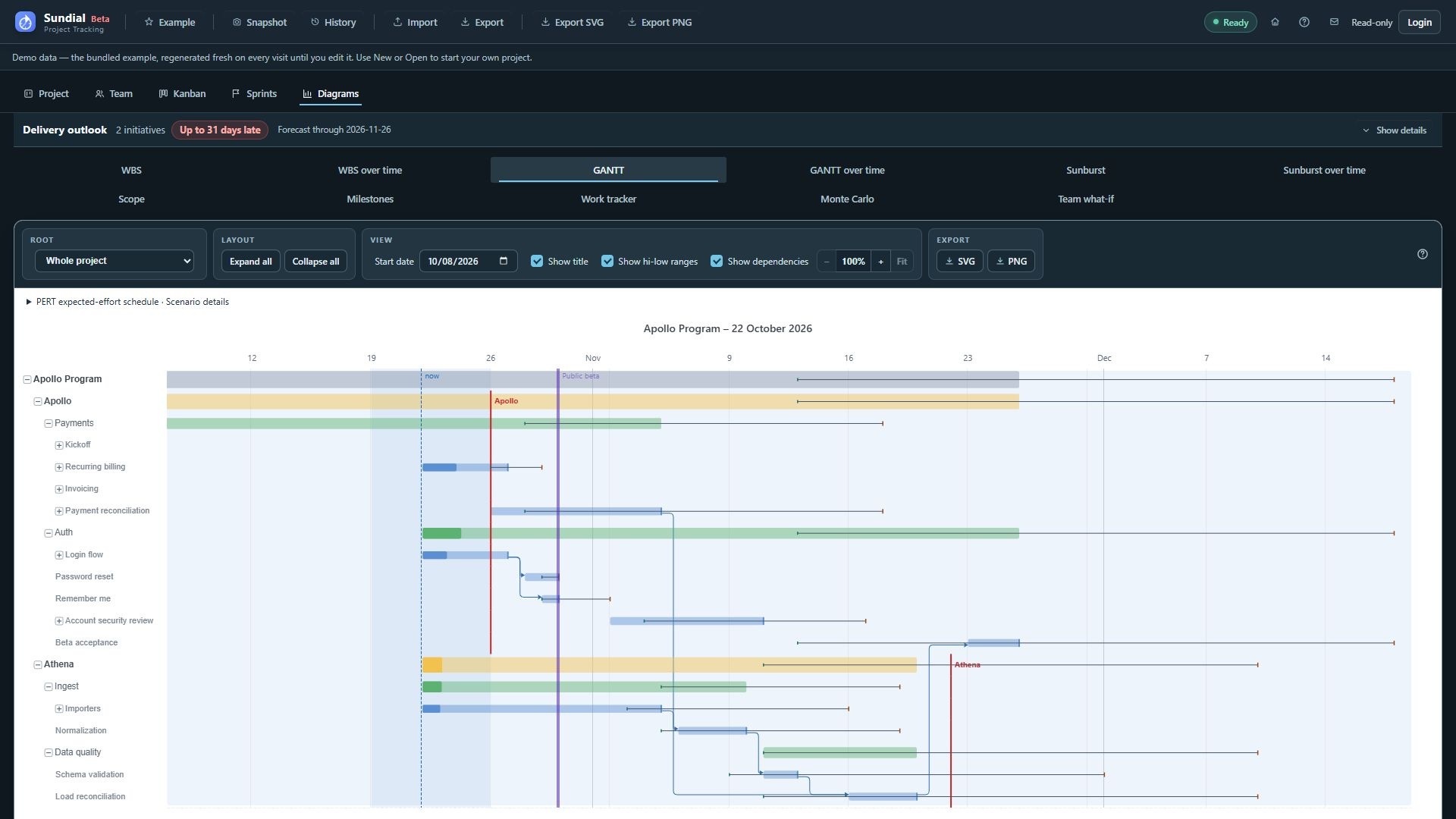
Forecast against dependencies, skills, calendars, and real availability. Understand the assumptions behind the date.
See the delivery pictureUnderstand when you can deliver, what could change,
and what to do next. Your project data stays in files you control.
For project managers and technical leads, the next decision is rarely simple. Bring the work, the people, and the possibilities into the same picture.
Forecast against dependencies, skills, calendars, and real availability. Understand the assumptions behind the date.
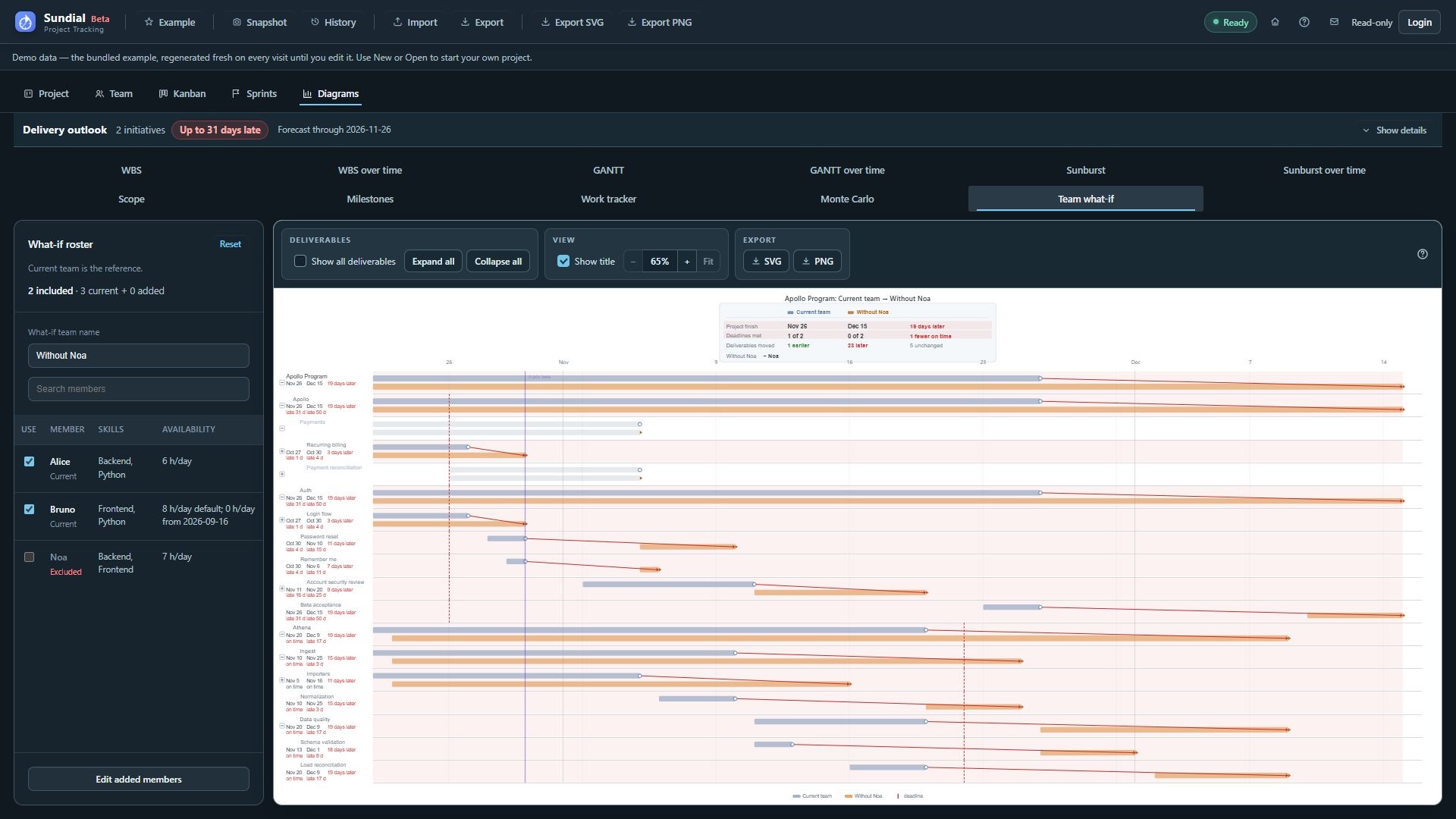
See the delivery pictureExplore a departure or a hypothetical new joiner. Compare the delivery impact before making a staffing decision.
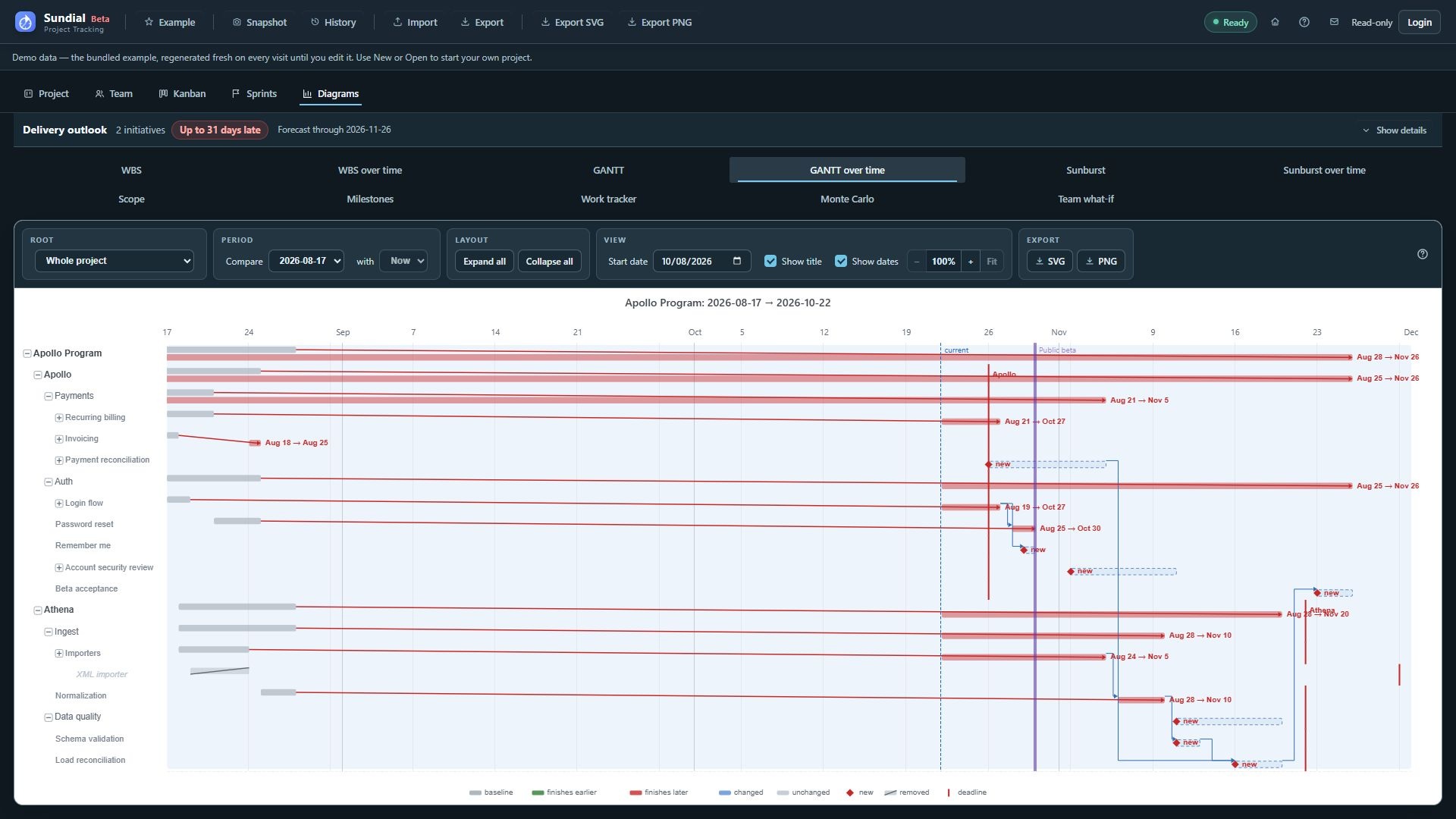
Test a different teamCompare saved checkpoints with the current plan. Follow changes in scope, progress, estimates, and forecast dates.
Make change explainableFrom a delivery forecast to the next sprint, every view starts with the same project and team model.
Bring estimates, dependencies, skills, and availability onto one timeline. See the schedule your current plan supports, with optimistic and pessimistic effort scenarios for perspective.
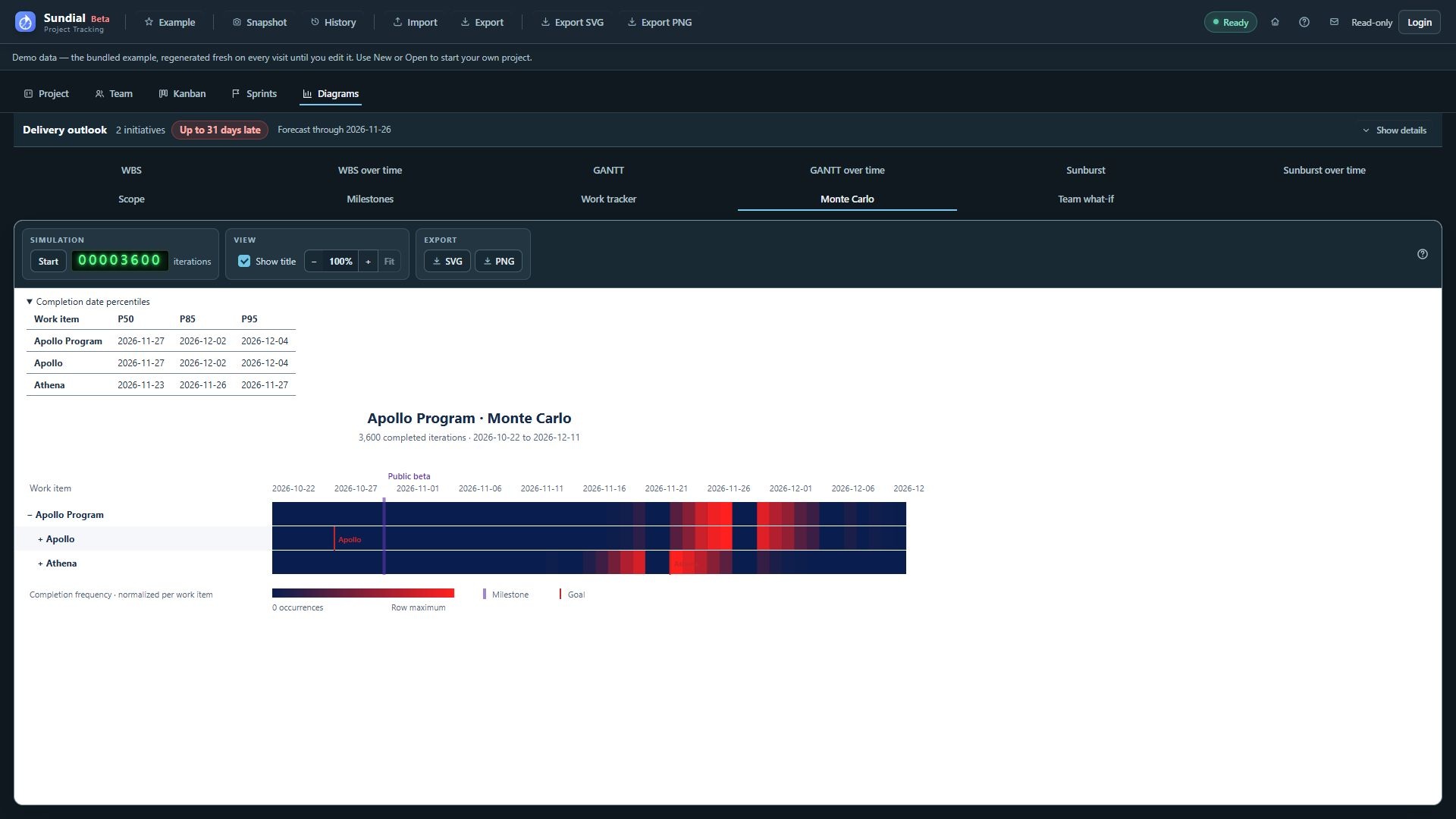
Explore delivery forecastingMonte Carlo samples your effort estimates and schedules the work repeatedly. Explore completion-date distributions and P50, P85, and P95 dates using the same team constraints.
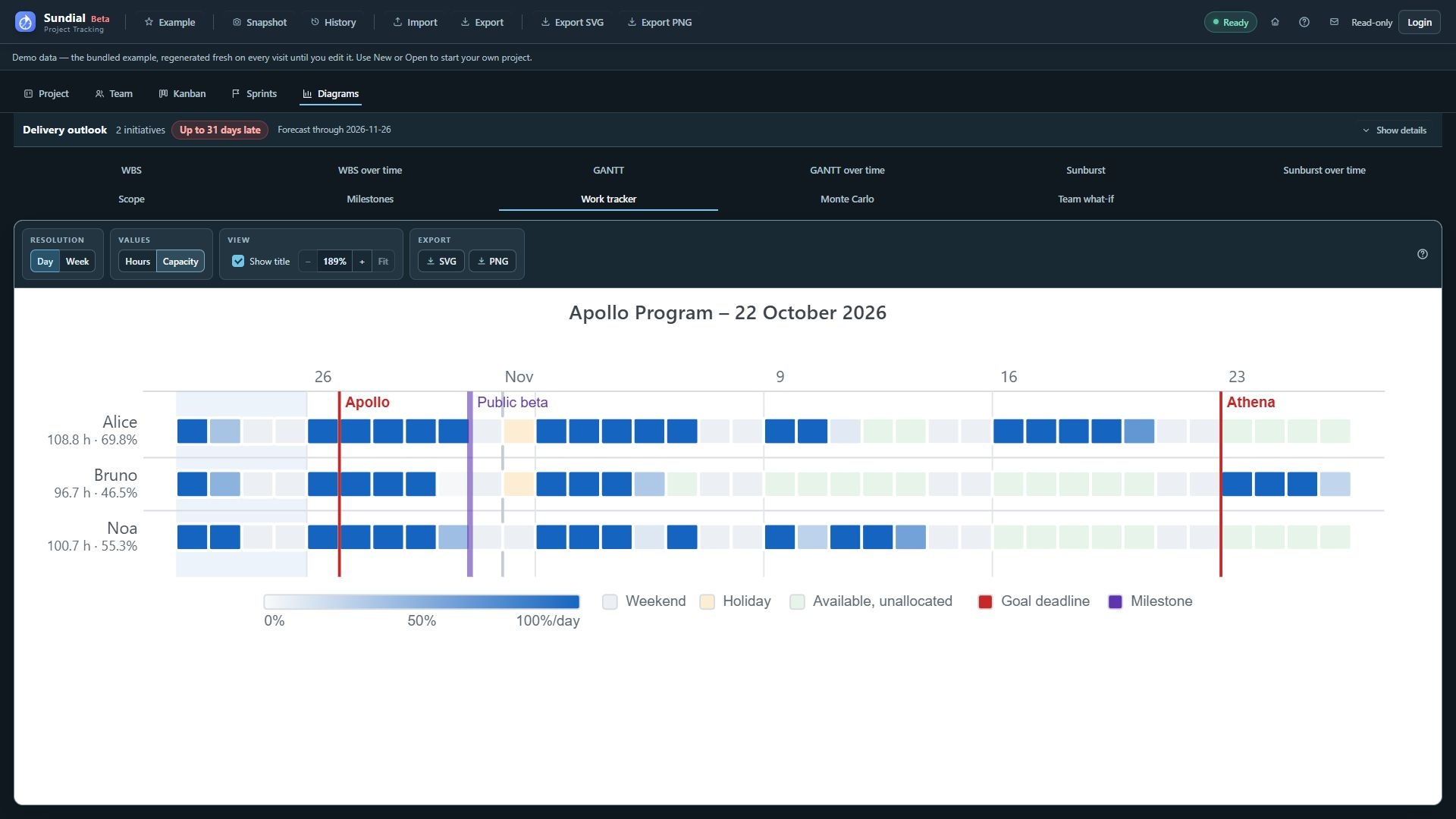
Understand Monte CarloInspect forecast allocations by day or week, in hours or as a share of available capacity. Find busy periods, available but unallocated time, and the people behind the schedule.
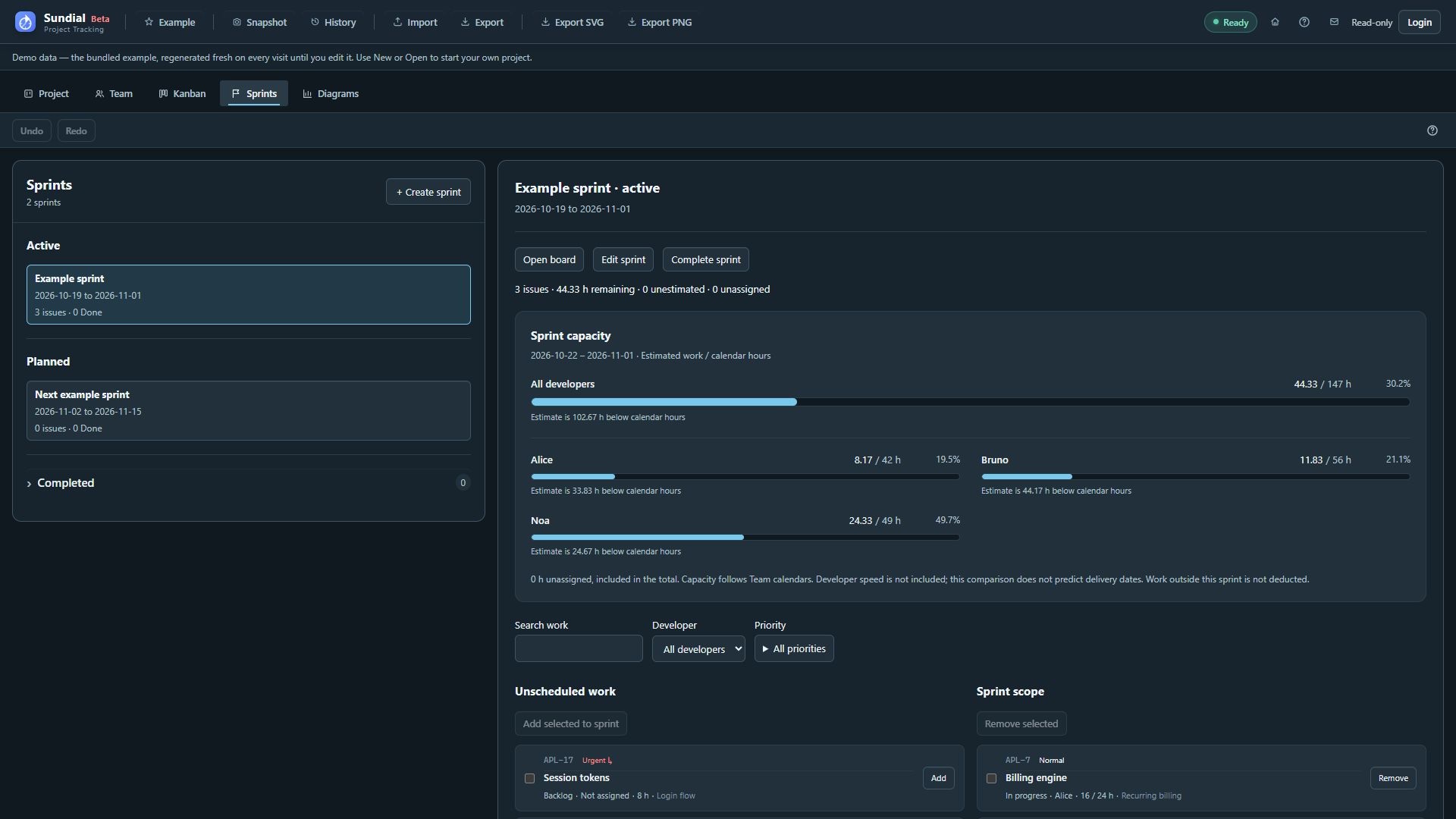
Explore the Work trackerCompare remaining effort with per-developer capacity. Keep the next sprint connected to the project, then complete it and carry unfinished work into the next plan.
Learn about sprint planningMore people won’t always mean an earlier delivery. Model the skills, availability, and joining dates that make a difference to your project.
A project review is easier when everyone can see the baseline. Save a checkpoint, compare it with the current plan, and bring the changes into focus.
Follow scope growth, status changes, and delivery movement. Export the diagrams to share the evidence behind your next decision.
Understand delivery movementPlan, track, and forecast in the same workspace. The everyday details stay connected to the delivery outlook.
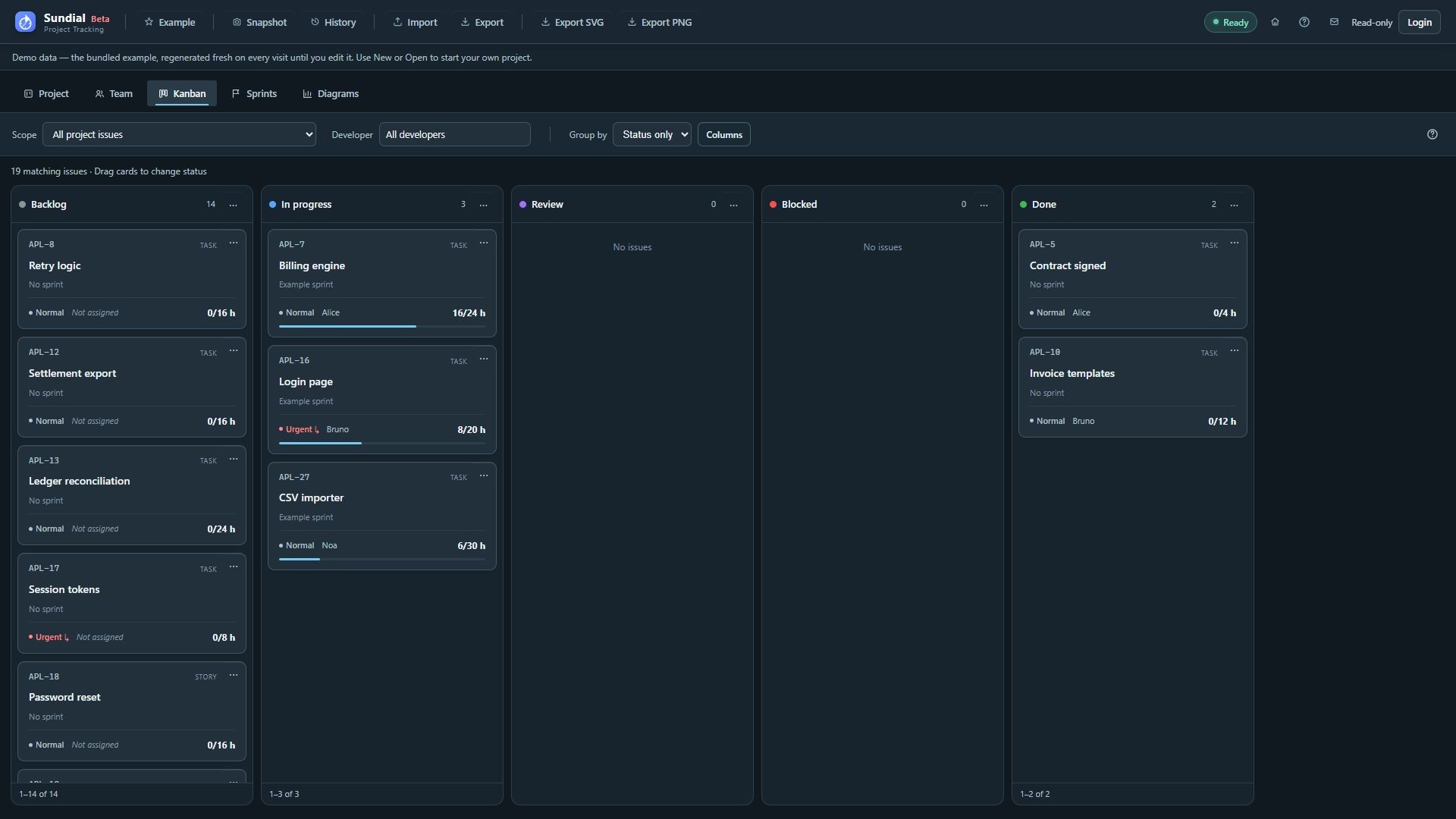
Define workflow states, follow actionable work in Kanban, and update the model behind your forecast.
Explore KanbanChoose scope, review per-developer capacity, and carry unfinished work forward when the sprint ends.
Plan your next sprintBring a saved export into Sundial and give your existing project a fresh perspective.
File-based imports. No continuous synchronization or write-back.
Unreleased features. Technical decisions. Business priorities. Your project data belongs in storage you control.
Project data is processed in your browser and saved in a folder you choose, with browser storage for recovery.
Open the same shared project folder with your team. Committed edits save automatically; filesystem permissions control access.
Viewing needs no sign-in. Editing uses Google sign-in through Firebase Authentication. Project contents and filenames are not sent to those services.
Loading the app and public-holiday lookups can also make network requests. Use Chrome or Edge for native folder access.
Read about privacy, sharing, and backupsExplore the included Apollo project before setting up your own. There’s no need to start from a blank screen.
Launch Sundial in a large desktop window. Click Example to explore a project, team, and active sprint.
Follow the quick startReview the delivery outlook. Inspect allocations or try a team what-if to see how a decision changes the plan.
Choose your first viewSign in to edit, create a native project folder or import Jira data, and model your real work and capacity.
Create your first project29 searchable chapters, organized around the decisions you want to make.
Yes. Sundial is free to use. Open the app in your browser and explore the included example. No payment is required.
You can view projects without signing in. To make changes, choose Login and continue with Google. Sign-in identifies the editor; it does not upload the project or grant access to its files. Read the sign-in and storage details.
Use Chrome or Edge on a desktop for native project folder access. Detailed forms and diagrams work best in a large browser window. Follow the quick start.
Yes. Each person opens the same .sundial folder on a shared filesystem with appropriate read/write access. Changes to different fields normally merge automatically; competing writes to the same field require review. Separate local copies do not synchronize on their own. Set up shared editing.
Yes. Import saved Jira CSV, JSON, or NDJSON files to analyze existing work. Sundial does not continuously synchronize with Jira or write local edits back. See the import guide and limitations.
Ordinary forecasts simulate a declared set of estimates, dependencies, priorities, calendars, and capacity. Monte Carlo explores sampled effort estimates. Outputs depend on the quality of those inputs; dates are indicative and are not delivery guarantees. Understand what a forecast means.
Start with the example. Find the answer that shapes your next decision.