Sprints group actionable work into a named period with inclusive start and end dates. Membership is independent of task status and does not replace dependencies or forecast constraints. The Sprints workspace lists Planned, Active, and Completed sprints.
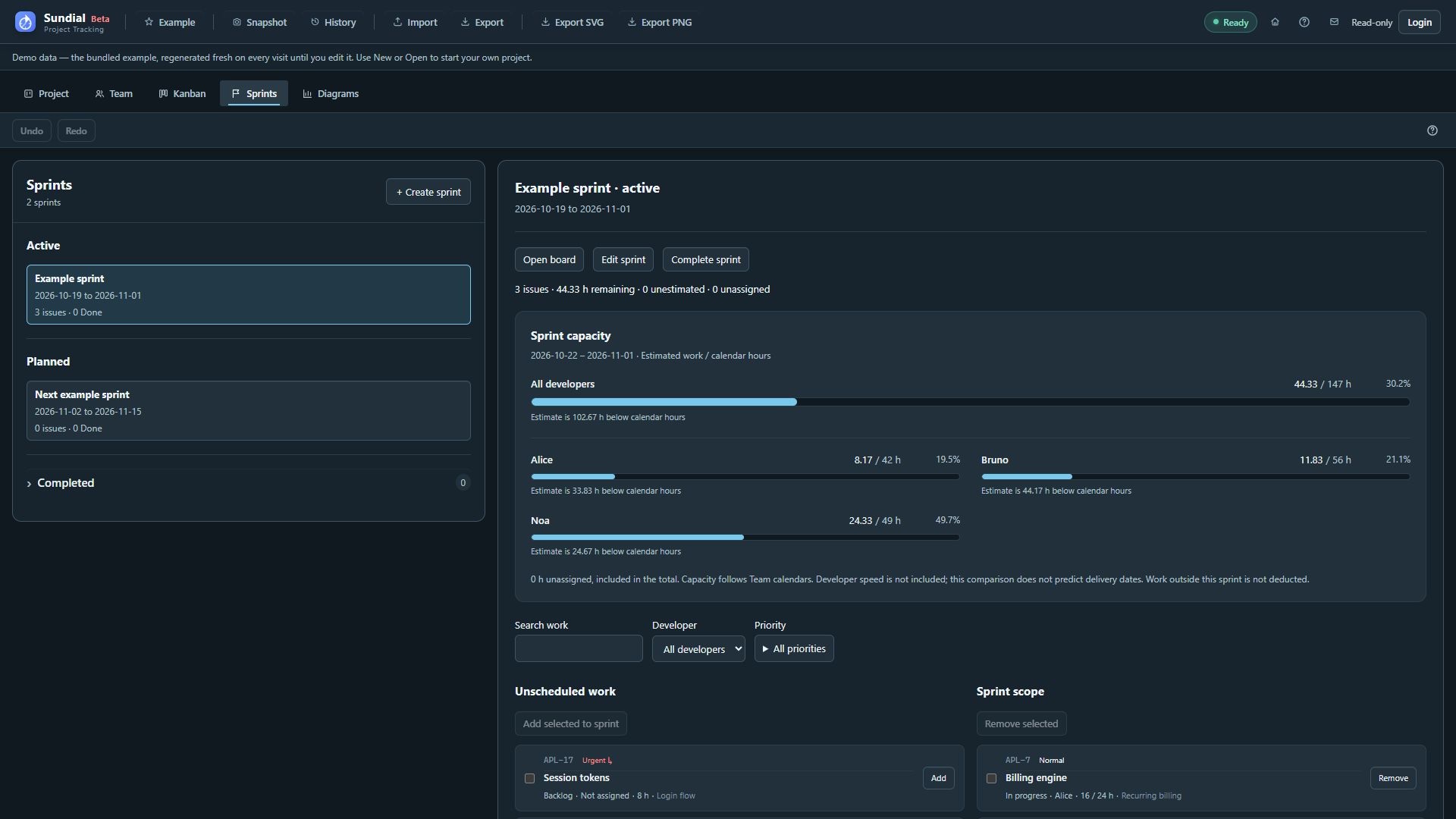
Figure 21. New Example active sprint with current scope, unscheduled work, and per-developer capacity.
Create and populate a sprint
- Open Sprints and choose + Create sprint.
- Enter a useful name and inclusive start/end dates, then choose Create. New sprints use the browser's local timezone; the form does not offer a timezone picker. Use Edit sprint → Save for subsequent changes.
- Select the planned sprint in the list.
- Search work, filter by developer, or expand Priority and select the priorities to include. In Unscheduled work, use Add for one item or select several and choose Add selected to sprint.
- Expand Assign other work or a parent subtree when you need to bring in other work or all eligible leaf descendants of a parent. Review affected issues and any assignments that will be replaced.
- Under Sprint scope, use Remove or select several and choose Remove selected to leave them unscheduled.
- Review remaining effort, unestimated work, unassigned work, and developer capacity. Adjust assignments, scope, or dates before starting.
You can also choose a sprint in the Project task form. Assigning a subtree adds its eligible actionable leaves; the parent contributes no extra estimated work. Committed sprint planning actions save automatically.
Review priorities and inspect planning items
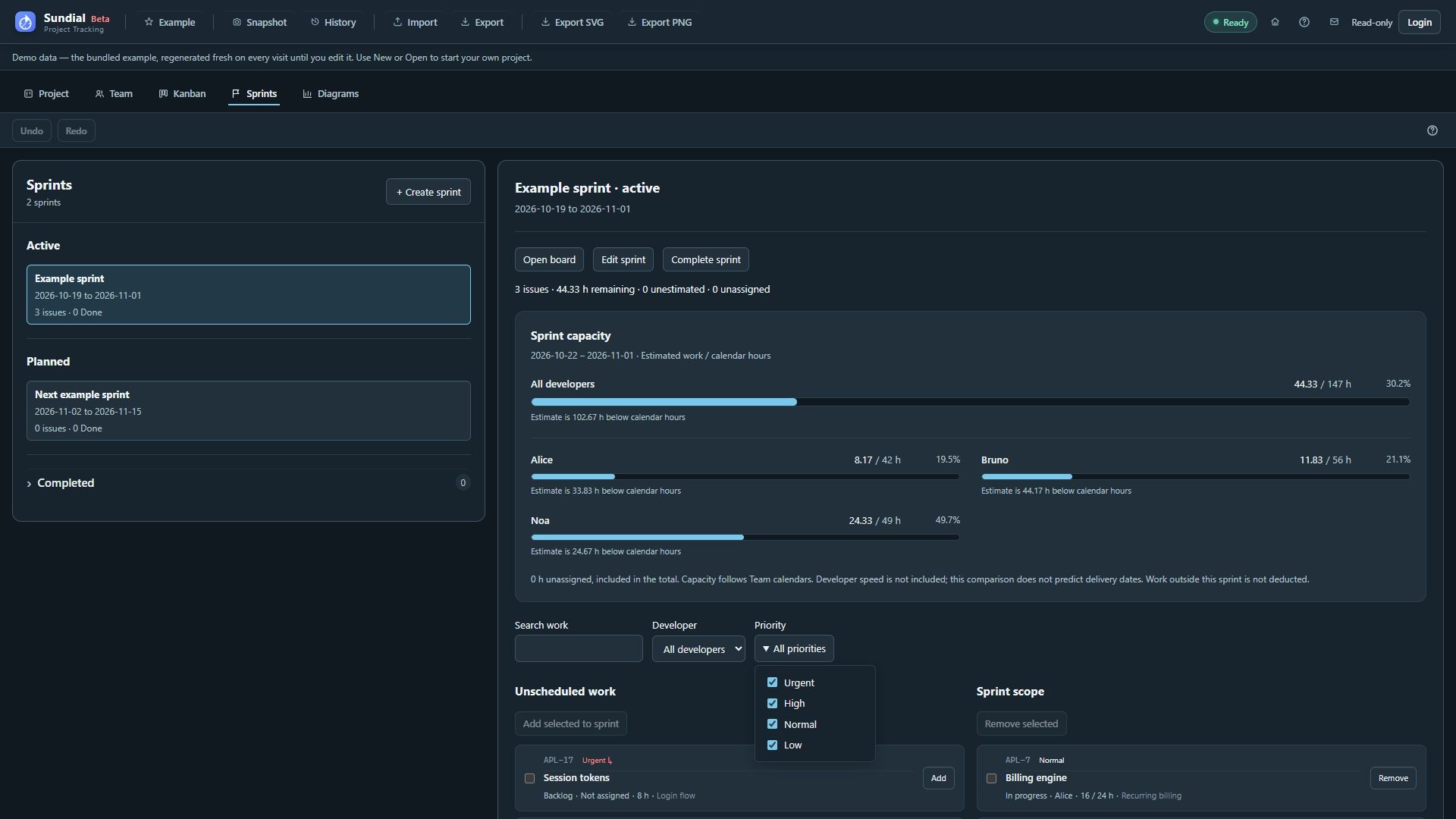
Figure 22. Sprint planning with the Priority filter expanded and the new Example scope.
Unscheduled work is presented by effective priority, then by scheduling status, with active and blocked work ahead of waiting work. Manual order expresses a forecast pickup preference; it does not determine this list's status grouping. The current Sprint scope remains a membership list; moving a task's priority does not remove it from the sprint.
Click a work-item name in either planning list to open its editor and review Description, Acceptance criteria, Comments, and Schedule. Apply changes to the same project record, then return to planning. You can also drag eligible work between the two planning lists to add or remove membership; the explicit Add/Remove buttons provide the same actions.
Filters hide rows for review; they do not exclude those members from total scope or capacity. Canceled work is not offered for new assignment and contributes no remaining capacity demand.
Interpret Sprint capacity
The capacity panel compares Estimated work / calendar hours for all developers and for each member. The workload is remaining estimated effort; Done and canceled work contribute no remaining demand. Calendar hours use Team defaults, overrides, weekends, holidays, and extra non-working dates. Planned sprints use their full period. Active sprints start at the later of today and their start date, through the inclusive end. Date edits refresh the preview; invalid dates or ranges beyond ten years cannot produce a capacity preview.
The total includes unassigned work and identifies it separately; each developer's row includes only their assigned work. A percentage above 100% means estimated demand exceeds calendar hours. Missing estimates make demand incomplete. This comparison does not adjust hours for developer speed, account for scheduling constraints, or deduct work outside the sprint. It does not predict a delivery date or enforce a Kanban WIP limit. Use GANTT and Work tracker for the forecast, especially when speed differs from one or work has dependencies.
Start and review the sprint
- Select a Planned sprint and choose Start sprint.
- Review the issue counts and warnings. Starting requires unfinished work; only one sprint can be Active in a project.
- Confirm the start. It creates no reporting snapshot or commitment baseline automatically.
- Choose Open board to review the sprint in Kanban. Update statuses and recorded work there or in Project.
- Return to Sprints to review scope and remaining capacity. Dates do not automatically start or complete a sprint.
Complete and carry unfinished work forward
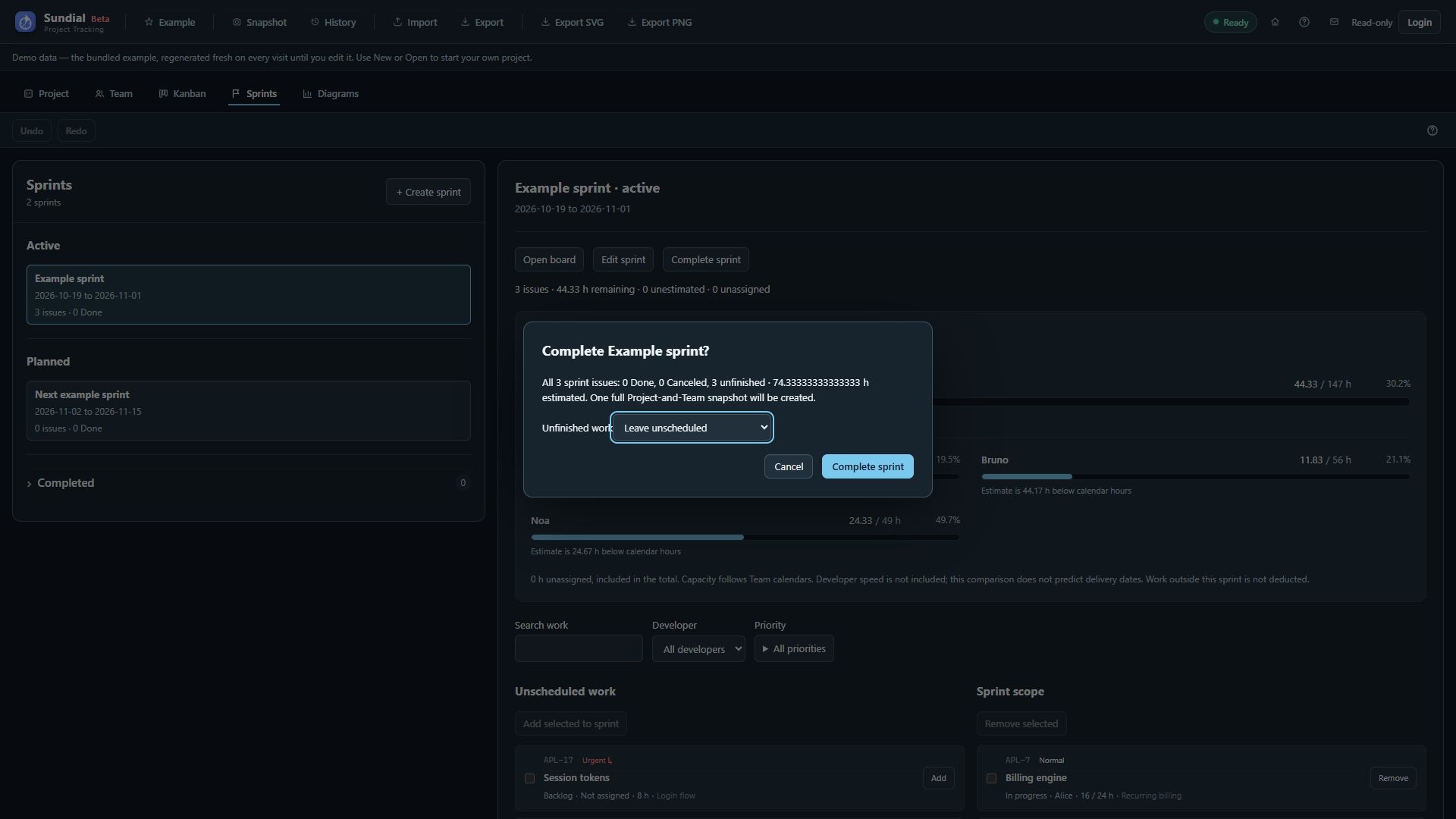
Figure 23. Sprint completion review with a destination for unfinished work; the dialog was canceled.
- Select the Active sprint and choose Complete sprint.
- Review all member issues, including filtered or hidden work, the Done count, unfinished items, and canceled members. Canceled work has its own final disposition and is not carried forward.
- Choose whether unfinished work should Leave unscheduled, move to a Planned sprint, or go into a newly created next sprint. Review the destination before confirming.
- Confirm completion. Task statuses remain unchanged; the destination sprint remains Planned.
- Verify the completed sprint in the list and its completion checkpoint in History.
- Open its historical board to see the captured end state before carryover. Use Open live issue when you want the current item rather than the historical record.
Completing a sprint saves its final board and a full Project-and-Team reporting snapshot. Completed boards are read-only and can be archived. They retain the workflow state names, colors, order, scheduling categories, cancellation outcomes, and configuration captured at completion, so later workflow edits do not rewrite the historical board. If snapshot storage fails, completion remains applied and Retry snapshot retains the original completion payload. Restore or reconnect the snapshot store before retrying. A native project-save failure has a separate retry action.
Undo reverses completion and carryover but retains the already saved checkpoint. Redo reuses that completion checkpoint.