Kanban displays actionable leaves in columns for the project's configured workflow states. The default workflow has Backlog, In progress, Review, Blocked, and Done. Containers provide hierarchy context; only actionable leaves appear as cards.
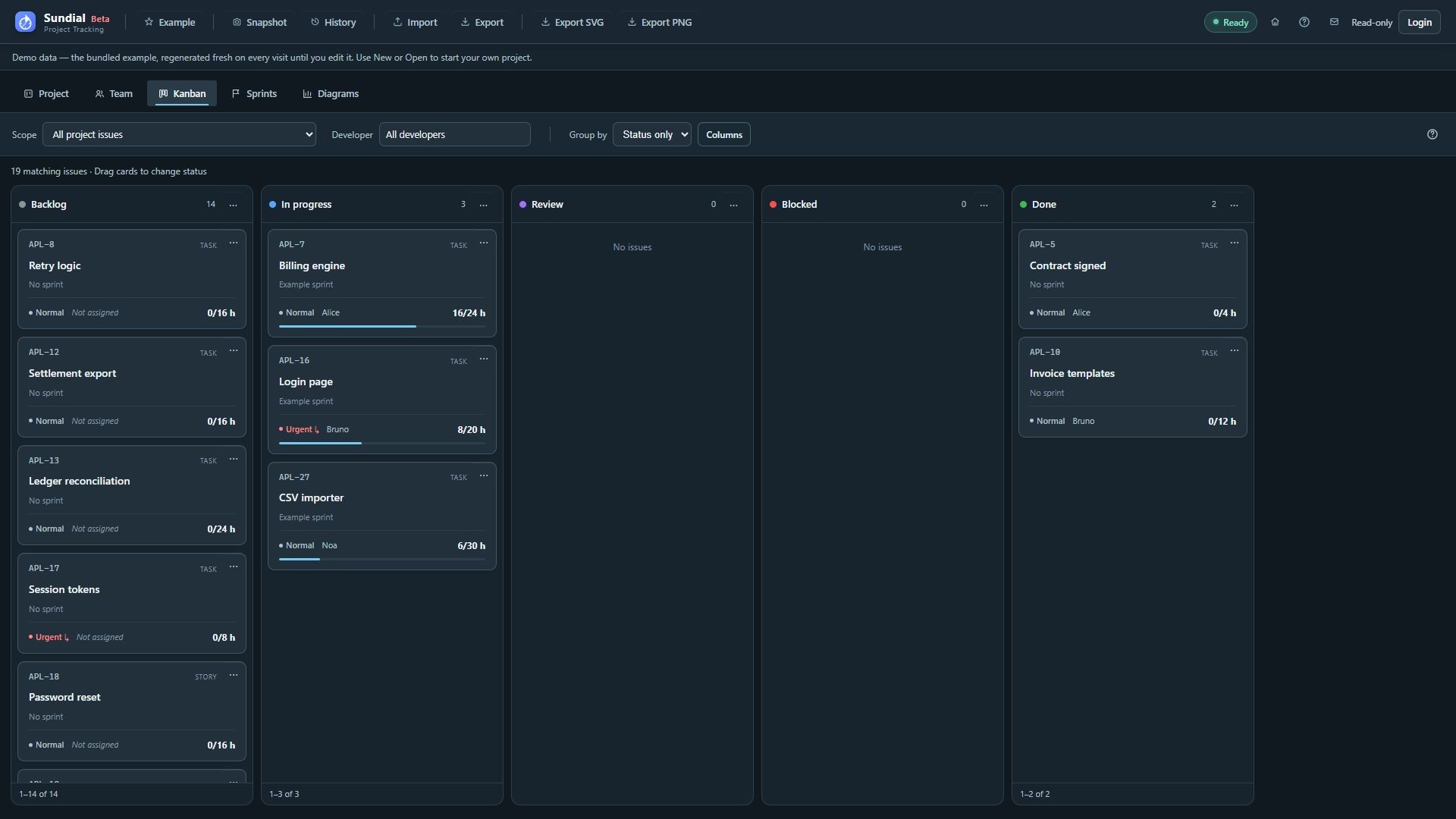
Figure 20. New Example Kanban board with Review, issue keys, assignees, priorities, effort, and filters.
Cards show the project issue key, work name, sprint, effective priority, type, assignee, and spent/estimated effort. Inherited priority carries an arrow. Use Workflow settings in Project to add or rename process steps and choose their scheduling categories.
Review and update work
- Open Kanban.
- Choose Scope → All project issues, No sprint, or a named sprint.
- Choose Developer to show all developers, a member, or unassigned work.
- Choose Group by → Status only, Developer, or Epic. Developer and Epic create swimlanes across status columns.
- Use Columns to hide or show status columns. Hiding a column does not change task status.
- Open a card to inspect and edit its work-item form. Review assignment, estimate, recorded effort, dependencies, and sprint membership, then Apply. The card's Description and Acceptance criteria stay off the board for compactness; opening the card shows the full formatted text with the same Preview toggle as the Project form.
- Drag a card into an allowed next-state column, or use the card's menu and Change status. The menu lists permitted destinations; a disallowed drop cannot change the task. With the default workflow, move active work through Review before Done. The change commits and saves automatically and refreshes the model. Same-category handoffs preserve lifecycle dates; category changes use the scheduling and completion rules described in the workflow guide.
To change an assignee, open the issue inspector, even when the board is grouped by developer. Dragging changes status only. Dropping a card into its current status or outside a valid target leaves it unchanged. Resolve any unapplied inspector draft before navigating away or continuing an action that prompts you to review it.
Each column shows up to 30 cards per page. Check the totals and pagination to see whether more work is available. The page size does not impose a work-in-progress or capacity limit. A missing assignee reference can appear separately from unassigned work; correct the reference in Project/Team.
Kanban filters affect the board only. Forecasts still use the full dependency graph and Team. Sprint scope is remembered for the project. A completed sprint's historical board is read-only; use Open live issue to edit the corresponding current task.