One container for Project and Team
A .sundial project folder holds the native collaboration document and history for work items, developers, calendars, sprints, and related model data. Project and Team have separate editing screens, but their data and collaboration history are stored together. There is no pair of editable YAML files to maintain.
Use Chrome or Edge with directory access on a secure application origin or localhost. Open asks for a directory: select the actual .sundial container, not its parent, an individual change file, or a reporting snapshot. Opening through either Project or Team loads both halves.
Sundial cannot open or migrate legacy Project/Team YAML files through native Open. Reporting snapshots and optional import mappings are separate files with their own uses; neither is a native project folder.
Create a project
- In Project, choose New and resolve any pending draft or replacement notice.
- Enter Project name and Project key in Create project. The key uses 2 to 10 letters or digits and starts with a letter; Sundial normalizes it to uppercase. Choose it carefully because it locks once the first work item is allocated.
- Choose Create, select an empty parent directory, and allow the browser to write there. The directory must contain no files or subfolders.
- Sundial creates a Project Name.sundial subfolder with a new Project root and a reporting period beginning today. The currently available Team is used for the new project; review it before estimating capacity.
- Click the root's name to edit it, then use the hierarchy controls to add work.
- Open Team, review developers and calendars, and apply needed changes.
- Verify save notices and a successful forecast. Retain the actual folder path for reopening or sharing.
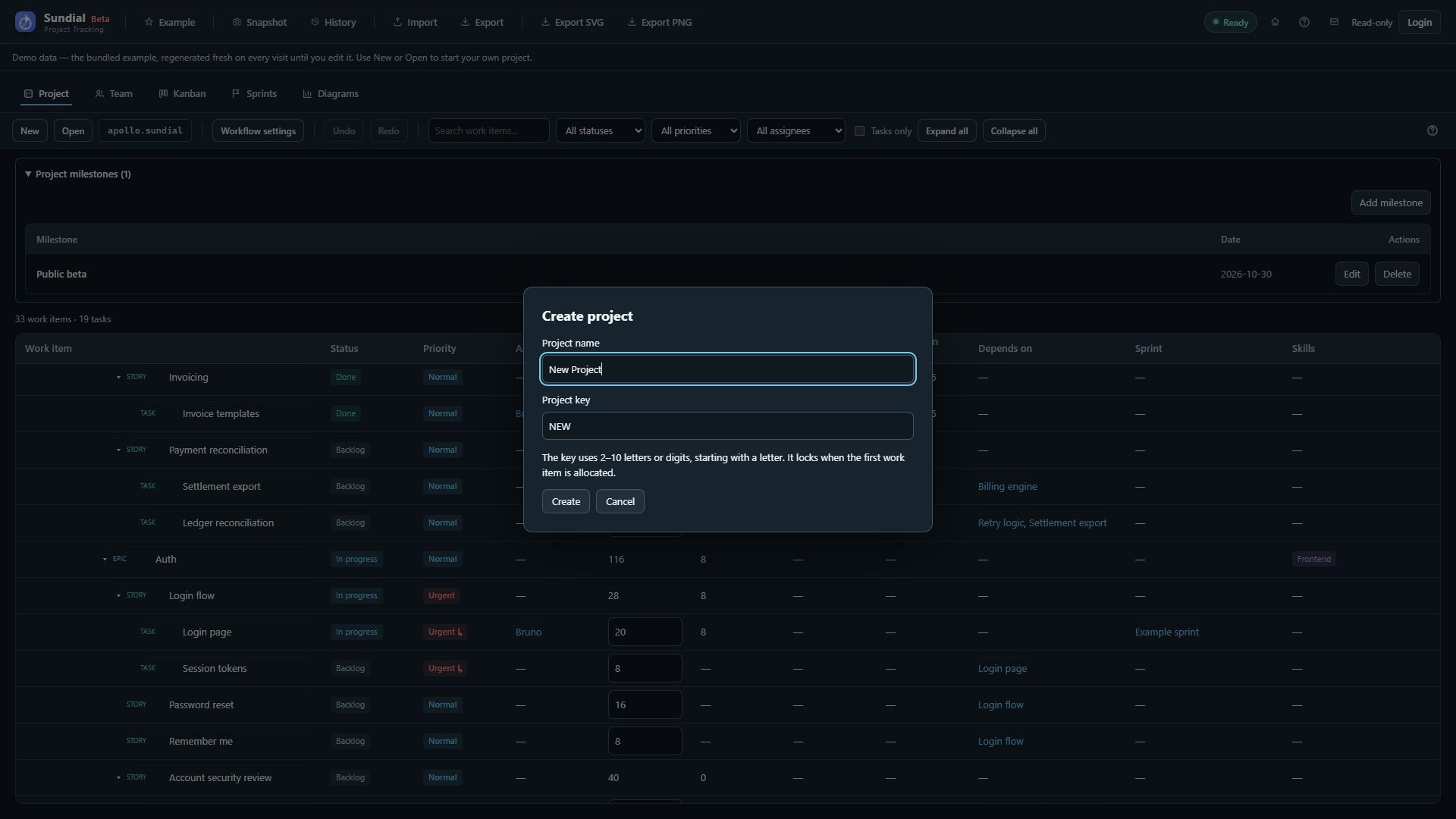
Figure 4. Current Create project dialog with Project name and Project key fields.
Choosing New in Team replaces the current project's roster and calendars. It does not create a separately saved Team file.
Automatic saving and recovery
Applying Project or Team forms, changing Kanban status, editing sprint plans, and Undo/Redo commit native changes and trigger saving. There is no separate disk-save step for each tab. Plain Ctrl+S does not apply a draft or create a reporting checkpoint; use Apply to commit and Snapshot for a reporting baseline.
If a new, disconnected model first needs saving, Sundial may ask for a parent directory. A recovered project instead needs its original folder: use Reconnect project folder and select the matching .sundial container. Sundial checks its identity before merging browser edits with disk history. It tries to restore a remembered folder connection automatically when permission allows. Check save notices; the displayed folder name alone does not confirm that the latest edit reached disk.
Browser recovery restores the working native document after a crash or tab reopen. Sundial remembers its folder and resumes saving when browser permission allows. If it is disconnected, use Reconnect project folder and select the original .sundial folder. Recovery and connection to the shared folder remain separate; check the save notice before relying on disk persistence.
Synchronization health is separate from local recovery. A share can be temporarily unavailable while edits remain in the browser. Sundial retries transient synchronization failures; use Retry synchronization after restoring access and review the remaining notices. Successful recovery does not prove that other users have received the edits.
Browser recovery belongs to the current browser profile and application origin. Clearing site data can remove it. Back up the complete native folder for a durable copy you can move between machines. Reporting snapshots are additional checkpoints and do not preserve the native collaboration history.