Several people can edit the same Sundial project through a shared folder. Work items, the team roster, calendars, and sprint plans stay in a native .sundial folder on your filesystem. Each person opens that folder in their own browser. Sundial saves committed edits automatically and exchanges them through the folder, so your team can work together without uploading critical project information to an external collaboration service.
Choose a mounted network share where everyone has read/write access. Your organization's filesystem permissions control access to the project. Sundial needs no central collaboration server or account database, and users can edit without taking an exclusive lock.
Start a shared project
- Open Sundial in Chrome or Edge at the application's secure address; the local development address is
http://localhost:5173/. - In Project, choose New, enter the project name and key, and select an empty parent folder where the new project should live. Grant the browser access to that folder when prompted. Sundial rejects folders that already contain files or subfolders.
- Sundial creates a Project Name.sundial subfolder using your project name, without a UUID. This is the folder your colleagues must open.
- Build the work hierarchy in Project and maintain the roster in Team. Use Apply or Apply changes to commit form drafts. Committed edits save automatically.
- Make the folder available through your organization's shared filesystem, with read/write access for each collaborator.
- Each colleague opens Sundial, chooses Project → Open or Team → Open, and selects that same .sundial folder. Opening it loads both Project and Team.
- Check the displayed folder name and review any save or collaboration notices before starting work.
Separate copies on different machines will not exchange edits on their own. Each instance needs access to the same shared container, or a filesystem mechanism that delivers the complete folder contents between machines.
What happens when two people edit
Applied changes to different tasks or different fields normally merge automatically. For example, one person can revise Billing engine's estimate while another updates Bruno's availability. Sundial records each edit in its native history and picks up changes from the shared folder, normally checking every two seconds. The network share may take longer to deliver them.
Unapplied form drafts remain local. If another committed change makes a draft stale, Reload draft brings in the current document before you edit again. Review your intended changes and re-enter them against that version.
If two people independently change the same field, Sundial keeps both values and reports a collaboration issue. Their browsers can agree on the shared document while the team still needs to decide which value to use. This behavior is based on Automerge's handling of concurrent values.
Review a conflict
- Open Diagrams, choose Show details in Delivery outlook, and expand warnings when diagnostics are present.
- Read the entity, field, and alternative values. A ConcurrentFieldWrite means multiple values were written concurrently; ModifiedAfterDelete or ConcurrentDeleteRestore requires a decision about the item's deletion or restoration.
- Find the affected task in Project, or developer/calendar in Team. Review the current committed value with the people involved.
- After the remote changes have arrived, intentionally apply the agreed value. A subsequent write based on the observed alternatives resolves a field conflict; do not repeatedly alternate values without coordinating.
- Recheck the reported issues and the forecast. Also correct dependency cycles, missing references, or other validation problems exposed by the merged edits.
Deleted tasks remain recoverable. If the team decides to restore one, use Deleted tasks → Restore in Project. Restoration keeps the original identity, so later edits and history continue to refer to the same item.
Privacy, backups, and interruptions
Sundial processes project data in the browser and stores it in your chosen project folder and browser recovery storage. Collaboration does not send it to a Sundial project backend. Network requests can still occur: you need to load the application, public-holiday lookups can contact a holiday service, and sign-in contacts Firebase Authentication and Google.
You can view projects without signing in. To make changes, choose Login at the top-right and then Continue with Google. Firebase Authentication manages the sign-in session; Google identifies the current editor. Project contents, filenames, work items, and estimates are not sent to either service. Signing in does not upload your project or grant access to shared files: your organization's filesystem permissions still control access.
Leave Remember me on this device unchecked for a browser-session sign-in, or check it to stay signed in on that device. Signing out keeps your open project and drafts. After signing in again, submit a pending change yourself; Sundial does not replay it automatically. Sundial normally refreshes your session automatically. If it cannot refresh before expiry, editing pauses while viewing remains available. Editing resumes after a successful refresh or sign-in; submit any rejected change again yourself. If browser storage is blocked, sign-in uses memory only and does not survive reload.
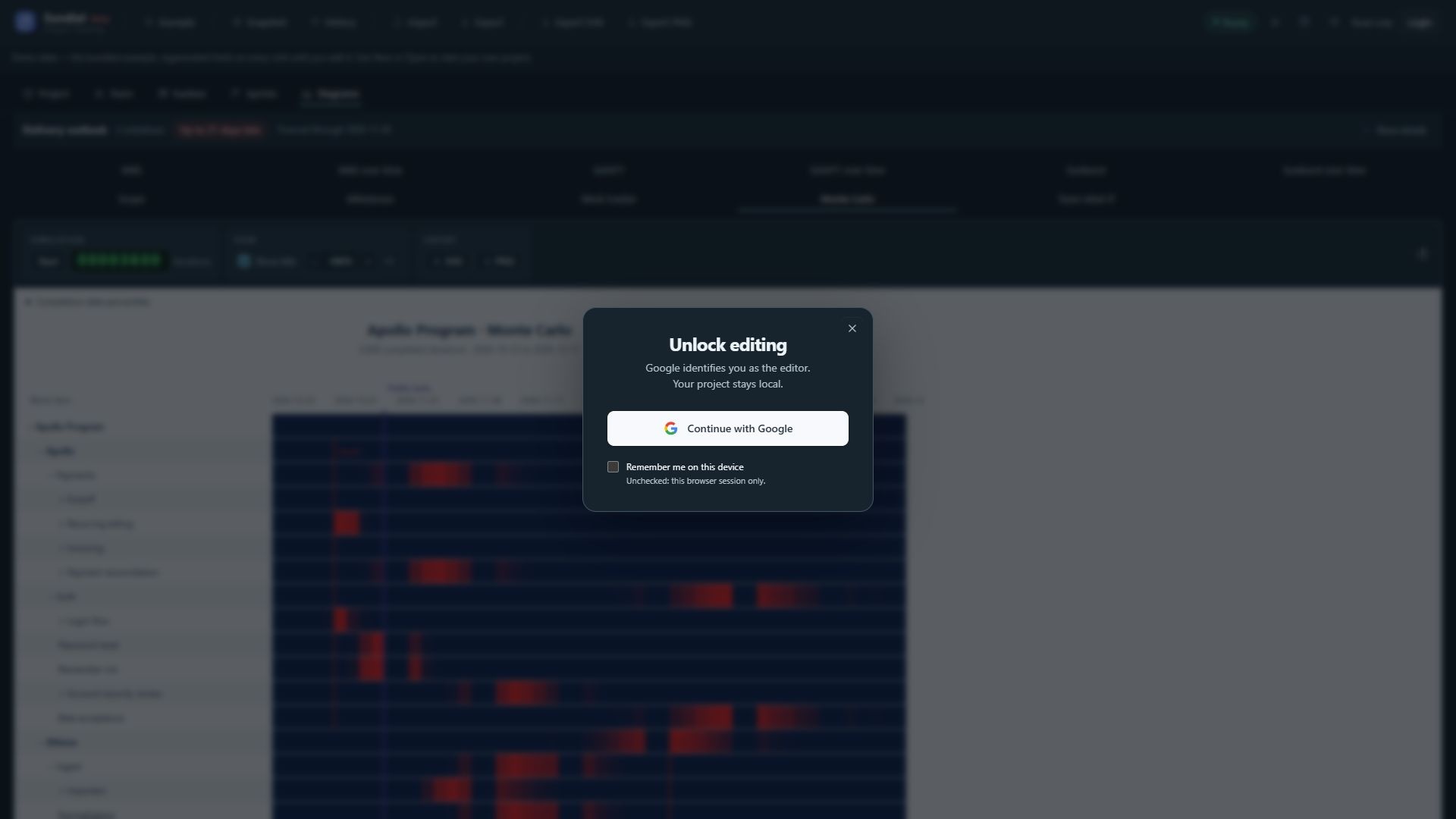
Figure 2. Unlock editing dialog with Continue with Google and the Remember me persistence choice.
Back up the entire .sundial folder, including its manifest, changes, snapshots, and readiness markers. Keep the internal files intact and retain the change history; copying a single file is not enough. Native startup snapshots help Sundial reopen efficiently. The dated checkpoints created with Snapshot are for reporting.
If a save fails, keep the browser session open, restore access to the share, and use the save notice's Retry action. Browser recovery restores the working native document after a crash or tab reopen. Sundial remembers its folder and resumes saving when browser permission allows. If the folder is not connected, a visible notice says that changes are not being saved to disk. Use Reconnect project folder and select the original .sundial folder. Sundial verifies its identity and merges recovered edits with the current disk history. Review Issues after reconnecting. A project using a newer unsupported format requires a compatible application version; do not try to repair it by editing internal files.