Use this optional import path when you want to bring existing Jira work into Sundial. Imports use saved files; Sundial does not continuously synchronize with Jira or write local edits back to it. After import, manage the project through Sundial's own work, team, workflow, and sprint screens.
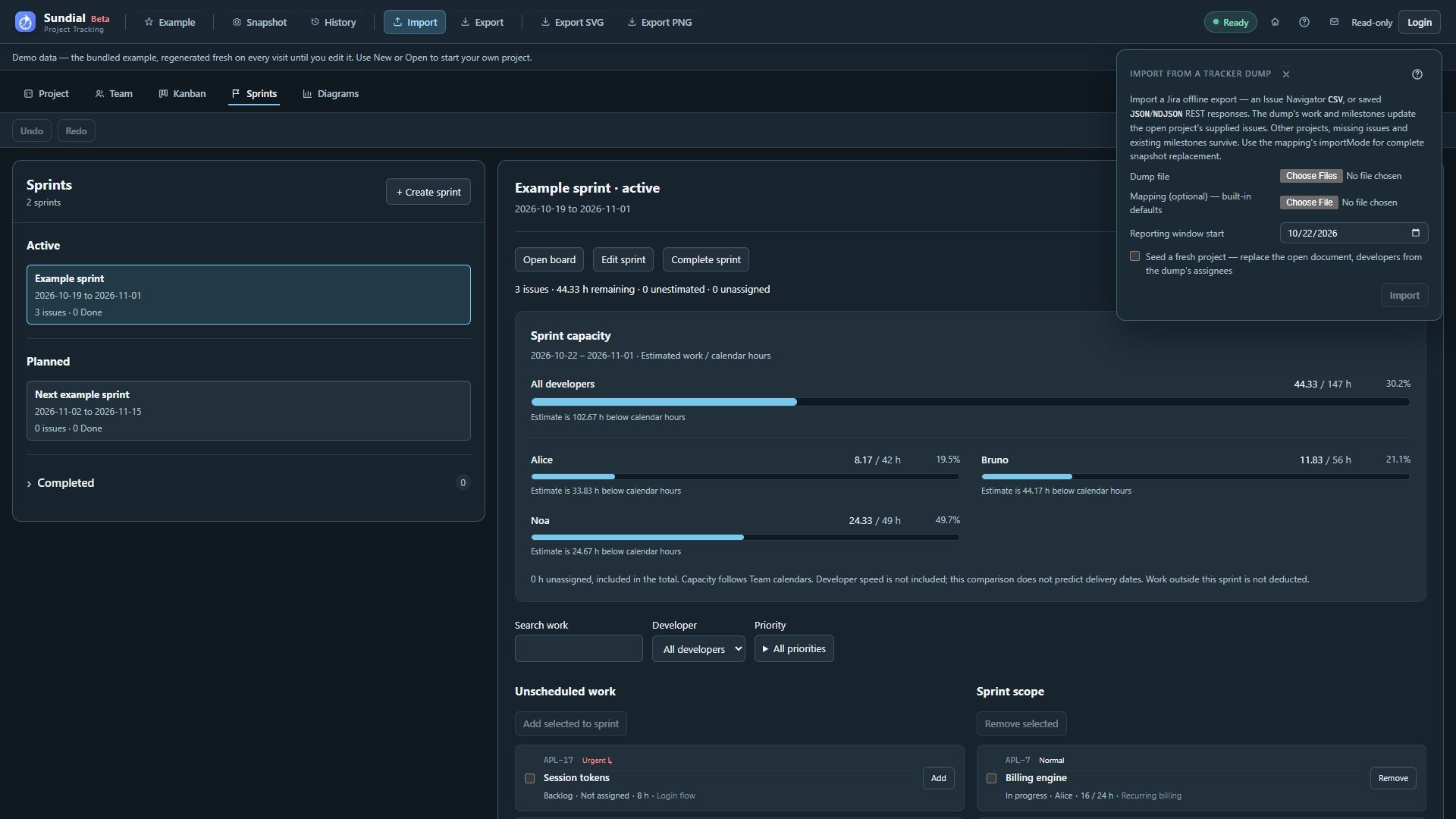
Figure 24. Import panel with tracker-dump selection, optional mapping, forecast window, and replacement options.
Prepare a CSV export
- In Jira's issue navigator, filter for the complete work set you want Sundial to model. Include parent levels and completed work relevant to the project.
- Export CSV with the required fields. Choose fields that include keys, summaries, hierarchy, status, estimates, assignees, and dates. All fields can supply them but produces a larger, slower export; a configured current-fields export can be smaller.
- Include Issue key and Summary. Include parent/epic references, estimates, due dates, assignees, Created, and Resolved wherever relevant.
- Confirm that the exported issue set matches the result set you intended. Permissions and export limits can omit work without making Sundial's import fail.
- Keep the export as UTF-8 CSV and retain a source copy.
Atlassian currently documents asynchronous Jira Cloud CSV exports of up to 10,000 work items. Other Jira deployments and export paths can have different limits. For larger result sets, follow your deployment's export process and verify completeness. See Atlassian's CSV export guidance.
Sundial accepts one CSV file per import. It rejects multiple CSV files and selections that mix CSV with JSON. Prefer one complete, consistent export. Native refresh reconciles known issues; fresh import replaces the model. Check the complete work set rather than assuming successive filtered exports cover the project. Consolidate compatible CSV exports correctly, or select a complete set of JSON dump files.
Import into Sundial
- Back up the whole native project folder. Capture a reporting snapshot if you want a before-import baseline.
- Click Import in the header.
- Under Dump file, select one CSV, or one or more supported JSON dump files.
- Select a Mapping YAML file if your workflow, estimate field, date format, or column names need overrides.
- Set Reporting window start to the date represented by your planning model. Its default is the current UTC date.
- Choose whether to Seed a fresh project. Enable it to replace the open document and seed developers from dump assignees. Disable it when refreshing an existing project whose team and settings should remain.
- Click the dialog's Import button.
- Read the imported item/project counts and all warnings. On failure, the current document remains untouched.
- Close the dialog, review the result in Project and Team, and wait for a successful simulation.
- Correct seeded staffing assumptions, verify automatic saving, and capture a reporting snapshot explicitly. A first import can create a native project and request a folder location.
A fresh seed requires at least one assignee in the dump. Review each generated developer's skills, daily allocation, concurrency, location, and availability before relying on forecast dates.
Refresh versus fresh import
A native refresh reconciles tracker work with existing items. Matching prioritizes the immutable Jira issue ID, then the Jira instance and issue key, then an existing explicit mapping. Matched items keep their Sundial identity and creation time. Sundial also keeps issues missing from a filtered export, because the export does not establish that they were deleted.
Tracker-owned field updates can replace your local edits to those fields. Review the source data, import warnings, and resulting changes. Preserve existing team/calendar and planning assumptions when using refresh rather than a fresh seed.
Refresh is blocked when the project has local sprint metadata because those assignments cannot yet be reliably preserved by this workflow. Seed a fresh project deliberately replaces the Project model, including its sprint plans and completion history. Back up the complete native history before choosing it. Keep a reporting checkpoint too if you need a comparison baseline.
Refresh also preserves recorded effort dates and the developer names attached to entries. If the tracker total is higher, the difference is added to the undated starting balance; Sundial does not invent dates or attribution. A lower tracker total stops refresh for reconciliation rather than removing recorded hours. A leaf with an effort audit cannot become a container through refresh until its recorded work has been moved to a leaf. Refresh can skip intermediate unfinished states, but it cannot reopen Done work.
By default, supplied issues update the existing model while other projects, omitted issues, and existing milestones remain. An optional mapping can request complete snapshot replacement through importMode; review that choice separately from the dialog's fresh-project option.
Import does not automatically create a reporting checkpoint. Automatic native persistence and Snapshot are separate operations.
CSV fidelity: understand what is missing
| CSV input limitation | Consequence |
|---|---|
| No issue-link dependency data in the ordinary adapter | The resulting schedule cannot include those blocking links. Review any manually supplied dependency information after a tracker refresh. |
| No status changelog | A done item's start is approximated from Created; finish uses Resolved. |
| Done item lacks required historical dates | Import fails rather than inventing completion history. |
| Status names without categories | Built-in or explicit mapping determines the category for a default workflow. With a configured project workflow, every imported status name needs an exact mapping to a project state; an unmapped name stops refresh. |
| Fix version names without release dates | They do not become dated milestones. |
| Assignee display names | Team member identity needs checking against the committed Team. |
| Ordinary CSV lacks a source issue URL | Supported charts omit source links for those items. |
When reviewing dependency cascades or historical schedules, check these limitations alongside the import result. An import can succeed even when the export is incomplete.
JSON and NDJSON dumps
The browser accepts saved Jira search response objects, arrays of issue objects, and NDJSON containing one issue object per line. Multiple JSON dump files can be selected in one run. Duplicate issue keys favor the newest updated value; ties or missing timestamps retain the first occurrence.
A JSON dump can include issue links for dependencies and changelog data for more accurate historical transitions. Check that those details are present in your files. Sundial does not retrieve missing pages or enrich the dump from Jira. Make sure your saved files cover all pages and contain the fields you need.
Configure a mapping file
Use the optional mapping file to select your Jira profile, date order, estimate field, points-to-hours conversion, status mapping, duration units, and policy for missing estimates. Use a points-to-hours conversion justified by your team; the Fibonacci option selects Sundial's fixed mapping instead. The mapping's duration scale describes Jira's duration notation, not a developer's calendar capacity.
The default unestimated policy is error. Alternatives are skip or an explicit fallback such as hours:8; both change the model and should be disclosed in reports. Column overrides can map canonical fields to localized headers, such as a localized Summary column. Supported profiles are cloud, server, and apache. Unknown mapping keys are errors.
Map imported statuses to the project workflow
Before refreshing a project with a configured workflow, open Project → Workflow settings and expand Tracker status mappings. Enter each exact Jira status name and choose its Sundial state. Include spelling and case as exported, then preview and apply the configuration. Several source statuses can map to one state.
An unmapped source status stops a configured-workflow refresh rather than silently putting that issue into Backlog. Review the import error, add the missing mapping, and retry. Choosing a mapped canceled state applies Sundial's cancellation rules; choosing a Done-category state uses successful completion rules and valid imported completion dates.
Matched refreshes preserve Sundial-authored descriptions, acceptance criteria, comments, priorities, manual ordering, and detailed-state audit history. Jira priority does not set Sundial priority. Tracker-owned fields can still change during refresh, so inspect the result and warnings. Fresh import is a replacement operation and is covered separately above.