Team what-if runs the same project inputs with Current team and an alternative roster. Compare the results to see how the staffing choice affects forecast delivery.
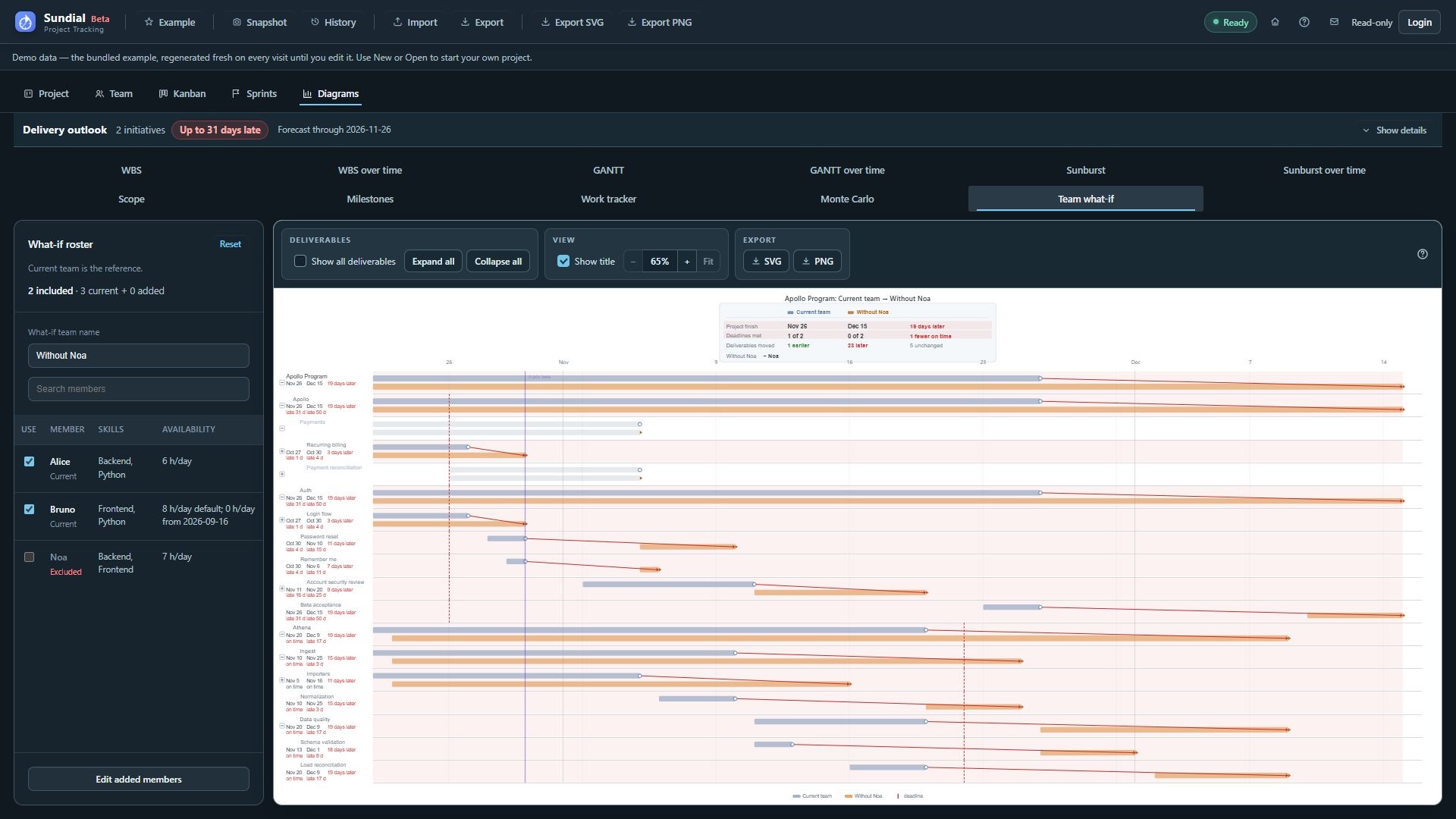
Figure 39. Current team compared with Without Noa using the expanded Example and current forecast date.
Remove a member temporarily
- Click Team what-if.
- Enter a useful What-if team name, such as "Without Noa".
- Uncheck the member under Use. All current members begin checked.
- Wait for the alternative forecast to update.
- Read the project-finish comparison, deadlines met, and earlier/later/unchanged deliverable counts.
- Inspect individual rows: reference and alternative finish dates, direction of change, and deadline status.
- Enable Show all deliverables if unchanged results are also needed; the default focuses on shifts and deadline-bearing work.
- Use Reset to restore current members and clear additions. Check the scenario name separately and change it back if necessary.
Unchecking a member changes only the alternative roster. The committed Team remains the reference. Work pinned to an excluded person is released for reassignment in the alternative; review whether another eligible member can actually take it. If work cannot be scheduled, its result is missing. Do not read that as a zero-day shift.
Add a hypothetical member
- Click Edit added members.
- Replace the placeholder name with a unique name for the hypothetical member.
- Replace the placeholder joining date with an explicit intended start date. Set skills, default daily allocation and any dated overrides, concurrency, speed, and an appropriate location.
- Wait for validation and the alternative run to update.
- Use + Add another member for further additions, giving each a unique name.
- Close the additions editor to give the comparison more space.
- Review the delivery impact and export the result with Show title enabled.
Every scenario-only added member needs an explicit joining date, including an immediate joiner. Replace both the placeholder name and the placeholder date in the supplied additions template. The what-if simulation gives that person no capacity before the declared start. From that date, it uses their default hours and applicable overrides. This joining-date gate is specific to scenario additions; in the reference Team form, use a zero default and a positive override from the joining date for the same effect.
Existing locations can be referenced. A new scenario-only location can be declared in the additions fragment; it cannot override an existing location's calendar. The untouched placeholder template does not add a person. The structured Team form edits the reference team; the separate what-if additions editor remains a text editor. Correct invalid additions before using the alternative forecast. If you exclude every member and add no capacity, Sundial reports a no-capacity state.
Read calendar warnings before interpreting shifts. If holiday data is incomplete, the comparison marks the dates provisional instead of presenting a staffing improvement as confirmed. Missing or partial delivery on one side is disclosed separately from a zero-day change; resolve the inputs before making a commitment.
Roster search filters visible names without changing the included team. Hover member details to review skills and capacity. Sundial keeps scenario inputs for the session and has no saved named-scenario file format. To keep a record of the comparison, write down the roster assumptions and export an image.