The Work tracker is a heatmap: rows represent developers, columns represent time, and cell intensity represents allocated work. Heatmaps encode numeric magnitude by color; Plotly's heatmap documentation illustrates the chart family.
Use Day or Week under Resolution, and Hours or Capacity under Values. Capacity compares allocation with the developer's available hours. The current drawing distinguishes weekends, holidays, and available but unallocated time, and adds Goal deadline and milestone references. Developer labels summarize allocations; hover cells and markers for their details.
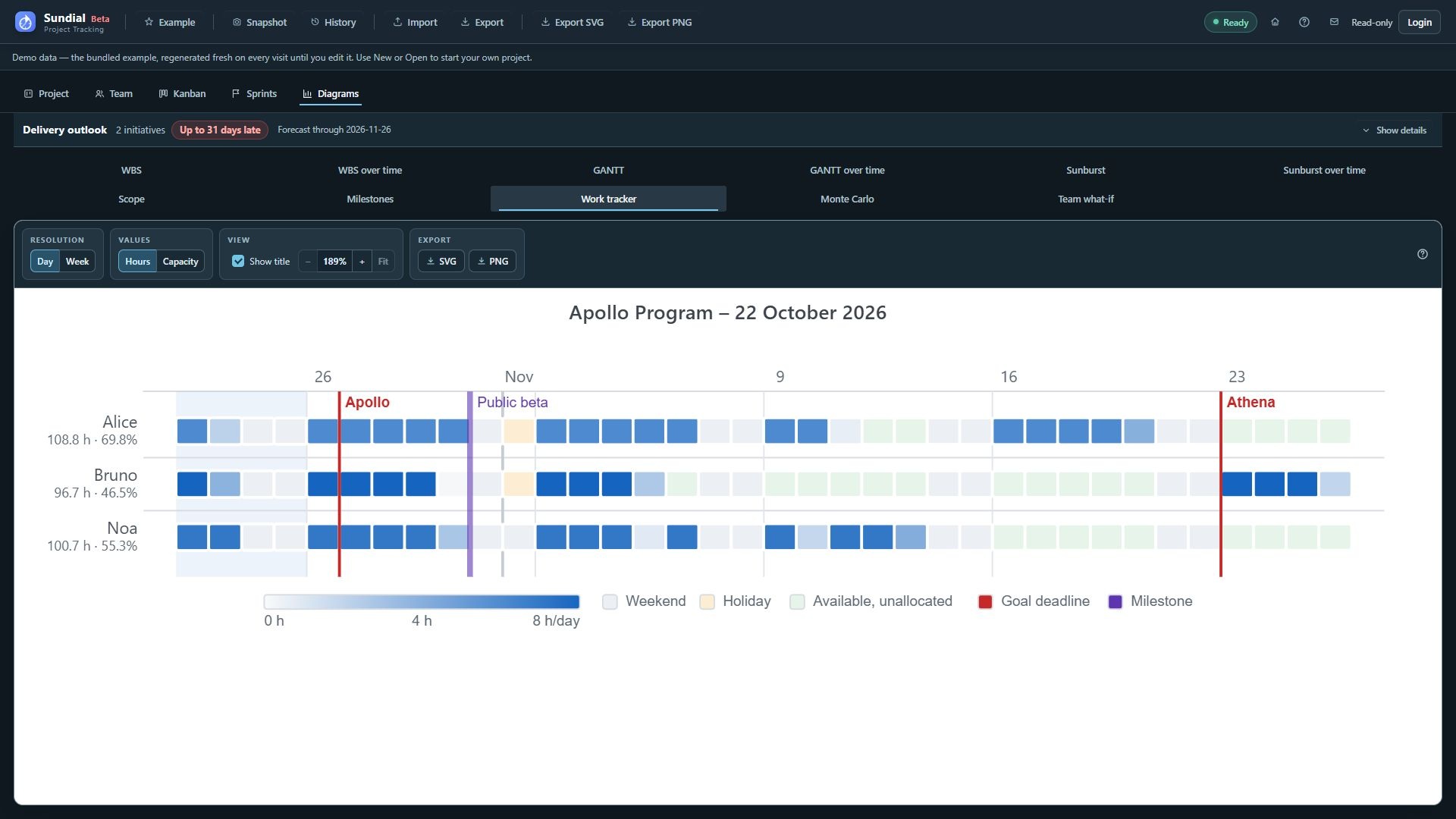
Figure 29. Redesigned daily Work tracker with developer allocations, availability, Goal deadlines, and milestone references.
Step by step
- Click Work tracker.
- Use Day to inspect daily allocation for each developer.
- Hover a cell to read the allocated hours and contributing tasks.
- Inspect non-working-day details when available. A weekend, holiday, zero-capacity override, or zero default can explain an empty cell; on a working day, there may simply be no allocated work.
- Select Week for a long interval. Each weekly cell shows average hours per visible calendar day; the tooltip supplies the week's total and task contributions.
- Switch Values → Capacity when you need to compare utilization with available capacity rather than raw hours.
- Look for persistent empty working periods or long stretches of high allocation, then check dependencies, skills, and capacity assumptions.
- Export the chosen daily or weekly presentation.
For an empty cell, check whether the person is unavailable, waiting on dependencies, ineligible for the remaining work, or has finished the work in the model. The heatmap shows Sundial's simulated allocations and does not import real-world timesheets. Weekly averages include visible non-working days, so they need not equal a person's nominal working-day hours.
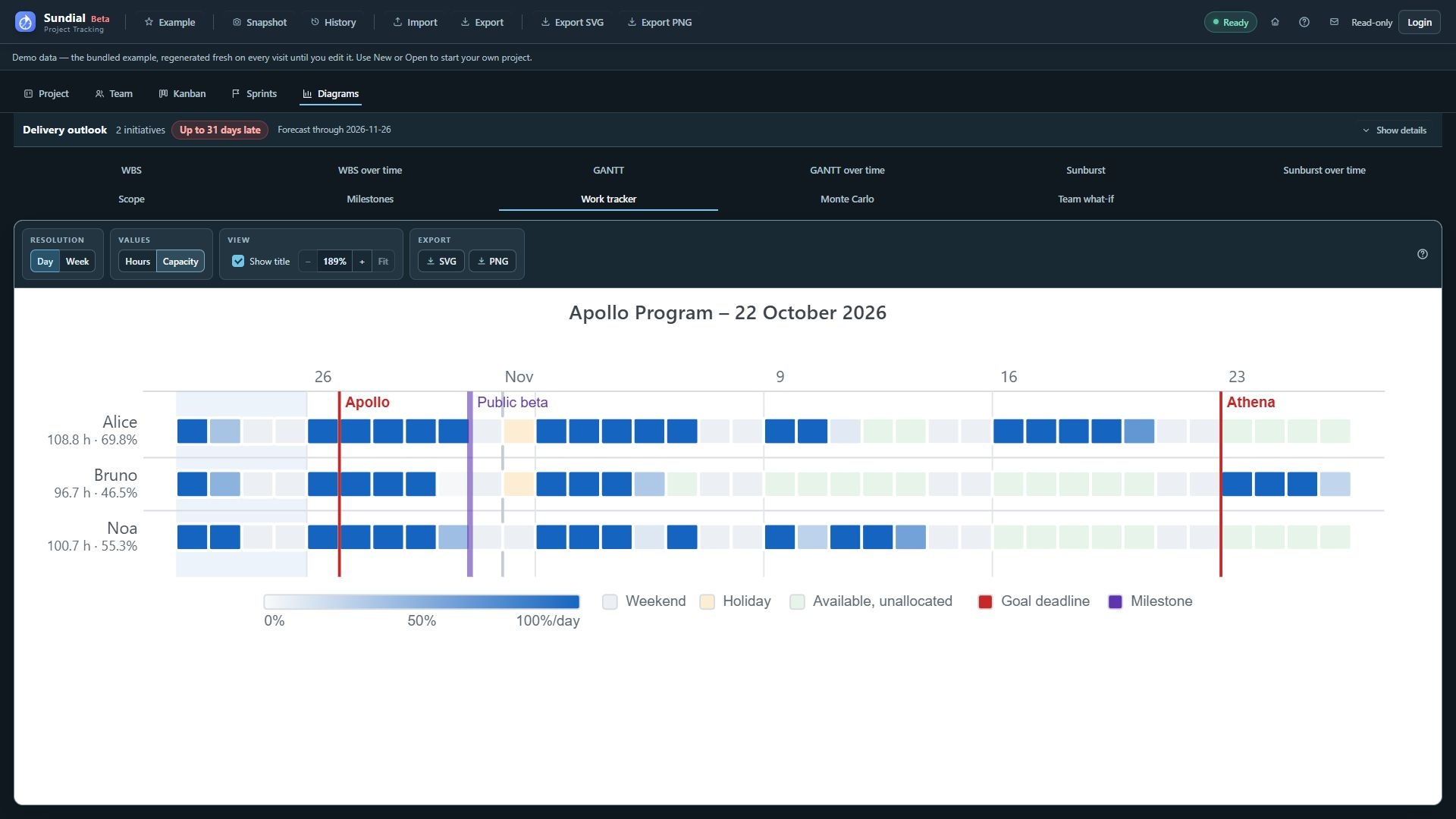
Figure 30. Work tracker Capacity mode showing allocation relative to each developer's available hours.