Use Team to add or edit developers, set their capacity and skills, restrict project access, and maintain working calendars. Apply the forms to save these settings within the current native project. No configuration code or separate Team file is needed.
Open the Team workspace
- Open your native project, or click Example to explore the supplied demonstration and its snapshots.
- Select Team in the main workspace tabs.
- Choose a developer from the roster on the left. Their details appear on the right.
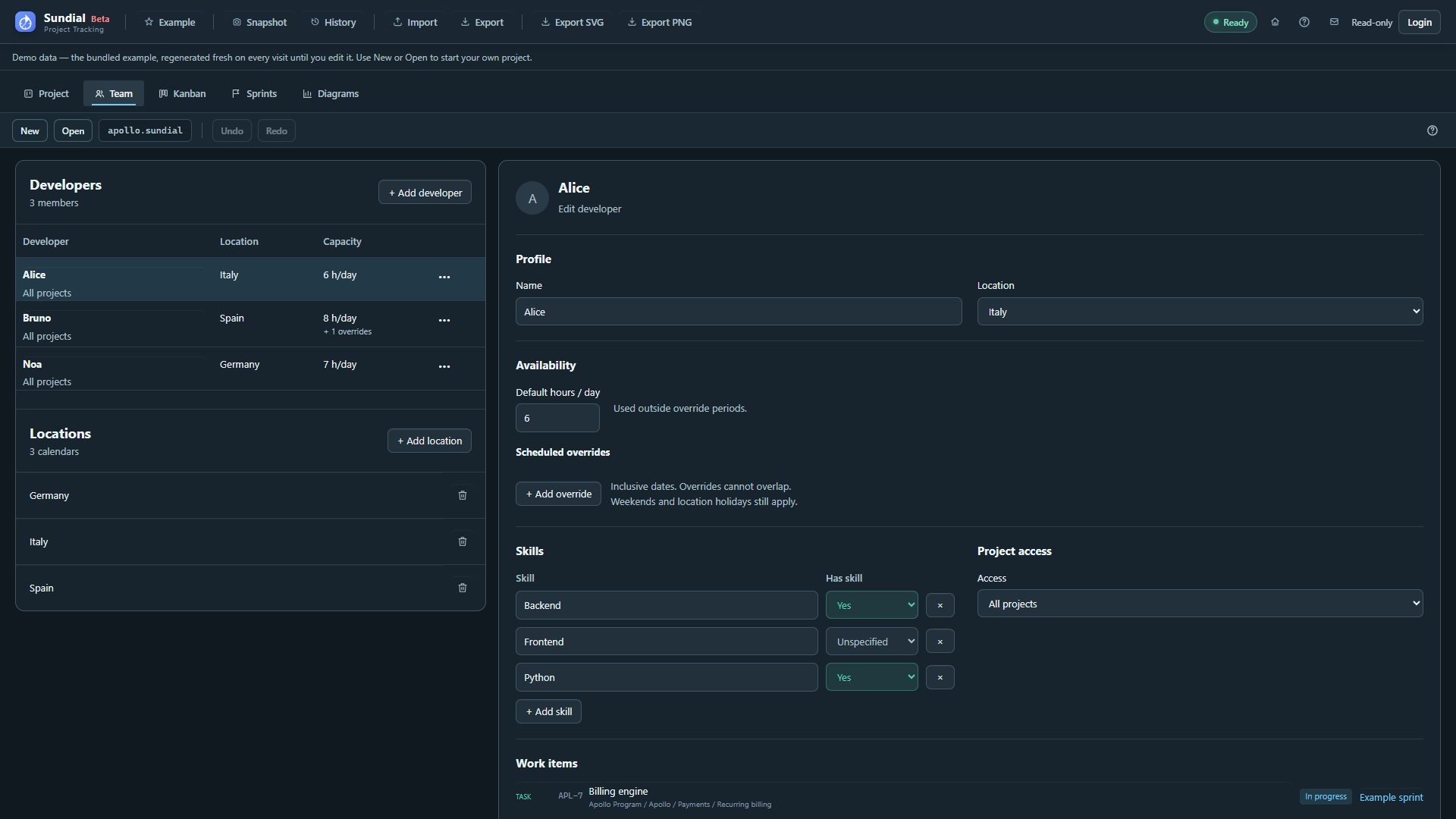
Figure 14. Team workspace with the current developer directory, calendars, skills, access, and assignment links.
The roster lists committed developers in source order, with their locations, default daily capacity, and scheduled override count. For example, "8 h/day + 1 overrides" means an eight-hour default and one override period. It does not show today's capacity or add the override hours to the default. A new developer appears in the roster count after you apply the draft.
Edit an existing developer
- Select the developer in the roster.
- Under Profile, edit Name or choose a Location. Choose No location to remove a specific location assignment.
- Under Availability, set Default hours / day and any Scheduled overrides needed for leave or temporary capacity changes.
- Review Skills and Project access using the instructions below.
- Expand Advanced settings if you need to change speed or concurrent work.
- Click Apply changes. Correct any highlighted errors and apply again if necessary.
- Wait for the forecast to refresh, choose Diagrams, and review GANTT and Work tracker.
- Check save notices; Project assignment changes caused by a rename save with Team in the same container.
Form edits remain a Draft until you choose Apply changes, which validates the inputs, commits them to Team, and refreshes the forecast. Until then, the document and roster keep their committed values. Cancel reloads those values and discards the unapplied draft. To reverse an earlier Apply, use Undo.
Open a developer's assigned work
The Work items section in developer details lists their current open assignments, with type, hierarchy context, status, and sprint link where available. Completed and canceled work are excluded from this workload list.
- Select a developer in Team and scroll to Work items if necessary.
- Click a work-item name to open its Project editor.
- Click its sprint name to open that sprint's planning screen.
- Resolve any unapplied Team draft before following either link.
The list uses the developer's committed name while a rename is still a draft. An empty list means the developer has no open assignments. Their capacity and completed history are separate from this list. Follow a link to edit the task in Project.
Add a developer or create a team
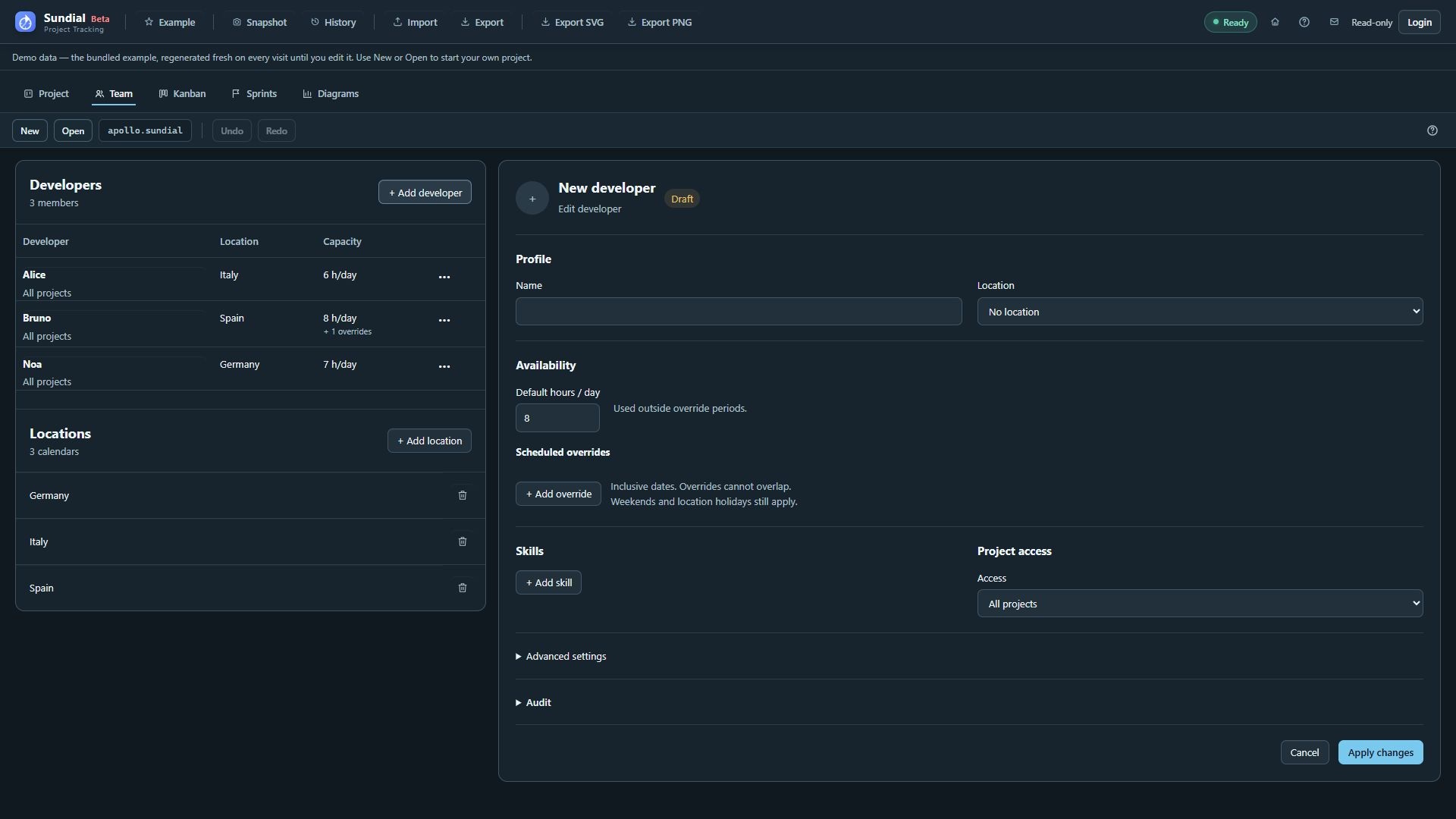
Figure 15. New developer draft with default capacity and profile controls; the draft was discarded.
- Click + Add developer above the roster. With an empty Team document, use Create team to begin with the first developer.
- Enter a unique Name and choose a location, if appropriate.
- Set realistic default daily hours. A new developer starts at eight hours per day, speed one, and one concurrent work item; review these defaults for your plan.
- Add skills and choose project access. For someone joining later, use the zero-default approach described below.
- Click Apply changes. The developer is appended to the roster after validation succeeds.
- Review the resulting forecast and check that automatic saving succeeded.
Use Cancel if you decide against adding the developer. Names must be nonempty and unique; when Project is loaded, a developer name must also avoid conflicting with work-item or milestone names.
Set skills and project access
The Skills section is a table with Skill and Has skill columns. Click + Add skill, enter the skill name, and choose Yes, No, or Unspecified. Color helps distinguish the values, while their text remains visible. Existing names from the project and team are suggested, and you may enter a new name. Use the row's × button to remove a declared skill.
| Skill state | Scheduling meaning |
|---|---|
| Yes | The developer is capable of work requiring this skill. Fully matched developers are preferred. |
| No | Excludes the developer from work requiring this skill. |
| Unspecified | Leaves the skill undecided; it does not exclude the developer. |
Required skills can be inherited from parent work items. Use consistent skill names, avoid duplicate rows, and apply the draft after editing. Removing a row removes the declared skill entry; it is distinct from retaining a row as Unspecified.
For Project access, leave Access at All projects for scheduling eligibility across the model. This setting controls work assignment eligibility, not permission to open the shared folder; filesystem permissions control that access. To restrict eligibility:
- Choose Selected projects.
- Enter a project or initiative name using the suggestions where possible.
- Click + Add project to create a chip for that name.
- Repeat for other allowed names, then click Apply changes.
Keep at least one chip when using Selected projects. To remove all restrictions, choose All projects. If the roster includes a project name absent from the loaded project, the form preserves it and marks it Not in this project. Access does not define separate daily hour budgets for each initiative.
Model default capacity, leave, and temporary hours
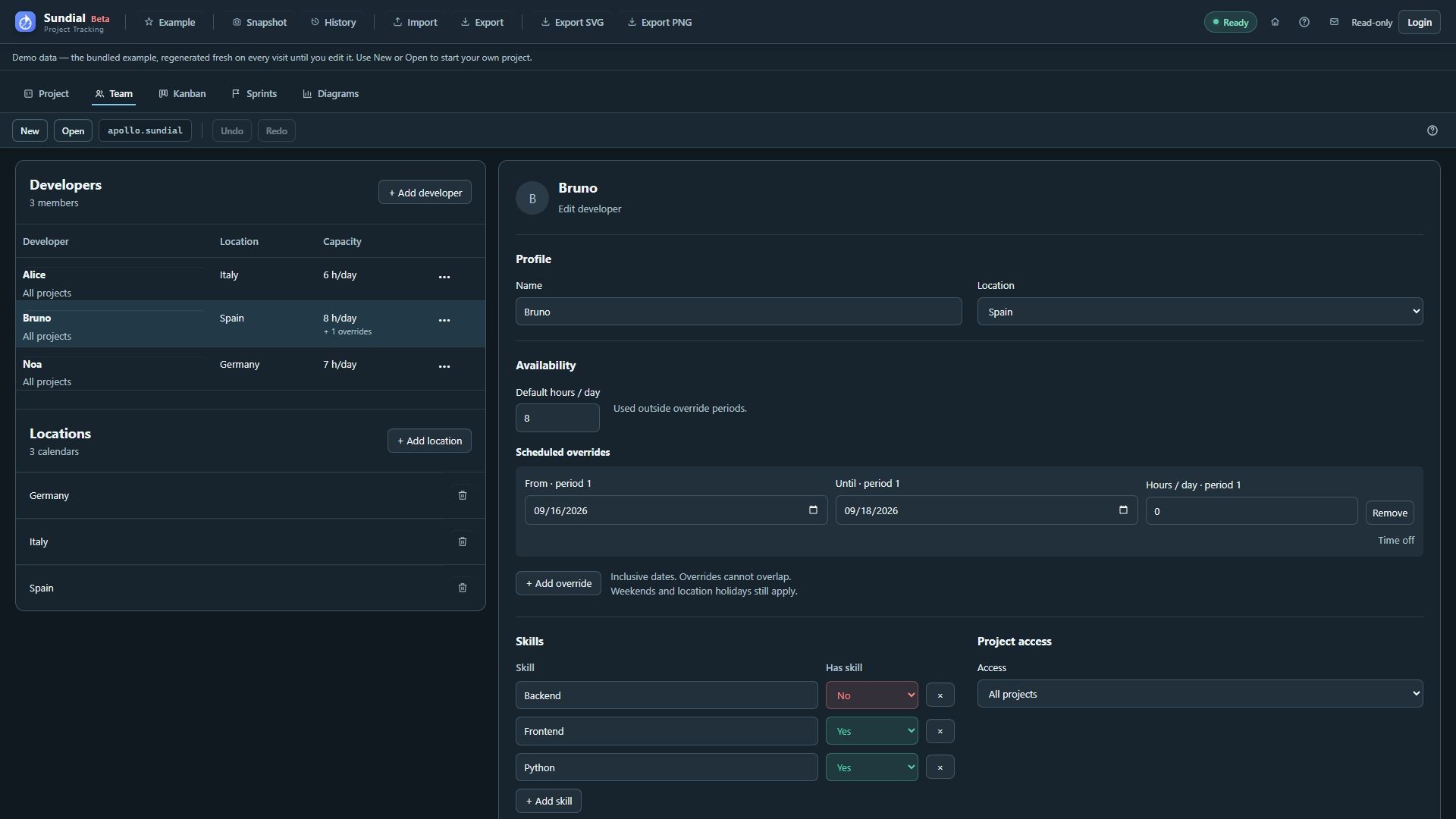
Figure 16. Bruno's default capacity and dated zero-hour override in the Team editor.
Default hours / day is the developer's capacity on working days outside override periods. A scheduled override replaces that value during its interval. Eight default hours and a four-hour override produce four hours on covered working days. Overrides do not add hours to the default. Weekends and location holidays remain non-working days even when an override has positive hours.
To record leave or a temporary allocation:
- Select the developer and review Default hours / day.
- Under Scheduled overrides, click + Add override.
- Set From, Until, and Hours / day for the new period. A new row copies the current default hours and leaves its dates blank, so fill the intended bounds deliberately.
- Use zero hours for time off, or a positive value for temporary part-time or increased capacity.
- Add further periods if needed, keeping their dates separate.
- Click Apply changes, review the forecast, and check automatic saving.
Hours must be from zero through 24, with at most two decimal places. Both dates are inclusive. A one-day override is valid when From and Until are the same date. From must not be later than Until. Overrides cannot overlap: one ending on the next one's start date overlaps on that day.
A blank From means no lower date bound; a blank Until means no upper bound. Leaving both blank covers every date and conflicts with any other override. Do not leave bounds blank unintentionally. Remove deletes a period from the draft; after Apply, the default resumes over that period.
For a developer who should contribute nothing before joining, set the default to zero and add an override starting on their joining date with the intended daily hours. Leave Until blank for an ongoing allocation. For capacity available only during specific periods, keep the default at zero and give each period its own bounds. Review the default explicitly: an override list alone does not imply zero capacity outside its dates.
Adjust advanced settings
Expand Advanced settings to edit:
| Control | Meaning |
|---|---|
| Speed multiplier | Productivity relative to the standard rate; defaults to one. Must be positive, with at most two decimal places. It does not change available hours. |
| Maximum concurrent work | Maximum simultaneous items; defaults to one. Must be a whole number of at least one. More concurrency does not create more daily hours. |
Set daily hours to the time available for this plan. Change speed only when you have a credible reason to adjust the productivity assumption. Apply and inspect the resulting schedule before accepting new assumptions.
Below Advanced settings, expand Audit to review changes to this developer profile. It starts collapsed. Actions show the signed-in user, local date and time, and previous and new values, most recent first. Use its search box to find a person, field, or value. Renaming a developer keeps their profile history together.
Figure 17. Developer Audit section below Advanced settings; the fresh Example has no committed profile edits.
Manage locations and working calendars
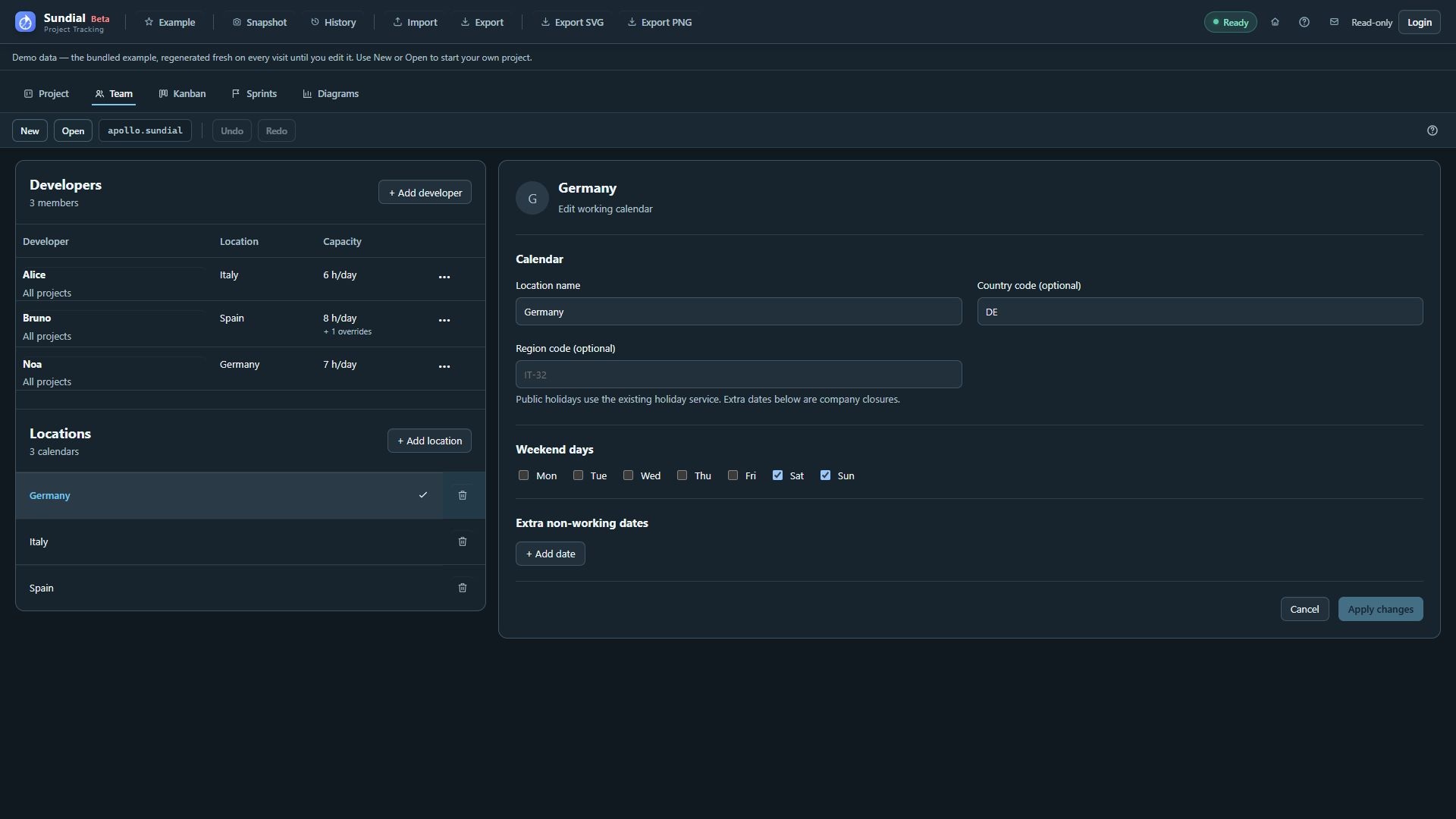
Figure 18. Germany working calendar with country and region fields, weekend controls, and extra non-working dates.
- In Team, find Locations below Developers in the left sidebar.
- Select an existing location, or click + Add location.
- Enter a unique Location name.
- Enter an optional Country code to use public holidays. Add an optional Region code when regional holidays are relevant; the region must belong to the chosen country.
- Select the non-working Weekend days. New calendars start with Saturday and Sunday selected.
- Under Extra non-working dates, click + Add date for each company closure or additional holiday. Use Remove to remove a draft date; duplicate extra dates are rejected.
- Click Apply changes.
- Select the appropriate members directly under Developers in the same sidebar and assign their Location. Apply each changed developer draft.
- Check automatic saving and review the forecast.
Public holidays come from the holiday service; the extra-date list contains the closures you enter. Fetched holidays are not copied into that list. If a fetch fails and no cached data is available, read the warning. A forecast using only weekends and extra dates may finish too early.
Renaming a location updates matching developer location references in the Team document as one change. To delete an unused location, use its Delete button and confirm. If developers still reference it, first choose another location or No location for each affected developer and apply those edits; deletion is blocked until the references are removed.
Rename or delete a developer safely
To rename a developer, select them, edit Name, and click Apply changes. Sundial renames the Team member and updates matching task assignees in the loaded Project as one committed change. The form shows how many assignments it will update. All changes save in the same native project.
If Project references cannot be updated safely, the rename is blocked. Correct the reported Project issues and retry. The rename affects the current native project; it does not rewrite other project folders.
To delete a developer, open the row's ••• menu, choose Delete developer, and confirm. Sundial blocks deletion of the last developer and of a developer still named in task assignments. Update or remove those assignments in Project first. For a temporary staffing experiment, uncheck the person in Team what-if instead of deleting them from the reference team.
Drafts, automatic saving, snapshots, and undo
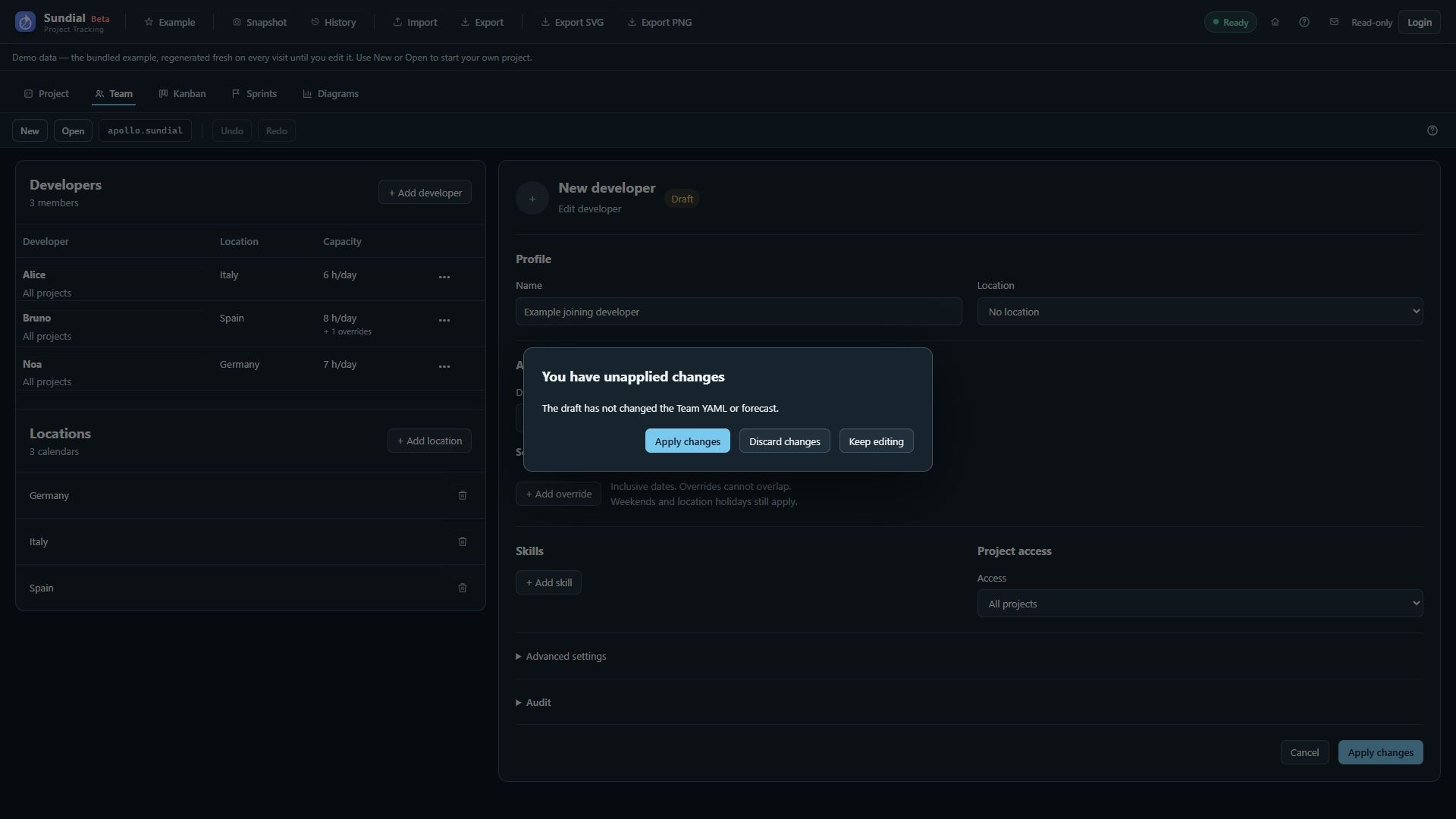
Figure 19. Unapplied-changes dialog offering Apply changes, Discard changes, and Keep editing.
| Action | Result |
|---|---|
| Edit a form control | Creates an unapplied Draft; the committed document and forecast stay at their previous values. |
| Apply changes | Validates and commits the draft, refreshes the forecast, and triggers native project saving. |
| Cancel | Abandons the unapplied draft and reloads the committed values. |
| Snapshot / Ctrl+Shift+S | Captures committed Project and Team together after resolving any pending form draft. |
| Undo / Redo | Reverses or reapplies committed model edits, including assignment updates from a rename, and saves the resulting native changes. |
When changing developer, leaving Team, opening another project, or capturing a snapshot with a pending draft, resolve the dialog: Apply changes commits valid edits, Discard changes continues with the previous committed document, and Keep editing returns to the draft.
If automatic saving fails, restore folder access and use Retry. Browser recovery does not prove the shared folder is current. Closing a notification leaves the draft unchanged; it does not save or discard it.
Resolve form errors and return to the diagrams
If validation fails, the form keeps your entries and shows Changes were not applied, with errors beside the affected fields where available. Correct duplicate names or skills, missing access chips, invalid numbers, conflicting periods, or calendar codes, then apply again. The first invalid control receives focus when Apply fails.
If the underlying Project or Team changes while you have a draft, use Reload draft to work from the newer document; stale edits cannot overwrite it. Review collaboration and validation issues before applying again.
After accepting a valid edit, choose Diagrams, wait for Ready, and inspect GANTT, Work tracker, and Delivery outlook. Applying the reference team also refreshes staffing comparisons; scenario-only additions and exclusions stay separate. Blocked work, dependency chains, skills, project access, pinned assignees, future availability, weekends, and holidays still constrain the forecast.