Workflows give your project its own named states and Kanban columns. Each state has a name, color, position, and Simulation category. The category tells Sundial how the state affects scheduling; the name describes your team's process. The default workflow contains Backlog, In progress, Review, Blocked, and Done. Review uses the In progress simulation category. Existing projects with explicit workflows keep their configured states.
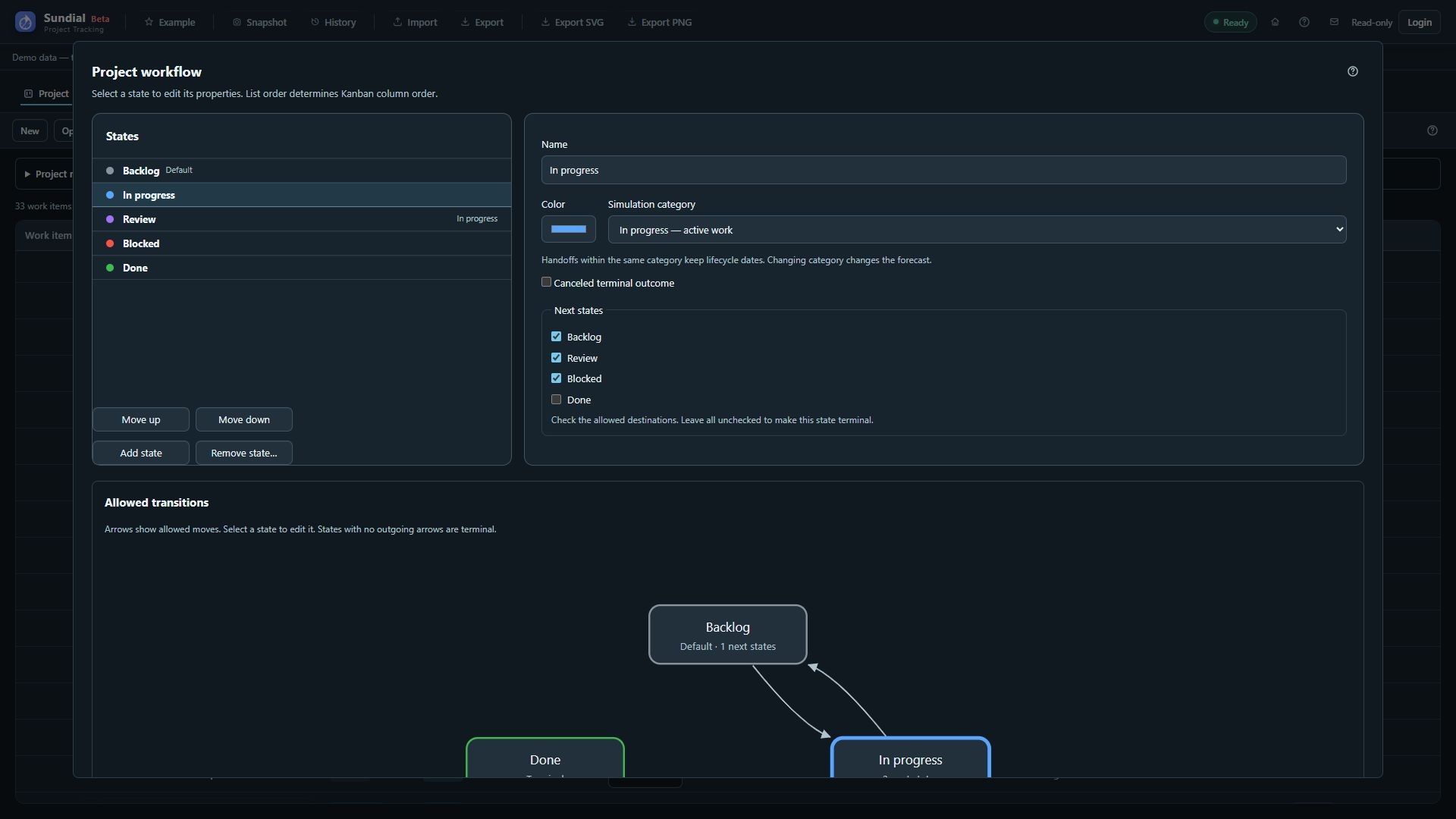
Figure 10. Workflow settings with Review, allowed Next states, and the directed transition diagram.
Add or revise states
- Open Project → Workflow settings.
- Select a state to rename it or change its color. Use Move up or Move down to change column order.
- Choose Add state to create another step, then enter a meaningful name such as Ready, Testing, or In review.
- Choose its Simulation category using the table below. A review or testing step normally belongs to In progress if it should continue to count as active work.
- For a Backlog-category state, select Default for new work if newly created items should begin there.
- Under Next states, check the destinations users may choose from this state. Review the directed diagram and its transition list. Click a state in the diagram to edit it; check warnings for states unreachable from the default. A new state also needs an incoming transition if users should be able to reach it.
- Leave all Next states unchecked to make a state terminal. Done-category states always have no outgoing transitions.
- Choose Preview changes. Review affected tasks, old and new states, categories, and cancellation outcomes.
- Choose Apply workflow changes to commit the configuration and affected work together, or Cancel to return to the draft. Cancel the settings dialog to discard it.
- Open Kanban and check the columns and permitted moves. Review Delivery outlook and GANTT after category changes.
| Simulation category | Scheduling meaning |
|---|---|
| Backlog | Work waiting for pickup, subject to dependencies, dates, skills, and capacity. |
| In progress | Active work that can receive future allocation. Moving between detailed states in this category preserves lifecycle dates. |
| Blocked | Unfinished work that receives no future capacity while blocked. |
| Done | Successful delivery. Completion dates and dependency satisfaction follow the completed state. |
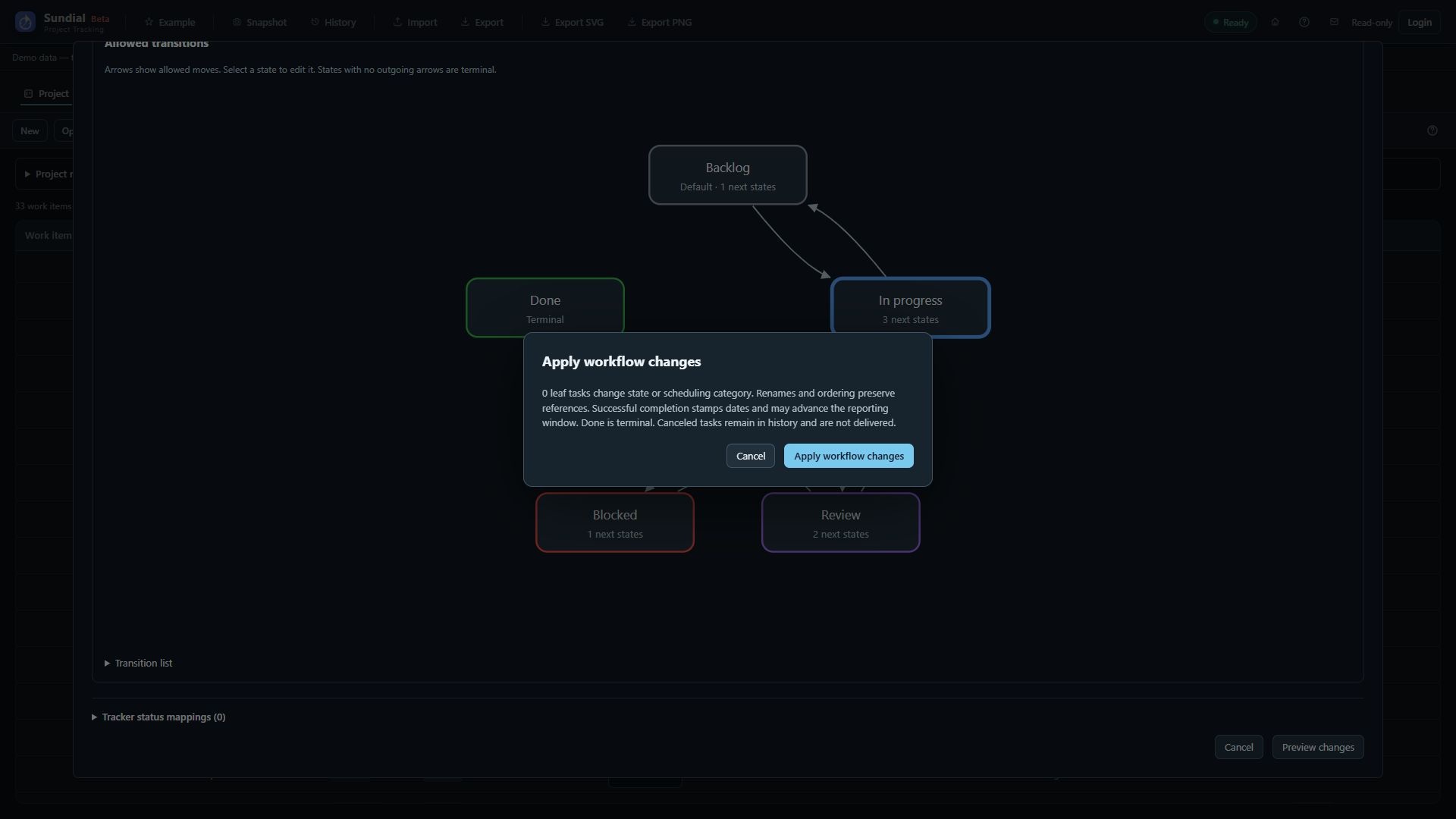
Figure 11. Workflow impact preview before applying changes. This unchanged preview affects no tasks.
Keep at least one ordinary state in every simulation category. The default for new work must belong to Backlog. State identity is stable: a rename or reorder preserves references and does not itself change the forecast. Several detailed states may share a category. Board labels and colors follow the configured states; simulation summaries and status-based diagrams still use the four scheduling categories and their own legends.
The default routes are Backlog → In progress; In progress → Backlog, Review, or Blocked; Blocked → In progress; Review → In progress or Done. To finish work through this default process, move it to Review, then Done. These routes can be changed for unfinished states. Legacy custom workflows without explicit routes allow moves between unfinished states until routes are configured.
Task editors, Kanban menus, drag-and-drop, and native edits enforce the same transitions. A column can remain visible even when a selected card is not allowed to enter it. Done cannot be reopened by an ordinary move or tracker refresh; Undo can reverse a mistaken completion. Moving between detailed states retains a transition history, even when their scheduling category stays the same. Acceptance criteria remain written guidance and do not add a completion prompt.
To remove a state, select it and choose Remove state…. Choose the replacement state for work that references it, review the impact, and apply the change. Resolve references used by defaults or import mappings too. Configuration can remap unfinished work across categories independently of ordinary transition routes, so read the preview carefully. Work already Done may only be reassigned to another Done-category state; removing its state cannot reopen it.
Workflow edits save automatically and support Undo/Redo. If the project changes while settings are open, close and reopen the dialog before applying. The current workflow applies to the whole project; there are no separate team workflows, transition scripts, or automatic transition rules.
Cancel work without deleting its history
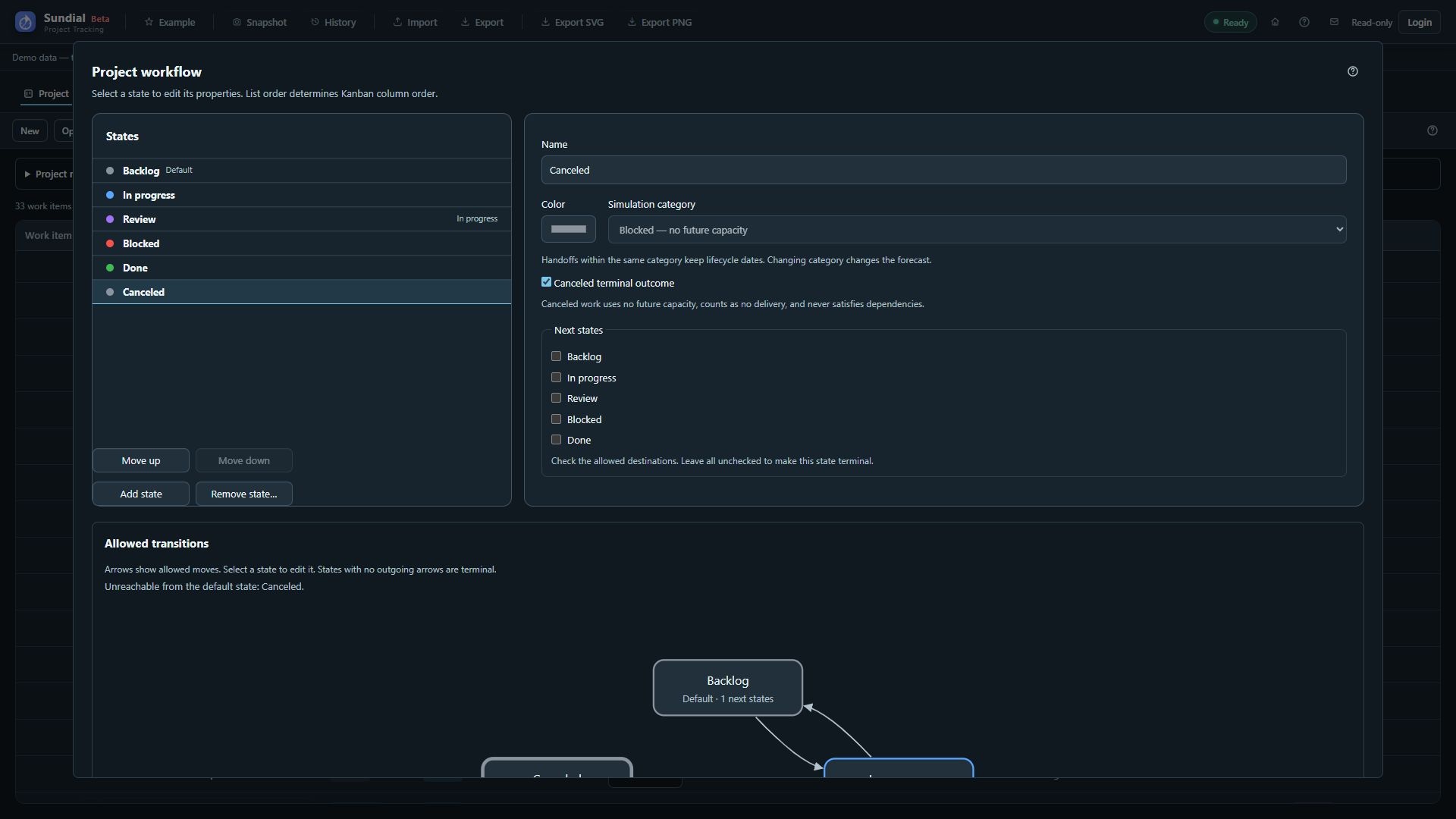
Figure 12. Canceled workflow-state draft with Blocked category and terminal outcome; the draft was discarded.
- In Workflow settings, add a state and give it a clear name such as Canceled.
- Enable Canceled terminal outcome. Sundial sets its simulation category to Blocked and prevents changing that category while cancellation is enabled.
- Select the unfinished states from which cancellation should be allowed and check Canceled under their Next states. If canceled work may be resumed later, explicitly allow an outgoing transition from Canceled to the intended unfinished state; leaving it empty makes it terminal.
- Preview and apply the workflow configuration.
- Open an eligible work item's form and choose the canceled state, then Apply; alternatively, use an allowed Kanban move into its column.
- Review the forecast and dependent work. To resume work, use a configured outgoing route, deliberately revise the workflow, or Undo the cancellation while that edit remains available.
Canceled work keeps its identity, description, acceptance criteria, original estimate, dependencies, and recorded effort history. It consumes no future capacity and contributes no effort to simulation scope or completion totals. It is never successful delivery and never satisfies a prerequisite. Cancellation clears successful completion and forecast finish; it does not delete the item or remove dependency links.
If a canceled item is a prerequisite, downstream work can remain unscheduled. Review the dependency and decide whether to reopen the item or revise the relationship. A parent with a canceled descendant stays incomplete. Canceling a container removes its unfinished descendants from future scheduling while retaining completed child history. Reopening the container restores scheduling according to the descendants' retained authored states.
Canceled work cannot be added to a new sprint. If it was already a member, completion records it as Canceled and does not carry it forward as unfinished work.