A sunburst displays a hierarchy as concentric rings. Descendants sit outside their parents; segment widths encode relative values. See Plotly's sunburst explanation for the general structure and Tommesani's article on project health with sunburst diagrams for its project-reporting use.
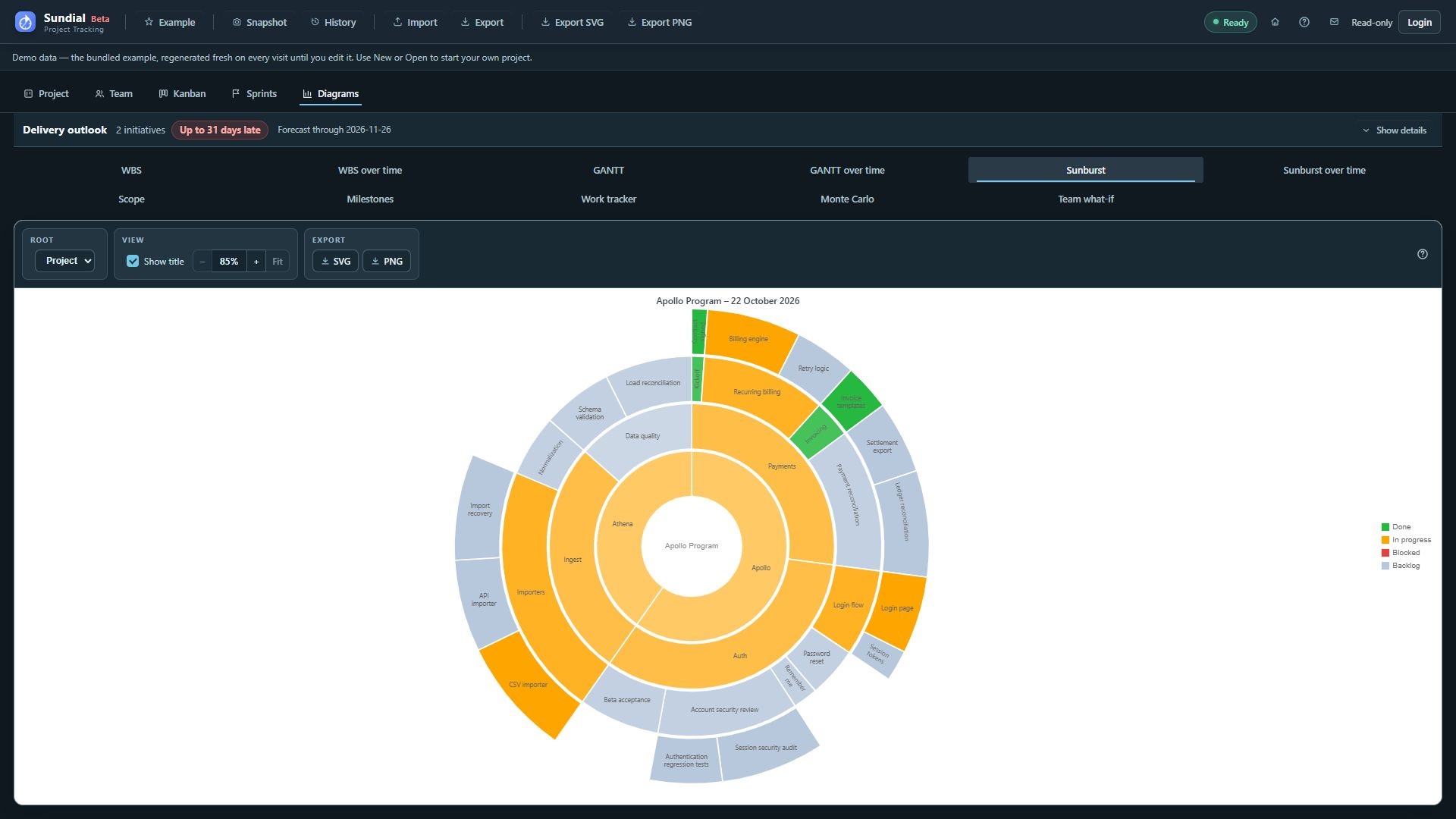
Figure 27. Current Sunburst showing the new Example hierarchy and status-colored PERT expected effort.
Step by step
- Click Sunburst.
- Leave Root set to Project for a whole-project picture.
- Read outward from the center to follow initiative, epic, story, and task relationships.
- Compare widths within a ring to find effort-heavy areas. Parent totals derive from children, avoiding double counting.
- Read the legend: green is done, amber is in progress, red is blocked, and pale blue-gray is backlog.
- Hover a segment for its name, status, effort, and share.
- Select an initiative in Root to focus the chart on that branch, then return to Project for the overall picture.
- Click a segment to open the live work item when you need to inspect or edit it. Close the editor, then export the view for a project-health overview.
Arc width shows total estimated effort. It does not measure remaining hours, duration, or percentage complete. The selected root is named in the center; segment captions follow their arcs where space permits. Narrow labels may be hidden, so hover to read them. Container status summarizes the subtree and does not imply every descendant shares that status. The Sunburst tab shows the current state. Use Sunburst over time to compare checkpoints.
Sunburst over time places up to two saved snapshots beside Current, ordered by capture time. Every chart has the same radius. The largest valid total effort fills a circle; earlier or smaller totals occupy a proportionally smaller angular span, leaving a gap. The shared scale makes scope growth visible across periods. Colors retain the status meanings from Sunburst.
- Open Sunburst over time and choose a saved checkpoint in Historical snapshot 1.
- Optionally choose a different checkpoint in Historical snapshot 2. Choose No snapshot to remove a saved period; Current remains visible.
- Leave Root at Project, or choose an initiative to use the same focus in every chart.
- Compare the occupied angle, status segments, total estimated hours, and percentage complete beneath each chart. The completion percentage compares worked effort, including completed work, with total estimated effort.
- Use Zoom in, Zoom out, and Fit for inspection. A root or snapshot change resets zoom.
- Enable Show title, then use this tab's SVG or PNG button to export the comparison as one image.
The saved charts use each snapshot's own work, effort, and status. They do not forecast its history again. Missing or invalid effort, an absent selected root, or an unreadable snapshot produces a notice for that period. Zero effort has no angular span. These gaps do not mean completion. Without snapshots, Current still appears; capture a checkpoint or load Example into an empty reporting store to add comparison periods. These snapshot choices are independent of the two Delta views.
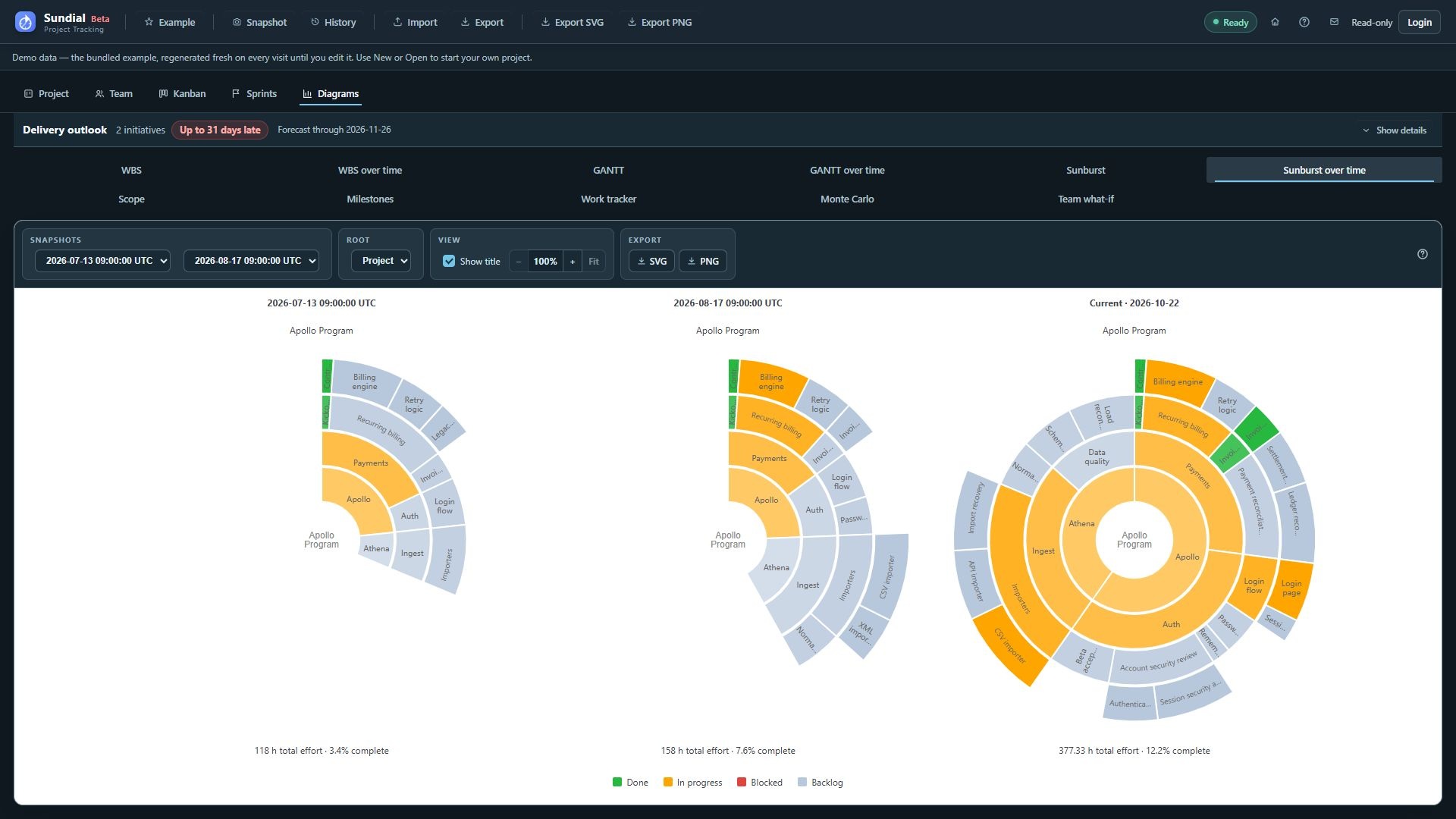
Figure 28. July, August, and Current Sunbursts sharing an effort scale with the expanded Example.