The Milestones tab is a history of delivery estimates. It differs from a list of standalone milestones: colored series show forecast or actual completion dates for initiatives/ Releases, or for epics beneath a selected initiative. Commitment dates appear as reference lines.
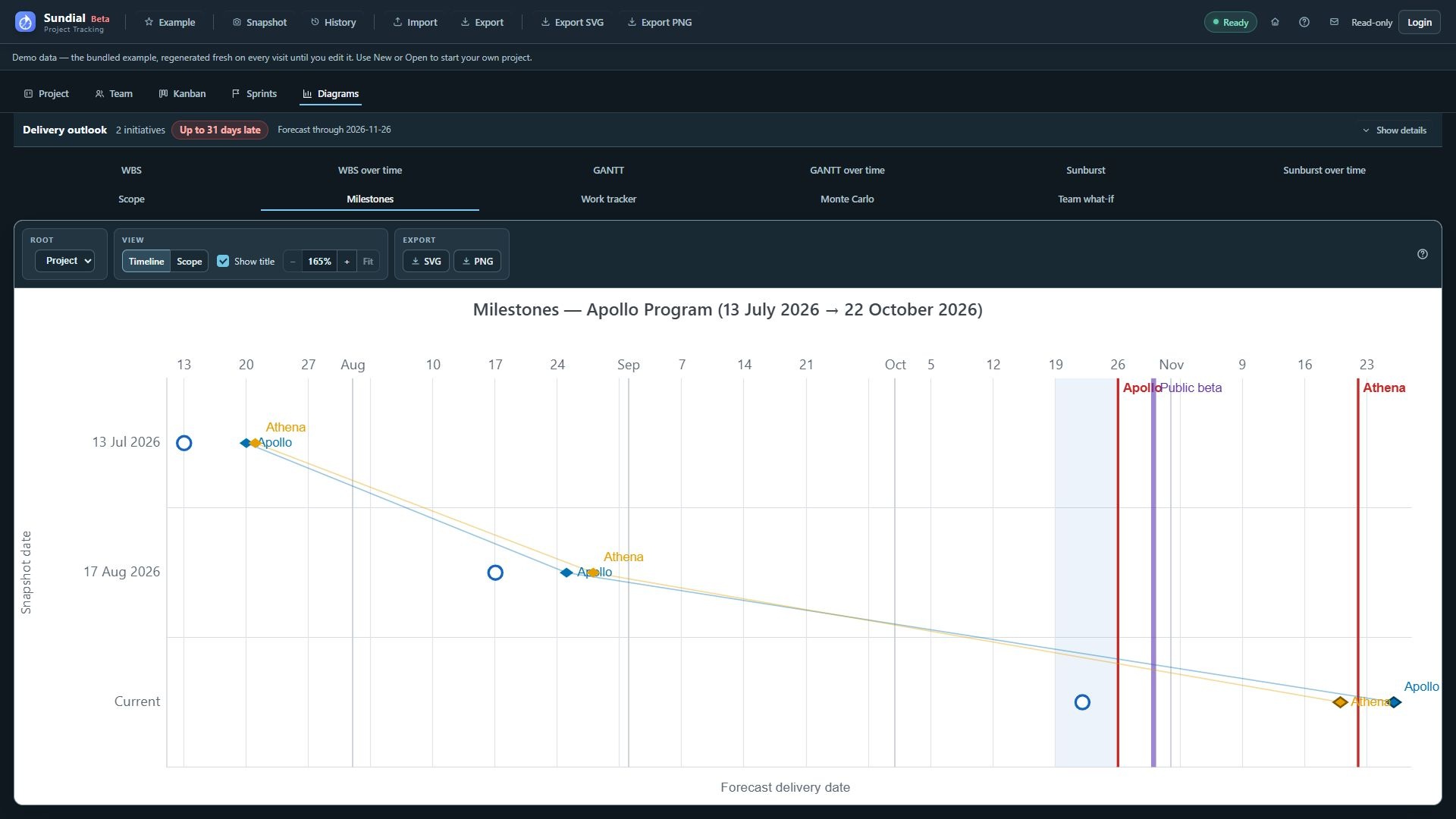
Figure 37. Milestones Timeline with historical delivery observations, current forecasts, and commitment dates.
Step by step
- Click Milestones with a saved history series available.
- Leave Root at Project for initiative/Release forecasts, or choose one initiative for its direct epics.
- Read rows as saved observations, followed by Current.
- On each row, locate the observation marker and the colored delivery marks for the series in the legend.
- Read the delivery date from the horizontal calendar axis.
- Follow a series' trend line across consecutive observations to see how its forecast moves.
- Compare marks with the vertical goal/deadline references.
- Hover marks for observation date, estimate date, delivery date, and actual-versus-forecast details. Export for a delivery-trend review.
A mark moving right across checkpoints indicates a later delivery estimate. As delivery approaches, check whether the forecast is stabilizing and how far it remains from the observation date. If the date keeps moving, review Scope and the Delta views to investigate the changes.
Colored marks show delivery dates. Lines connect the recorded forecasts; neither the marks nor the lines represent work duration. There are no readings for days without saved checkpoints. Missing work or missing forecasts can create gaps. A completed item's actual date differs in meaning from an unfinished item's forecast date.
Saved history uses the latest capture per UTC day, while Current remains separate. The Current observation uses the effective live forecast start. If a new edit fails, the view can retain the last successful Current point with a stale-state indication; correct the edit before reporting it as fresh. Root selection is shared with Scope.
To relate scope changes to delivery movement, choose Scope in the Milestones toolbar's View group:
- Keep the same Root used in Timeline, or select an initiative to inspect its epics.
- Read absolute delivery dates on the horizontal axis and total estimated scope in hours on the vertical axis. Each initiative or epic has its own colored path.
- Follow the arrows in checkpoint order. Labels identify saved observations; an outlined diamond identifies Current.
- Hover for the observation date, delivery date, scope, and any missing-estimate disclosures.
- Switch back to Timeline to compare dates against snapshot rows, or export the selected presentation with SVG or PNG.
A move up and right means scope grew while delivery moved later. A horizontal move right means delay without net scope growth; additions and removals can still offset each other. Scope includes completed effort and excludes canceled effort, so completing work alone does not shrink it. Missing delivery or wholly unknown scope breaks a path. A partial estimate uses its known subtotal with a disclosure. Identical coordinates share a labeled point. These patterns show association and do not establish which change caused a delay. The presentation choice survives switching diagram tabs during the session.
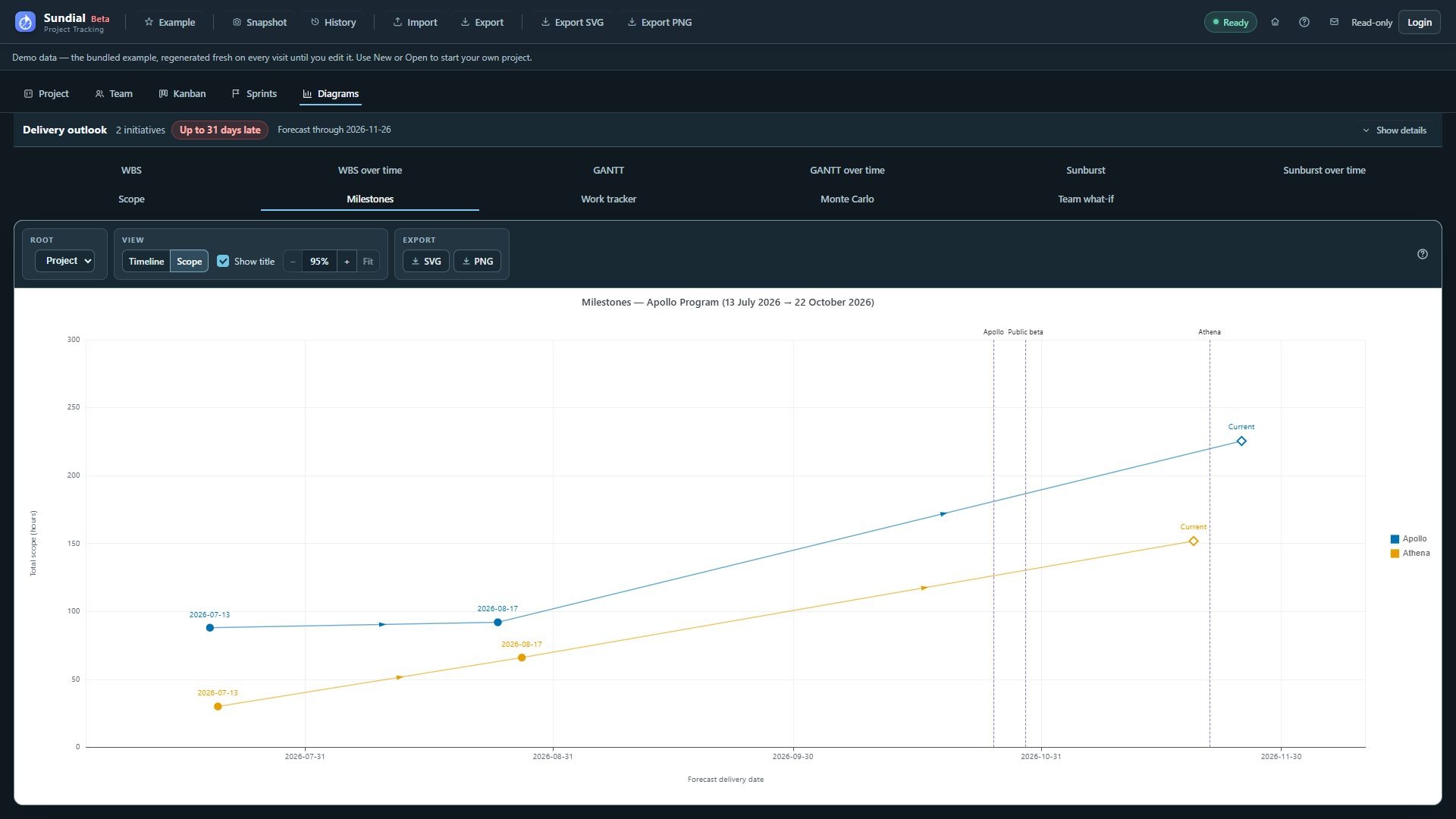
Figure 38. Milestones Scope presentation relating expected effort to delivery across the Example checkpoints.