A snapshot stores the combined Project and Team model with a UTC capture timestamp. It is the checkpoint used by Delta comparisons and history charts. Automatic native saving does not add a reporting checkpoint. Native startup snapshots belong to the collaboration container and serve a different purpose.
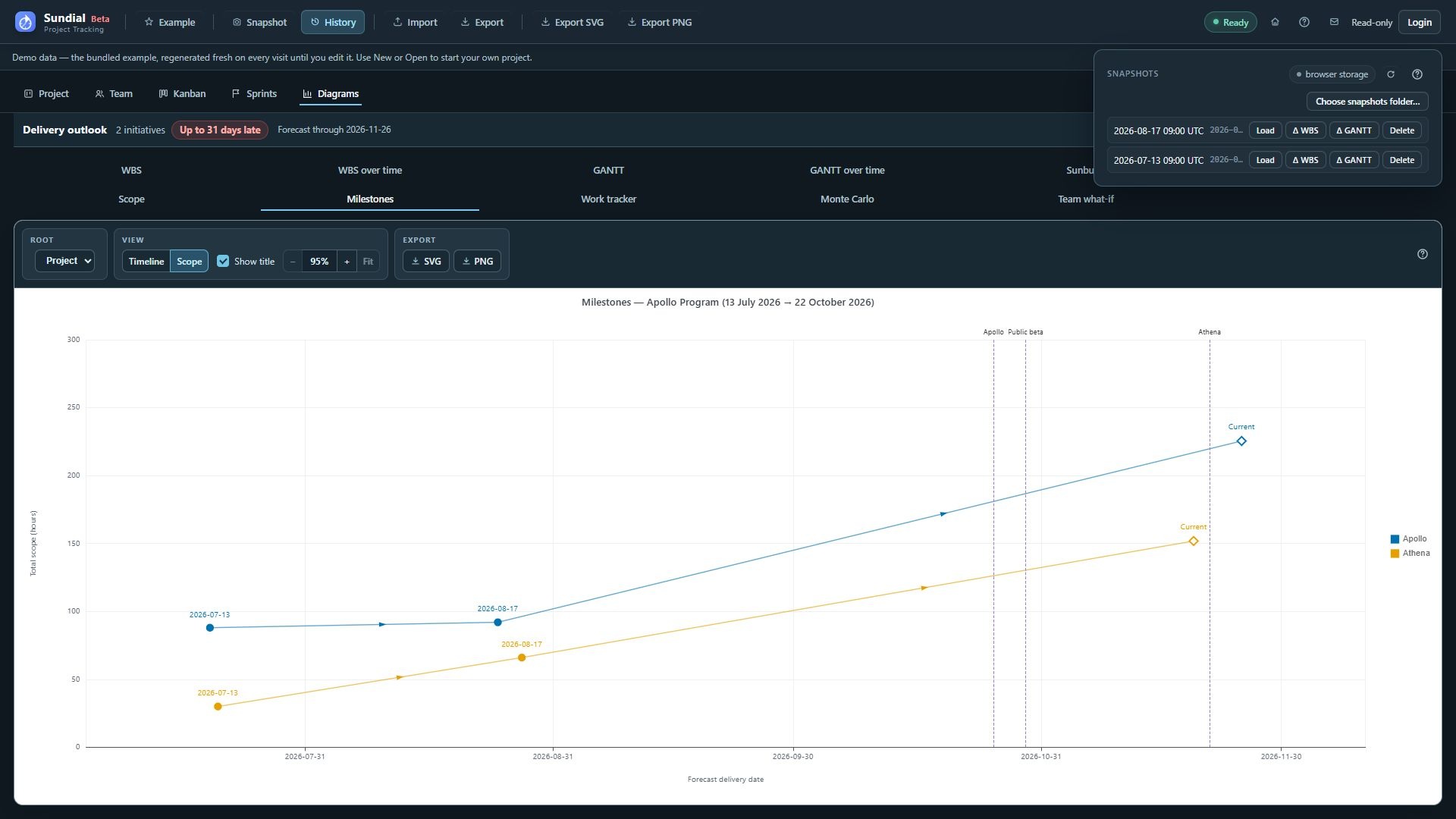
Figure 32. History panel with the Example July and August checkpoints and storage controls.
Capture a checkpoint
- Finish the update and resolve model errors.
- Wait for a successful current run.
- Click Snapshot, or press Ctrl+Shift+S.
- If the browser requests a folder on first capture, choose a dedicated snapshot location. Cancelling that initial picker can use browser storage instead.
- Open History and verify the new checkpoint is listed. Check the storage indicator and any capture notice.
New checkpoints freeze the effective live forecast window as well as the committed work and Team. Historical replay can therefore reproduce the captured dates even after the current date changes. Older checkpoints keep the window saved in them.
Dated files use a name such as 2026-09-30-093005Z.yaml. The timestamp is UTC, so a capture near midnight can have a different calendar day from your local date.
Browser storage and folder storage
Browser storage belongs to one browser profile and application origin. Clearing site data can remove the stored buffers and history. Use a separate backup when you need a copy you can move between machines.
Where supported, Choose snapshots folder… selects the active file-based store. Sundial writes dated snapshot files directly into the folder you choose. Select a dedicated snapshots folder for the project, then confirm its contents and the History indicator. Maintain a separate series for each project. When you switch storage targets, Sundial copies the current project's readable reporting history before changing the active target. Conflicting filenames are preserved under distinct names. If copying fails or the old folder cannot be read, the switch is blocked and the previous target remains active. Reconnect a lapsed folder first, then check History after a successful switch.
If permissions lapse after a browser restart, choose Reconnect snapshots folder… and grant access again. If you see a permission error, restore access before checking whether snapshots are missing. Use browser storage first copies the project's readable history into browser storage, then changes the active target. It leaves the old folder files intact. Browser quota or read failures block the switch.
Use History actions
- Load replaces the current model with the saved checkpoint after a replacement confirmation. Back up the native project first and review the warning; use a comparison baseline when you only want to compare dates. Existing append-only comments are retained when loading an older checkpoint. Loading changes the model; it does not simply open a chart or reconnect a native folder.
- Δ WBS or Δ GANTT selects the snapshot as a baseline and opens the corresponding comparison against the current model.
- Refresh the series rereads available checkpoints, useful when files have changed outside the browser.
- Delete removes a checkpoint. Back up file-based history before deleting; do not rely on an application undo or trash facility.
Example adds demonstration checkpoints only when the active store is empty. If you already have history, check the list to see which project and checkpoints you are comparing.