Main workspaces
| Tab | Purpose |
|---|---|
| Project | Build the work hierarchy; edit descriptions, acceptance criteria, comments, priorities, dependencies, effort, assignees, dates, milestones, sprint membership, and workflow settings. |
| Team | Maintain developers, capacity, skills, access, locations, and calendars. |
| Kanban | Review actionable work by status, developer, or epic; move cards and open their task forms. |
| Sprints | Plan scope, review developer capacity, start a sprint, and complete it with a checkpoint. |
| Diagrams | Review the eleven current, comparison, history, and staffing views, including Sunburst over time. |
The Project and Team toolbars have New, Open, the native project folder name, Undo, and Redo. Use the forms to edit and apply changes. Sundial saves them automatically; there are no separate Save buttons.
Application header
| Control | Purpose |
|---|---|
| Login / account | Identify yourself to unlock editing; after sign-in, your avatar and name open the account menu with Sign out. Read-only means viewing is available but changes require sign-in. |
| Example | Load demonstration work, team, an active sprint, and a planned next sprint; seed reporting history only when the active store is empty. |
| Snapshot | Capture the committed Project and Team as a dated reporting checkpoint after resolving pending drafts. |
| History | Browse reporting checkpoints, load one, select a comparison baseline, or manage snapshot storage. |
| Import | Bring existing work into the project from a supported offline export. |
| Export | Download the committed current project as a YAML inspection file, without reporting snapshots or native history. |
| Export SVG / Export PNG | Save available diagrams together in a ZIP archive. |
| Ready / Simulating… / error state | Check whether the current model has been processed successfully. |
The header also links to the main website, this user manual, and the contact page. Contextual help icons beside workspaces and diagram controls open the relevant manual section in a new tab.
Diagrams, Delivery outlook, and Issues
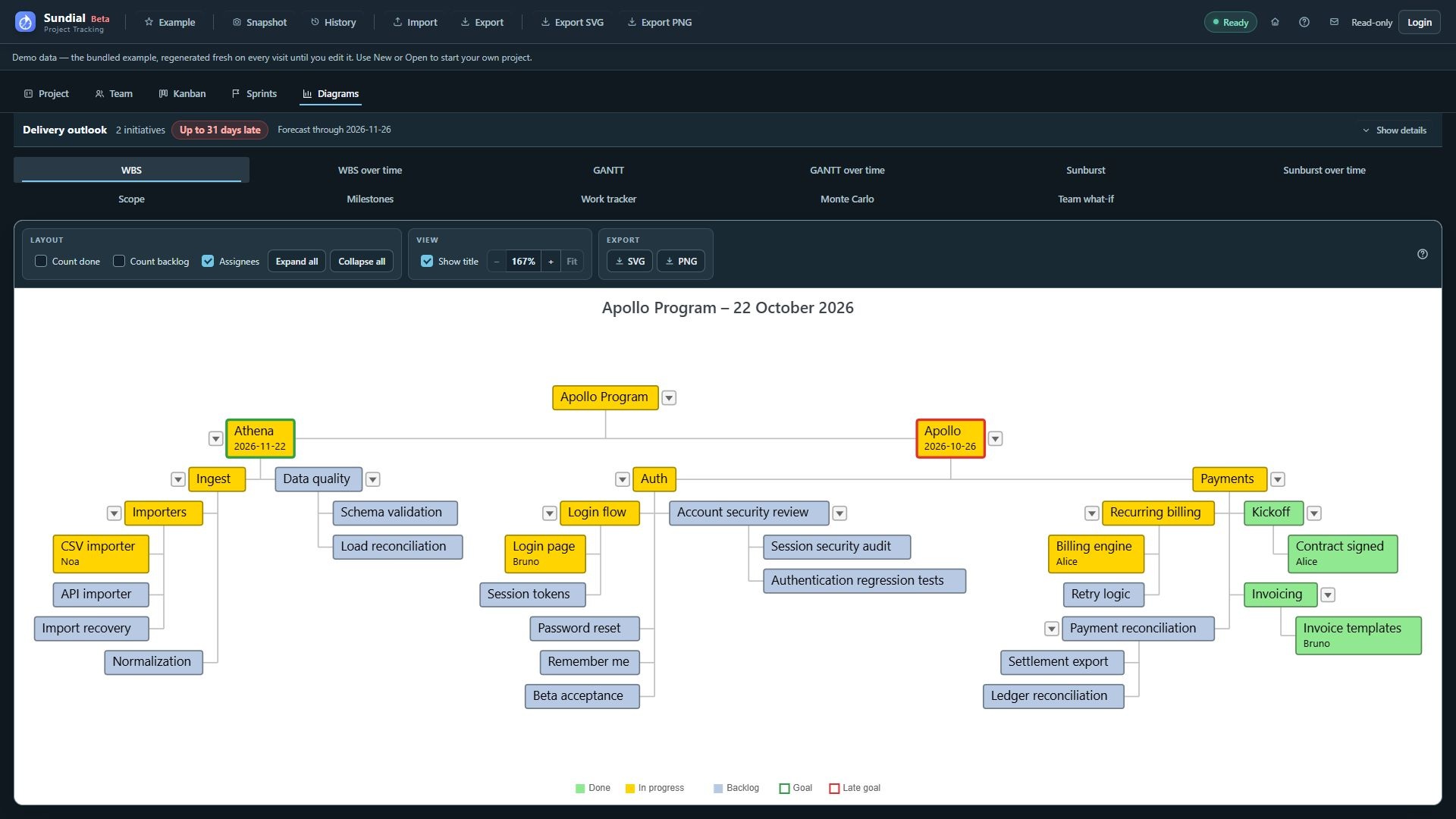
Figure 3. Redesigned WBS using the expanded Example hierarchy, assignee labels, and Goal and Late goal borders.
Choose Diagrams, then the required diagram tab. Use a large window for viewing and captures. Hide details in Delivery outlook reduces the summary's height when more chart space is needed.
Delivery outlook puts the most delayed initiatives first and shows predicted delivery, declared deadline, and slip in calendar days. Its compact summary reports the largest forecast delay. On time means an initiative has a forecast finish on or before its deadline. Forecast through … shows the last day simulated; it does not mark tasks Done. An Unfinished label or a count of work items without a forecast means some work still has no delivery date. A missing estimate, blocked prerequisite, or unavailable capacity needs investigation even if other initiatives have dates.
Sundial refreshes the forecast when you apply a valid edit, so there is no Run button. While you enter a draft, the forecast still uses the committed model. Choose Show details in Delivery outlook to read errors, expand its warnings list, and resolve the reported issues before using the result. After a failed update, some diagrams keep the last successful result and show an error or stale-state indicator.