Browse the hierarchy
Open Project to see the work-item table. Use Search work items, Tasks only, Expand all, Collapse all, and individual disclosure arrows to find the relevant work. The table shows status, effective priority, assignee, estimated and spent hours, deadlines, completion dates, dependencies, sprint links, and color-coded skill labels. An inherited priority has a small arrow beside it. Parent effort and status roll up from descendants.
Work items also have project issue keys, such as APL-13. Keys appear in editors, Kanban cards, sprint lists, and developer assignments; search can use them to find work. They are separate from hierarchy positions and imported source references. Renaming or moving an item preserves its native identity. Concurrent issue creation can trigger a visible renumbering notice when number collisions are reconciled; use the updated key after synchronization.
For a quick estimate change, edit a leaf's Most likely effort (hours) cell directly in the Project table. Press Enter or leave the field to validate and save; Escape cancels the edit. An empty field removes the estimate. Invalid input stays available for correction. Parent totals are derived and cannot be edited this way. Close the work-item editor before editing a table estimate, resolving any pending draft first.
The usual hierarchy is Project → Initiative → Epic → Story → Task. Some diagram specifications call initiatives Releases. A story without children can carry its own estimate. Once an item has children, it rolls up their work and has no separate estimate.
Edit a task
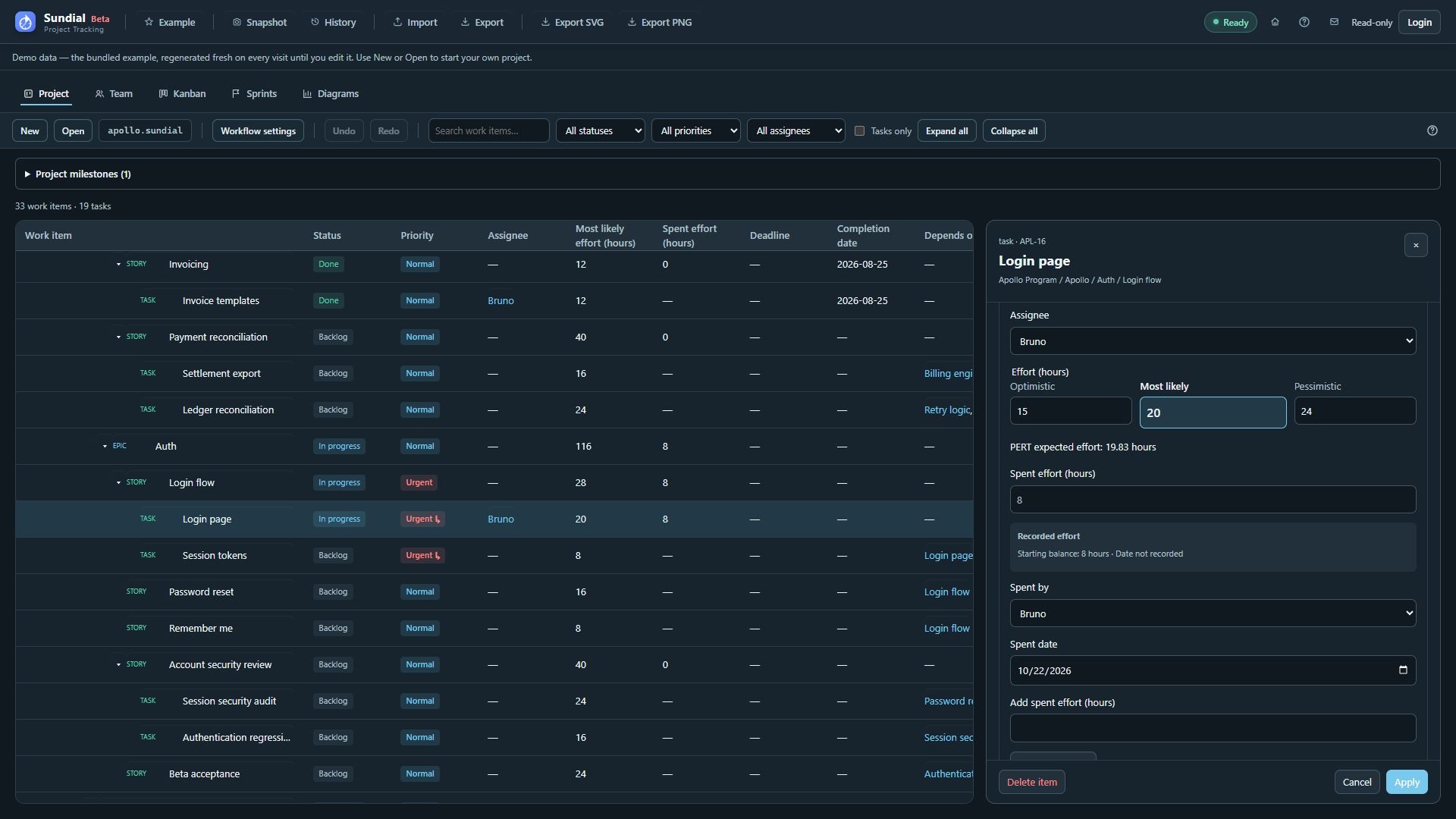
Figure 5. Schedule tab with optimistic, most likely, and pessimistic effort inputs and the PERT expected total.
- Click the task's name in the table or open its card from Kanban.
- Edit Name, Status, and Priority above the tabs. Status choices include the current state and its allowed next states; priority can be explicit or inherited. Container status is derived from children.
- Open the Description tab to write Description and Acceptance criteria. Use the description for context, requirements, and implementation notes. Use acceptance criteria to describe the observable conditions for calling the work complete. Both accept Markdown. Use Preview to check the formatted result and Edit to return to the text. Raw HTML shows as plain text and never runs.
- Open the Schedule tab for the planning fields: Deadline, start and completion dates, Sprint, Issue link, Assignee, Most likely effort (hours), recorded effort, dependencies, skills, and Parent work item. Set Most likely effort (hours) to the total estimate. With no separate bounds, a 24-hour task with 16 hours spent has eight hours remaining.
- Click Apply. If validation fails, correct the highlighted errors and apply again. A failed Apply opens the tab containing the first error. Wait for the forecast to refresh.
Cancel discards the current draft. Switching tabs never discards it. Undo reverses a committed edit; cancelling a form after an earlier Apply does not undo it. If Project or Team changed underneath the draft, use Reload draft and review the newer model before entering changes again.
The Audit tab, after Schedule, shows committed changes to this work item, most recent first. Each action shows who made it, the editor's local date and time with its UTC offset, and the previous and new field values. Search the history by person, field, or value. Unsaved drafts and rejected edits do not appear. Undo and redo add new actions while preserving the earlier history. Existing projects start collecting history when auditing is enabled; older changes are not reconstructed.
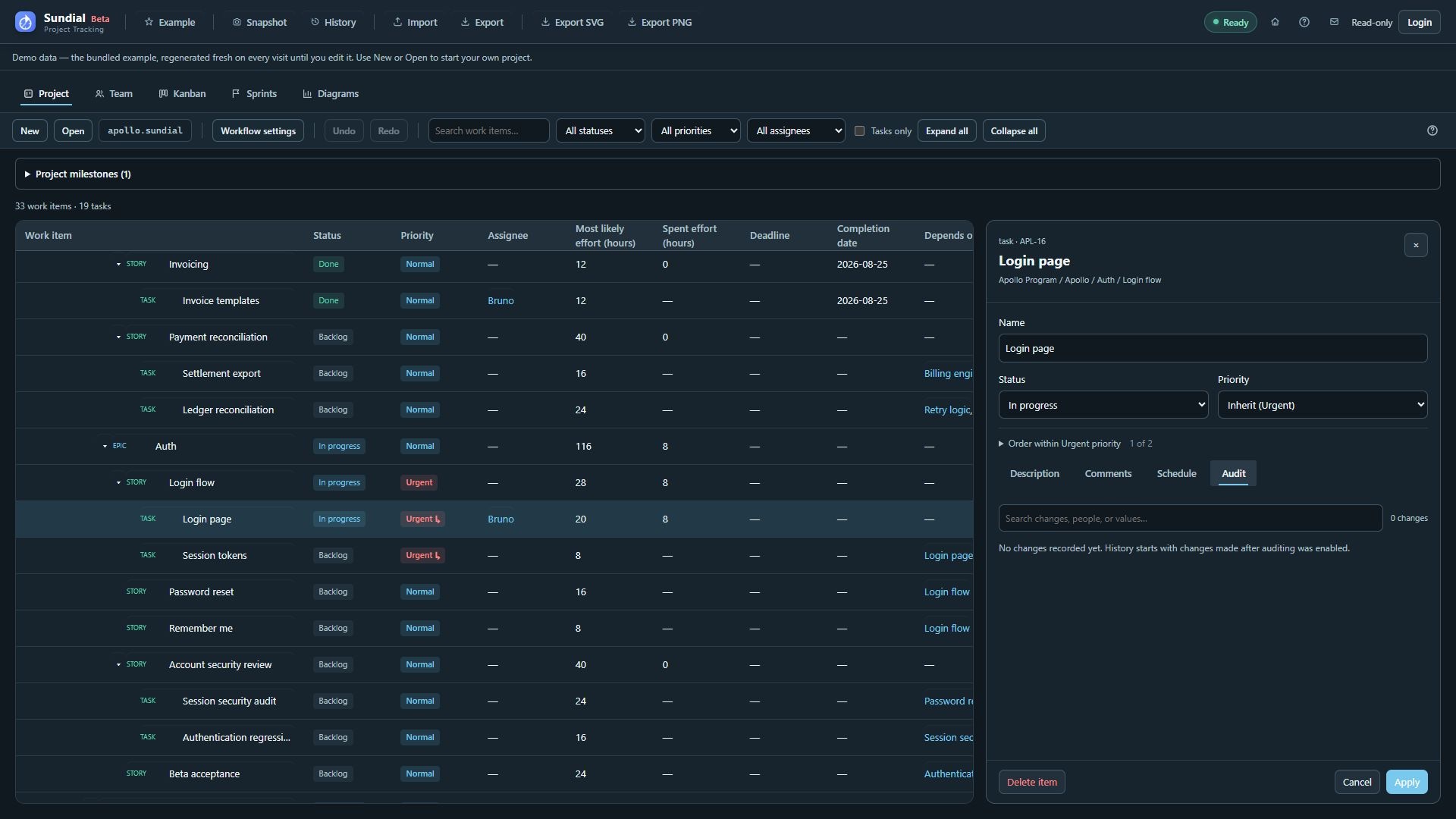
Figure 6. Work-item Audit tab with search and an empty-history notice on the fresh Example.
Descriptions and acceptance criteria are available for every work item type, including initiatives, epics, and the project itself. These fields are stored with the work item in the native project and are shared with people who open that folder. Acceptance criteria provide written guidance. Marking Done does not run tests or ask you to confirm an acceptance checklist.
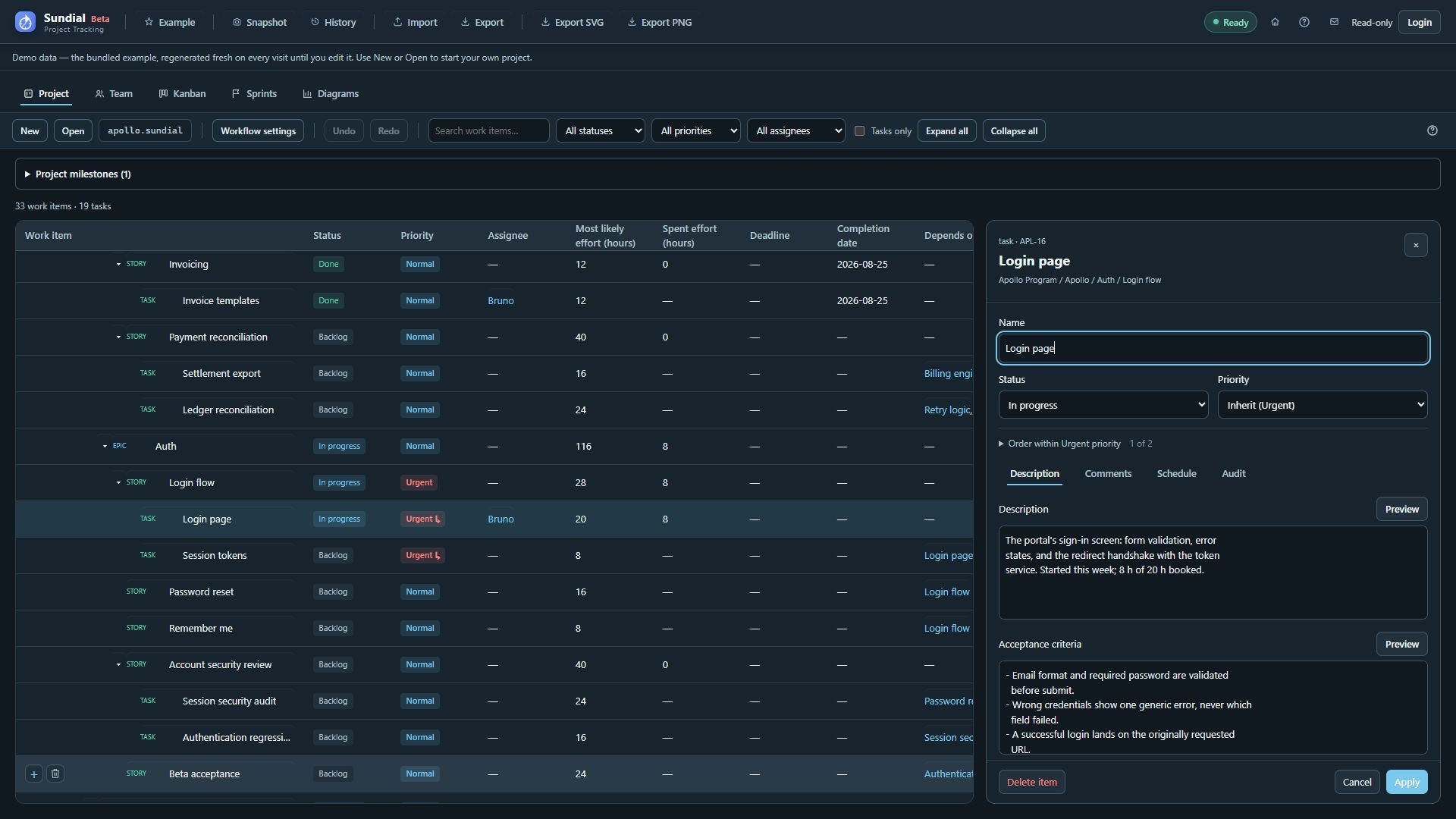
Figure 7. Login page Description and Acceptance criteria in the current work-item inspector.
Use the Comments tab to keep findings and decisions with the work item:
- Enter Markdown in New comment. Use Preview to check the result.
- Choose Add comment to append it to the current draft and clear the input.
- Repeat for further comments, then choose Apply to persist them. Text left in New comment must be added or cleared before Apply succeeds.
- Choose Cancel to discard unapplied additions.
Comments appear oldest first with their creation time. Sundial stores a UTC timestamp and displays an explicit local date and time. Comments are append-only; there are no author fields, mentions, edit controls, or delete controls. They do not change status, scheduling, or acceptance criteria. Concurrent additions merge without replacing each other. Undo can reverse an addition, and Redo restores it. Comments are retained in native storage, recovery, reporting snapshots, and current-project exports.
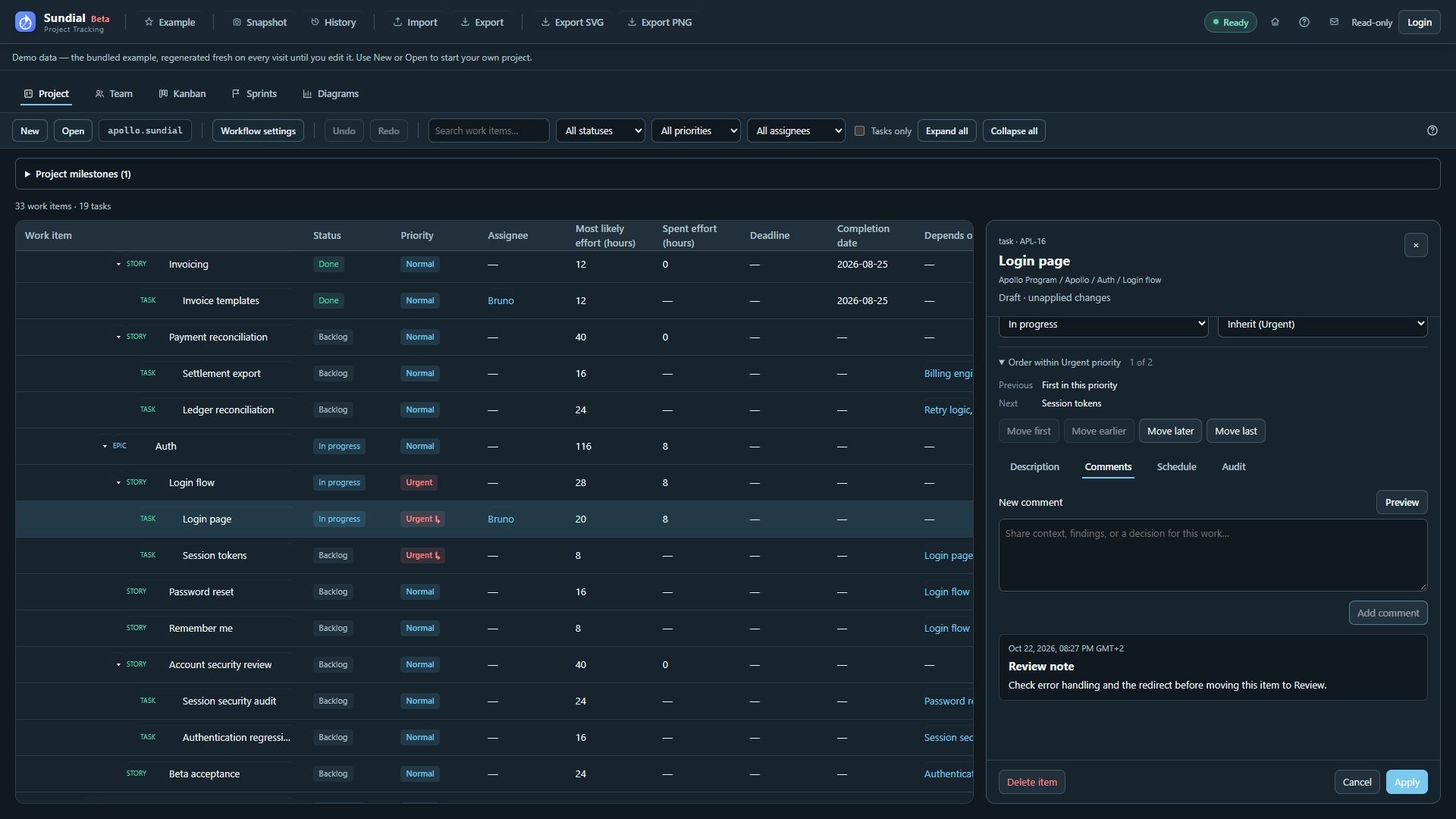
Figure 8. An unapplied Markdown comment in the work-item Comments tab; the demonstration draft was discarded.
Record effort and status
Spent effort (hours) is an aggregate display. Recorded effort can show an existing starting balance as well as dated entries. To record new work, choose Spent by, set Spent date, enter Add spent effort (hours), choose Add spent entry, then Apply the form. The date and developer identify the entry for later review. These entries are separate from Work tracker's simulated allocations.
Moving an item into a state in the Done category sets its completion date automatically. Leaving the Backlog category can set a missing start date automatically. Handoffs between detailed states in the same category preserve lifecycle dates. Done is terminal: normal editing cannot reopen completed work. Use Undo to reverse a mistaken completion while that edit remains in undo history. Review the dates when updating historical work. If a completion requires moving the reporting start forward, review the proposed reporting-date adjustment before applying. Completion and Undo retain recorded effort history.
Parent status summarizes the descendants. An ordinary Blocked state leaves the work unfinished and prevents future allocation to that item. A canceled state has a separate terminal outcome; its consequences are described in the workflow guide. Check dependencies before relying on downstream delivery dates.
Dependencies, dates, and constraints
Under Assignment and effort, enter Optimistic, Most likely, and Pessimistic total effort in hours. Missing bounds default to the most likely estimate. The ordinary forecast uses PERT expected effort: (optimistic + 4 × most likely + pessimistic) / 6. For the new Example's Login page, 15, 20, and 24 hours give 19.83 expected hours; after 8 hours spent, the expected remainder is 11.83 hours. Monte Carlo samples the same declared bounds rather than treating the ordinary expected date as a percentile.
| Control or concept | Meaning |
|---|---|
| Depends on | Prerequisites that must finish before this work can start. Use + Add dependency and the picker; remove an incorrect prerequisite before applying. Ancestor prerequisites can constrain descendant work. |
| Start date | Earliest pickup date for unfinished work, or historical start for completed work. |
| Completion date | Historical completion, set automatically when marking Done. It is different from a forecast finish. |
| Deadline | Need-by date. Parent deadlines also constrain descendants; the earliest applicable deadline wins. |
| Required skills | Task requirements plus inherited parent requirements. Team skills determine scheduling eligibility. |
| Sprint | Membership independent of status. Choose a planned or active sprint for eligible work; canceled work cannot be newly assigned. |
The dependency picker excludes the item itself, its ancestors and descendants, and choices that would create a cycle. This includes deadlocks involving parent prerequisites and child completion. Apply checks dependencies again against the current project, so a stale picker cannot bypass validation.
An assignee pins work to a particular developer: only that developer contributes to the item during simulation. Unassigned leaf items that fit within two weeks of an average team member's working hours also stay with one developer, chosen at their first simulated pickup. The size threshold is the team's average baseline hours per day multiplied by ten working days; for an eight-hour team, that is 80 hours. It uses the full expected estimate and ignores speed, holidays, availability overrides, and assigned sprint dates. This simulated ownership does not change the saved assignee. Larger unassigned items can receive contributions from multiple eligible developers on the same day, even when their remaining effort falls below the threshold. Each developer uses their own available capacity and speed to reduce the item's shared remaining effort; the estimate remains total person-hours. Eligibility and allocation depend on skills, project access, dependencies, calendars, and each developer's concurrent-work limit.
For a large story that has not yet been refined, leave it unassigned if the forecast should allow several developers to contribute. The simulator assumes their contributions can be combined without a coordination penalty. If some work must happen sequentially, refine the story into child items with dependencies to represent those constraints. A missing estimate leaves the work unknown: it receives no invented finish date and cannot satisfy downstream dependencies. Parent delivery remains incomplete until every required child has a finish. Other estimated branches can still be forecast. Missing references, dependency cycles, and incompatible dates can prevent a valid run. Check that enough capacity is available before relying on the forecast.
The live forecast starts from the later of today's local date and the model's configured reporting start. A later authored start is respected, including one advanced when completing work. The effective reporting end is never earlier than that start. This live adjustment leaves the authored project unchanged. Reporting snapshots preserve the effective window used when captured, while older snapshots replay their saved windows. Standalone milestones are dated commitments that consume no work; simulation can continue beyond the reporting end to completion or its configured limit.
To maintain dated commitments, expand Project milestones above the table:
- Choose Add milestone, or Edit beside an existing milestone.
- Enter Milestone name and Milestone date. Names must be unique across the project's work, developers, and milestones.
- Choose Apply to commit and refresh the forecast, or Cancel to discard the draft.
- To remove a commitment, choose its Delete action and review the confirmation.
- Check its date reference in GANTT and the history views.
Milestones provide reference dates; they do not create effort, dependencies, or a scheduled task. Milestone edits use the same draft safeguards, automatic saving, and Undo/Redo as other project edits.
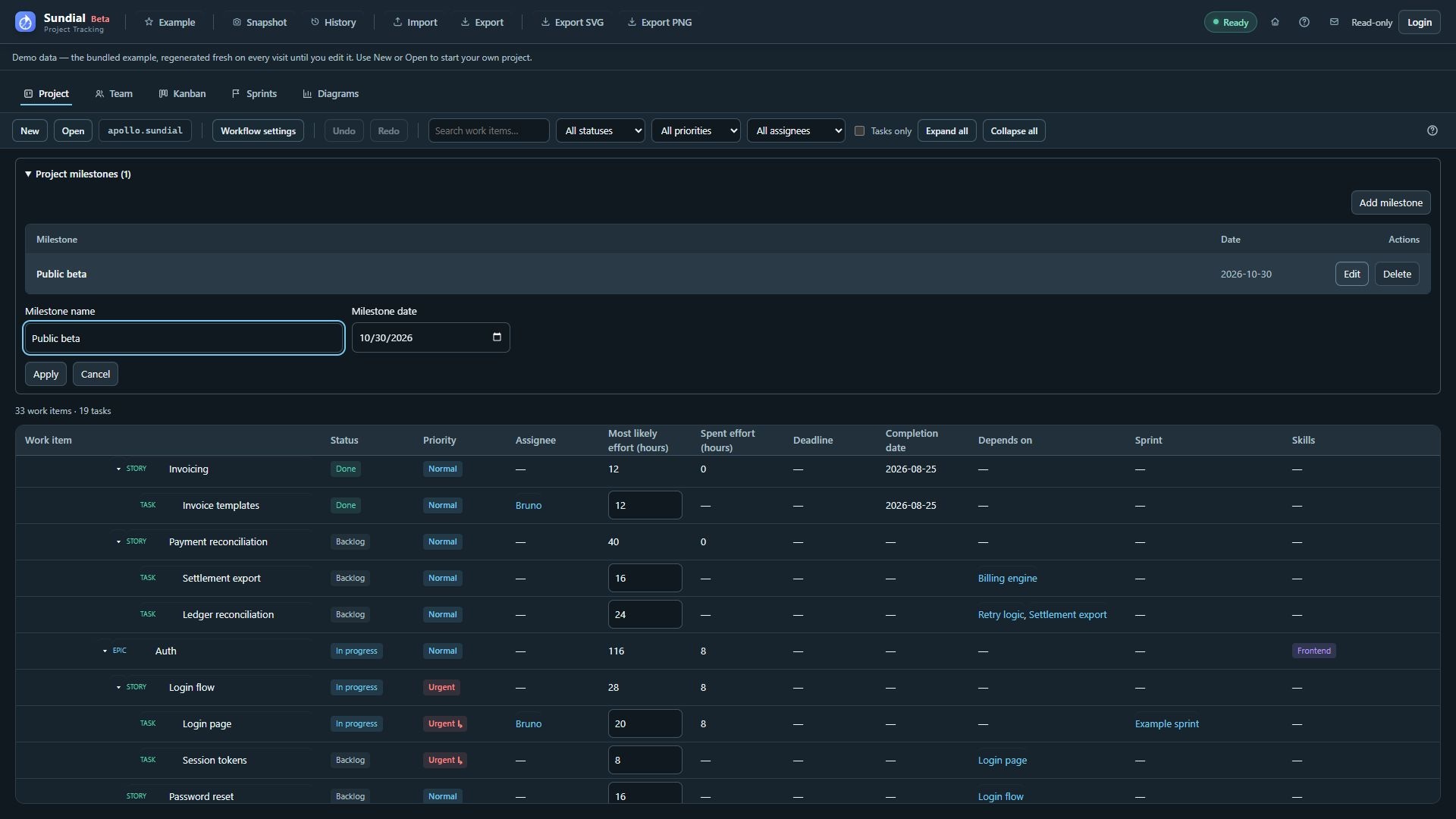
Figure 9. Public beta milestone name and date draft above the current Project table.
Follow links between work, people, and sprints
In the Project table, click an assignee to open that developer in Team, a dependency name to inspect the prerequisite, or a sprint name to open its planning screen. Each link opens the relevant record. Resolve any pending draft before leaving an editor.
Container editors list their Child work items. Search that list and click a child to inspect it, or use the available Add control to create the next level. Use this list to work through a branch without searching the full table.
Add, move, or delete work
- Hover a parent row and use its + control to add a child. Review the child type and enter its details.
- If adding a child converts an actionable leaf into a container, review the proposed transfer of its work and sprint assignment before confirming.
- To move an item, open its form, choose a different Parent work item, and Apply. The subtree moves together. The picker prevents selecting the item itself or one of its descendants.
- To delete, use the row's delete control or Delete item in the form and review the confirmation. Check the effect on descendants and dependencies.
- For a deleted task, expand Deleted tasks in Project and choose Restore beside its name. Review restored references and Issues before using the forecast.
Each native work item keeps its identity when you rename it or move it to another parent. Concurrent changes and history continue to refer to that identity. The displayed hierarchy path numbers help you navigate but are not permanent identifiers. Deleted tasks remain recoverable in native history; ordinary editing does not purge them.